
How to create a pick list
Build a pick list: name it, add a PO, WO or reference number, choose products and storage areas, set quantities, and save a template to reuse.
On this page Before you start
A pick list is a saved list of products, where to take them from, and how many. Use it for a customer order, a work order or a kit you prepare often.
Before you start
You need access to Pick Lists in the Warehouse menu. The products must already be in your catalog and stored in a storage area. Lists belong to the current location, shown under the Trakr Inventory logo.
Create a pick list
- In the side menu, open Warehouse and select Pick Lists. The Pick Lists page opens.
- Select the green Pick List button. The Pick List page opens.
- Type a Name, for example “Order #10482 - Kingston Fabrication”.
- Type a PO#/WO#/REF#. This is the purchase order, work order or reference the list belongs to. It is required.
- Optional: turn on Save as template if you will reuse this list.
- Select the Product field and search by name. Each result shows the storage area first, then the product, for example “Aisle 2 -> Shelf B-02 -> Bin B-02-2 -> Ball Bearing 6205-2RS”. Select the one you want.
- The product is added to the table with its SKU, Name, Storage and current On Hand. Type how many you need in Requested.
- Repeat from step 6 for each line. To remove a line, select Delete on its row.
- Select Save.
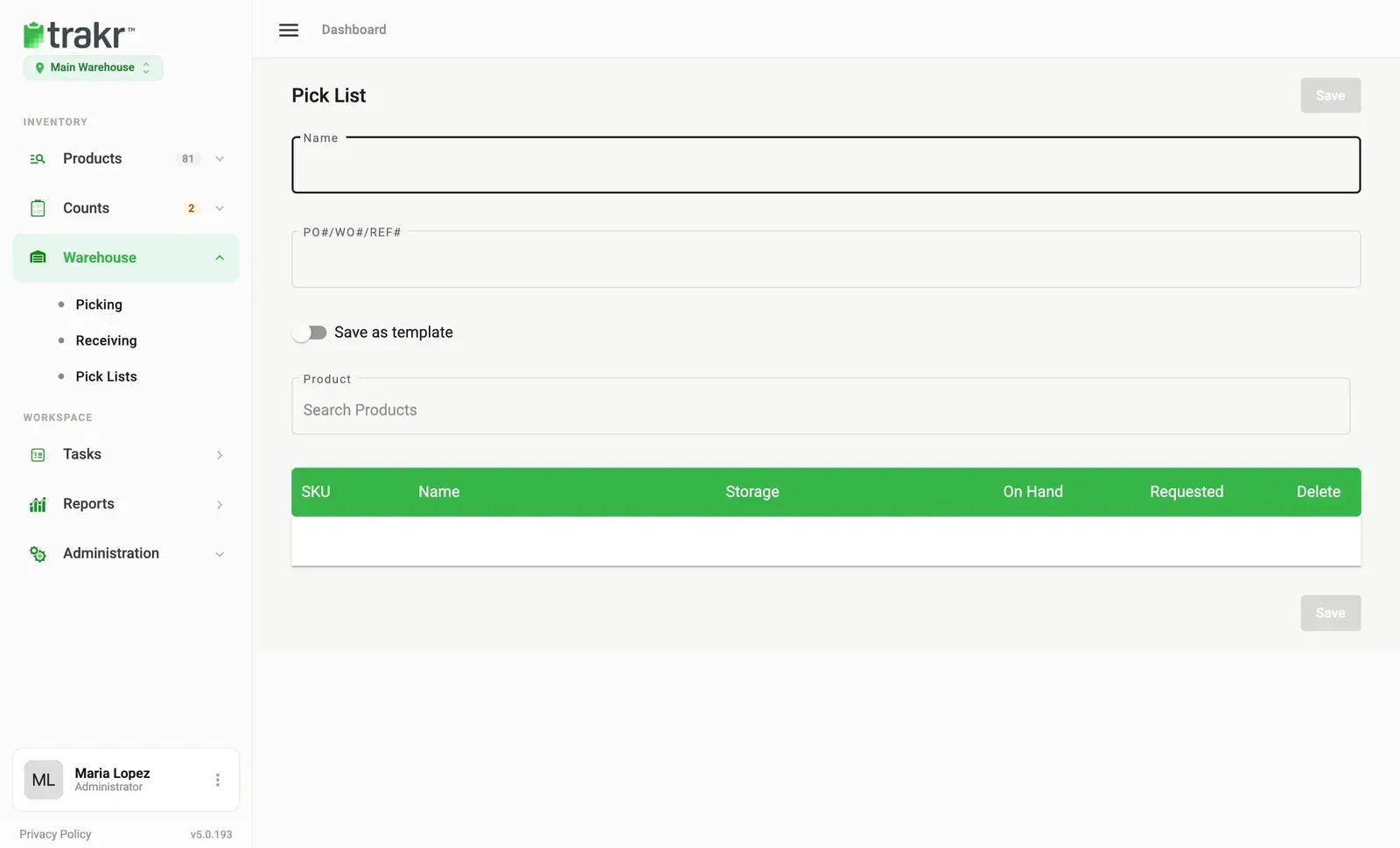
- 3Name
- 4PO#/WO#/REF#
- 5Save as template
- 6Product
- 9Save
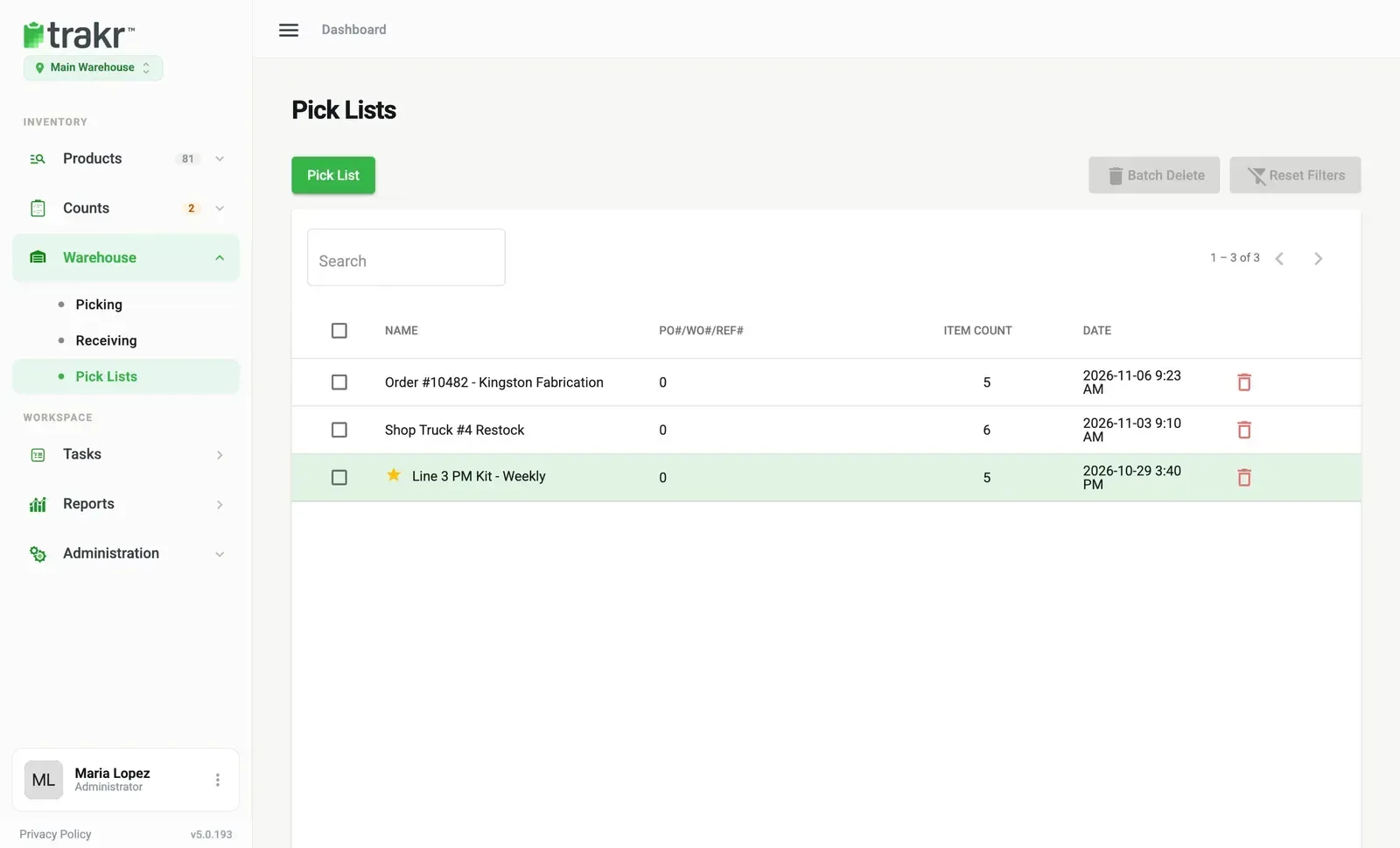
Trakr shows a message that the list has been created. Open Pick Lists from the menu and you will find it there, with its Item Count and Date.
Good to know
- A pick list does not touch your stock. On-hand only changes when products are actually picked. See Record products picked.
- The On Hand column shows the stock for that storage area, so you can see whether the shelf can cover the request.
Next
Your team picks from the list in the Trakr app. See Work a pick list on the phone.
Common questions
Why is Save greyed out?
Name and PO#/WO#/REF# are both required. Fill them in and Save turns on.
What does Save as template do?
It marks the list as a template, for something you prepare again and again, like a weekly kit. Templates show a yellow star in the Pick Lists list.
Does a pick list take stock out?
No. A pick list only records what should be picked. Stock moves when the items are actually picked.
Can the same product appear twice?
Yes, if it sits in two storage areas. Each product and storage area pair can be added once per list.
Related articles
Was this article helpful?
Thanks, that helps us keep the guides honest. Need more help? Contact us