
How to receive a delivery
Record stock that just arrived: pick the product and storage area, enter the quantity, add PO and invoice numbers, and on-hand updates instantly.
On this page Before you start
When a delivery arrives, receive it in Trakr Inventory so on-hand quantities are right and the PO and invoice numbers are saved with the entry. Receiving one product takes about 30 seconds.
Before you start
- The product must exist in your catalog. If it does not, see Add a product.
- The product needs a storage area at the current location. Check the location name under the Trakr logo, for example Main Warehouse.
- You need access to Receiving. If you do not see it in the menu, see Why can’t I see Picking or Receiving?.
Receive a product
- In the side menu, open Warehouse and select Receiving. The Received Products page opens.
- Select the green Receive button. A dialog titled Receive opens.
- Select the Product field and start typing a name, for example “Ball Bearing”. Choose the product from the list.
- In Product Storage, choose where the stock goes, for example Aisle 2 > Shelf B-02 > Bin B-02-2.
- Enter the Quantity, for example 48.
- Optional: fill in Invoice Number and PO Number from your paperwork. Add a Note if something is worth remembering, such as “Two boxes dented”.
- Select Receive.
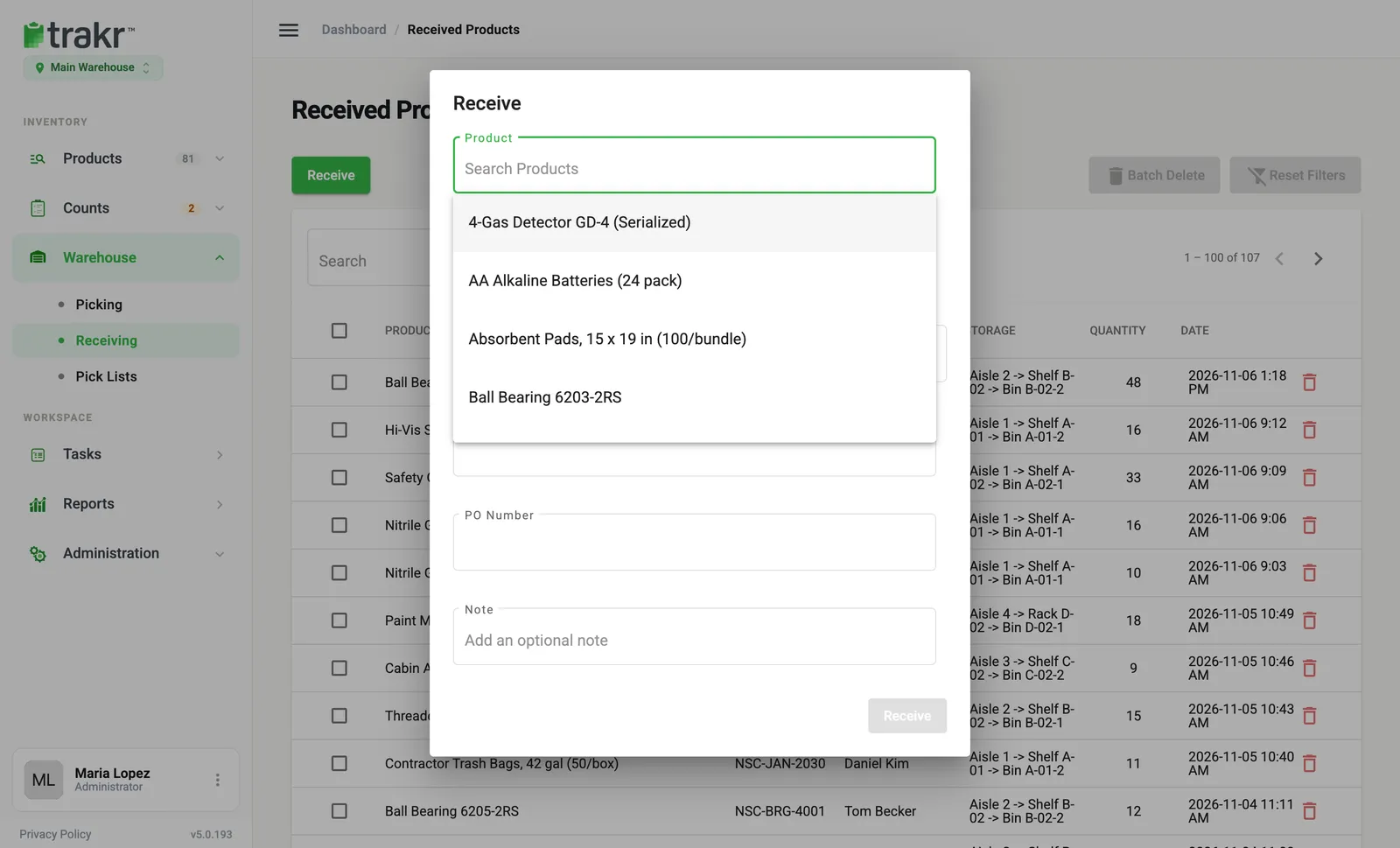
- 3Product
- 7Receive
The dialog closes and a message confirms the product has been received. The new entry sits at the top of Received Products with your name, the storage area, the quantity and the time. The product’s Total On-Hand goes up by the same amount.
Good to know
- Receiving adds to what is already in that storage area. It does not replace the count.
- If a product is serialized, the dialog asks for serial numbers instead of one quantity. See Serial numbers.
- A PO number does not create or check a purchase order. It is a reference saved with the entry, nothing more.
- The Received Products list shows Product, SKU, User, Storage, Quantity and Date. Invoice, PO and Note are saved with the entry but are not columns in this list.
Next
Only part of the order arrived? See Receive a short delivery.
Common questions
Why is the Receive button greyed out?
Product, Product Storage and Quantity are all required. Fill in all three and the button turns on.
Can I type a decimal quantity?
No. Quantity takes whole numbers only.
I received the wrong product. How do I fix it?
Tick the row in Received Products and use Batch Delete, or select the red bin icon on the row. The quantity is taken back out of on-hand. Then receive it again correctly.
Can I receive an asset?
No. Assets are checked out and returned instead. Trakr will tell you if you try to receive one.
Related articles
Was this article helpful?
Thanks, that helps us keep the guides honest. Need more help? Contact us