
How to add a product
Create a new product in Trakr with a name, SKU and barcode, or bring an existing company product into the location you are working in.
On this page Choose how to add it
Every item you want to count, receive or pick starts as a product. This article shows you how to create one, and how to add a product that already exists elsewhere in your company.
Choose how to add it
- Go to Products > Product Catalog.
- Click Add Product (top right). A chooser opens with two options.
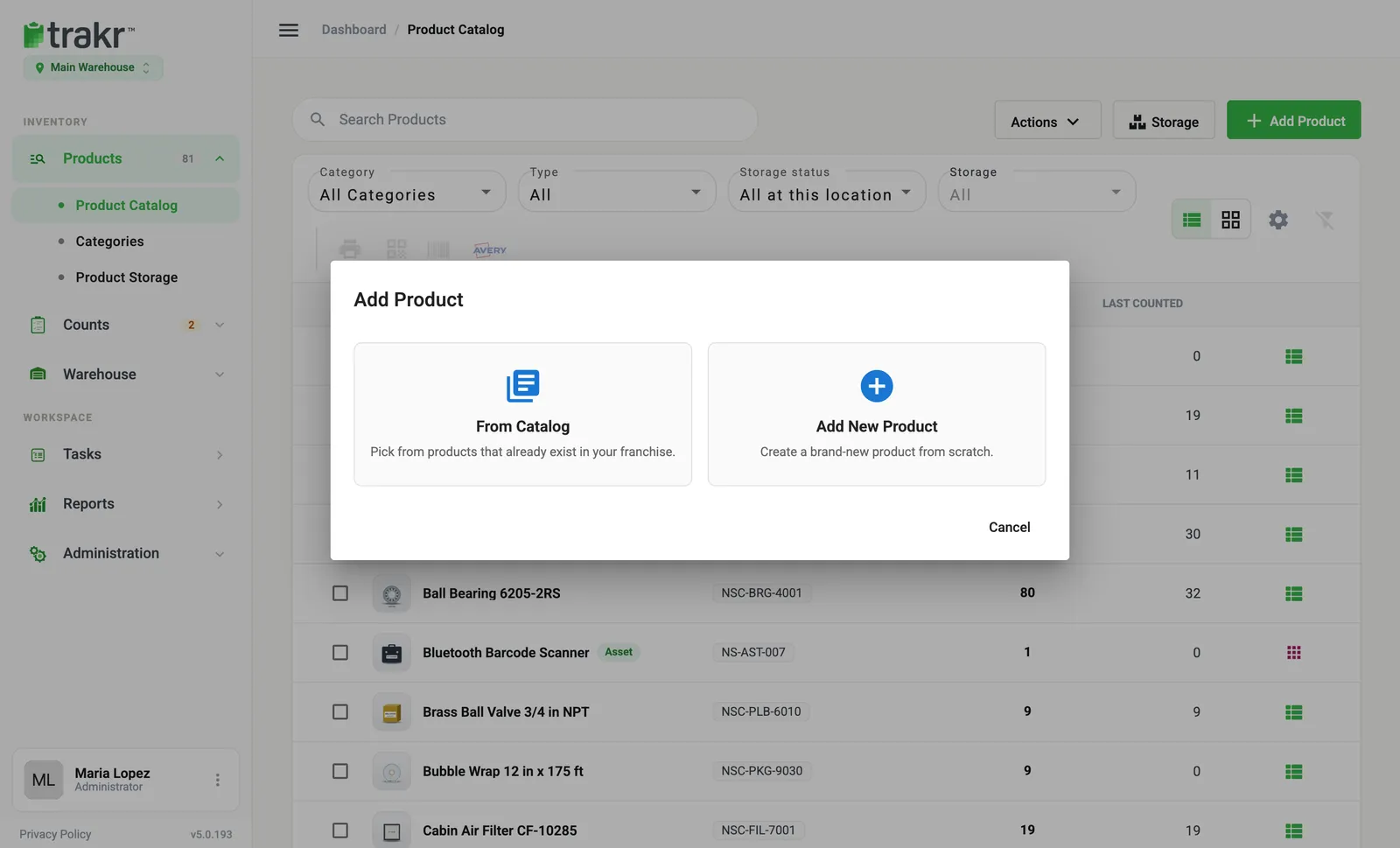
- 1From Catalog
- 2Add New Product
- From Catalog (1): pick products that already exist in your company and add them to this location. Use this for a multi-location company.
- Add New Product (2): create a brand-new product from scratch.
Add a brand-new product
- Click Add New Product. The Add Product form opens.
- Type the Product Name. Required.
- Type the SKU. Required, up to 18 characters, and unique.
- Optional: type a barcode in Barcodes and press Enter. See Barcodes.
- Optional: add Tags, a Product Description, a Category, a Brand and a UOM (unit of measure, for example “PK” or “Pair”).
- Under Product Storage, click View/Add Storage to choose where it is kept.
- Check Count Type Methods at the bottom. It starts as Each, quantity 1. Change it if you count in packs, for example “PK” with a quantity of 24. You can also set the minimum levels here. See Set minimum levels.
- Click Add Product.
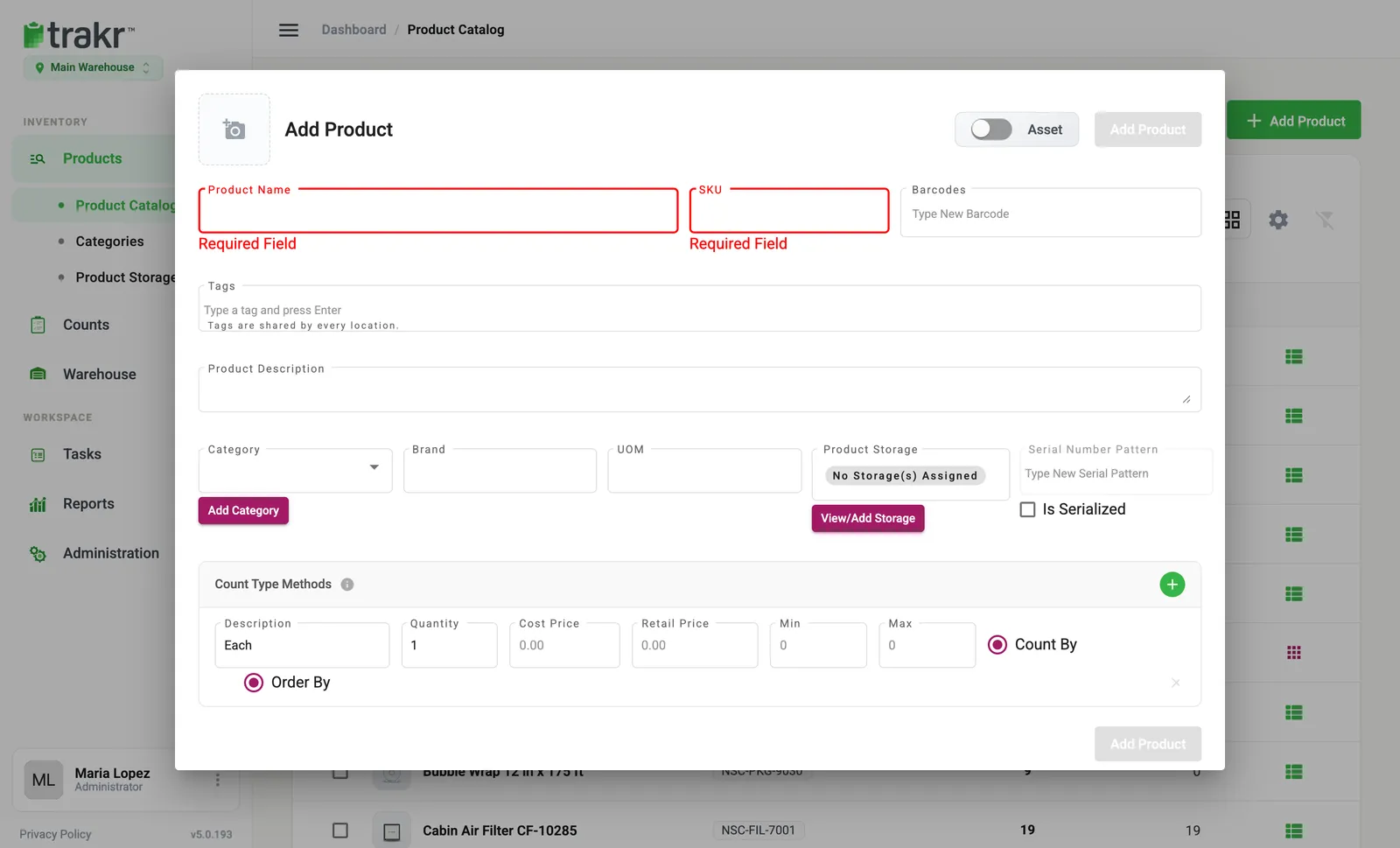
- 1Product Name
- 2SKU
- 3Barcodes
- 4Category
- 5Add Product
The Add Product button stays grey until the required fields are filled in. A red “Required Field” message shows what is missing.
To add a photo, click the camera tile at the top left of the form. See Product photos.
Add a product from the company catalog
- Click Add Product, then From Catalog. The Browse Catalog window opens.
- Search, then tick the products you want.
- Optional: click Choose a storage (optional). Without one, products are added to the location with no storage.
- Click Add to this location.
Good to know
- Add Category under the Category box lets you create a category without leaving the form. See Categories.
- A product saved without a storage can be counted or received only after you assign a storage to it. Trakr Inventory asks you to confirm before saving without one.
- The Asset switch (top of the form) appears only if the Asset Module is on. Assets are checked out and returned instead of picked.
Common questions
What do I have to fill in?
Only Product Name and SKU are required. Everything else can be added later.
I get a message that my SKU already exists. What now?
SKUs are unique. If the SKU belongs to a product that is not at this location yet, Trakr offers to add that product here. If it already exists here, use a different SKU or open the existing product.
Does adding a product put stock on hand?
No. A new product starts at zero. Stock arrives by receiving it, counting it, or adjusting the quantity.
Is there a limit on how long a SKU can be?
Yes, 18 characters.
Related articles
Was this article helpful?
Thanks, that helps us keep the guides honest. Need more help? Contact us