
How to find a product in your catalog
Search the Product Catalog by name, SKU or barcode, narrow the list with filters, and choose which columns you see so you find any product fast.
On this page Open the catalog
The Product Catalog is the list of everything you stock at the active location. This article shows you how to find any product quickly, and how to make the list show what matters to you.
Open the catalog
Click Products > Product Catalog in the side menu. The list shows the products at the location named under the Trakr Inventory logo (for example Main Warehouse). To look at another location, switch it first.
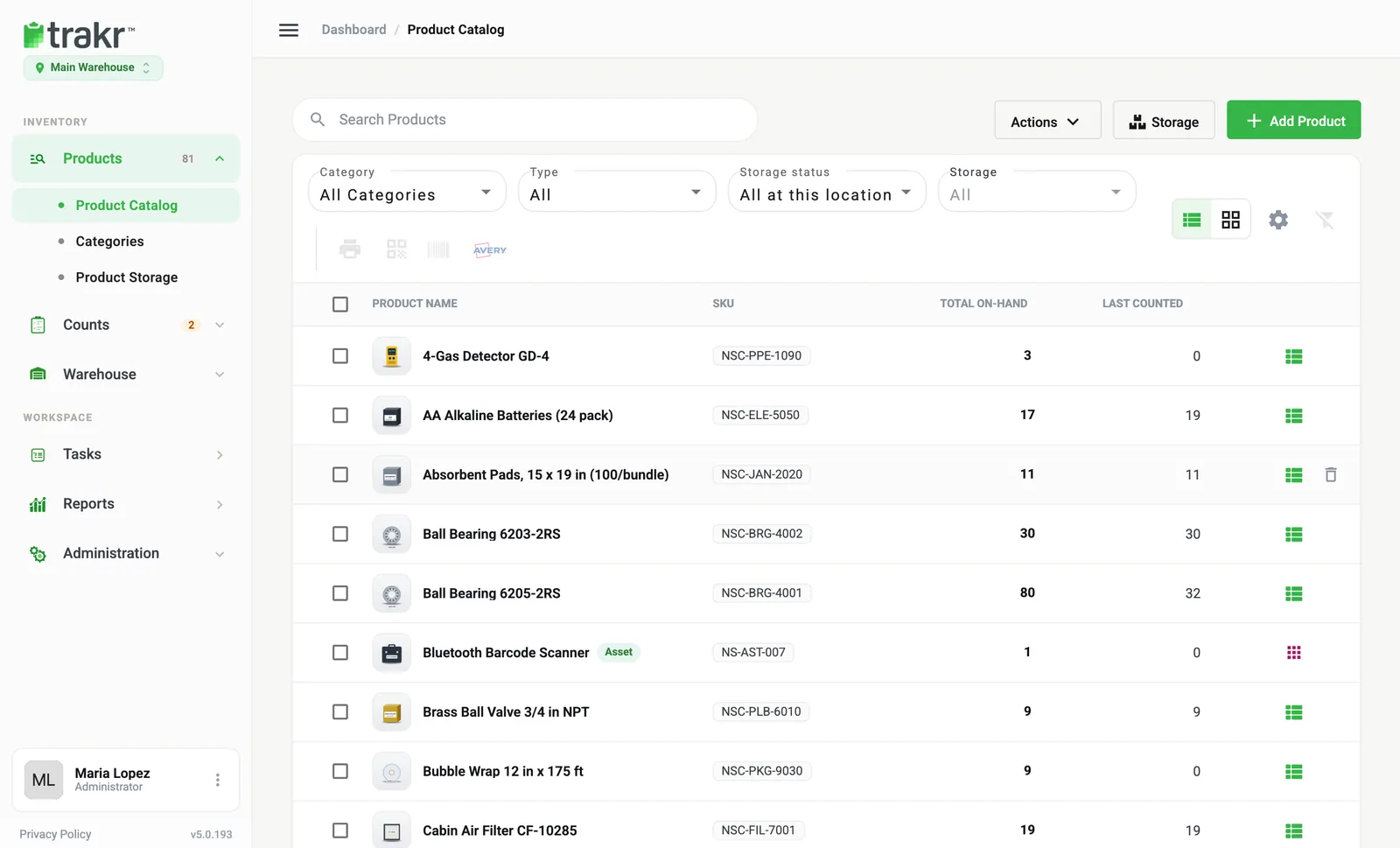
- 1Search Products
- 2Category filter
- 3Storage status filter
- 4Column settings
Search
- Click the Search Products box (1) and type at least three characters.
- The list narrows as you type.
Trakr looks in the product name, SKU, barcode, description, tags and your custom fields. So “bearing”, “NSC-BRG-4001” or a scanned barcode all work.
To clear the search, click the x at the end of the box.
Filter the list
Filters sit under the search box and combine with each other and with your search.
- Category (2): pick one category, or All Categories.
- Type: All, Assets only or Products only. This filter appears only when the Asset Module is on.
- Storage status (3): All at this location, In a storage, or Not in a storage. “Not in a storage” is a handy way to find products that still need a shelf or bin.
- Storage: click it to pick a specific storage place.
Click the filter icon with the slash (far right) to reset everything.
Choose how the list looks
- Use the two buttons next to the gear to switch between the List View and a card Grid. On a phone the grid is always used.
- Click the gear (4) to open Manage Columns. Tick the columns you want, such as Product Description, Barcodes, SKU, Total On-Hand and Last Counted. Select All shows every column.
Open or select products
- Click a product to open it. See How to edit a product.
- Tick the box at the start of a row to select it. A dark bar appears at the bottom with actions for the selected products, such as Category, Copy (one product only), Batch Delete and, if your account has them, Bulk Storage Add, Pick, Receive, Move and Picklist.
Good to know
Total On-Hand is the quantity in the active location only. Last Counted shows the quantity from the most recent count.
Common questions
Why does the search say it needs 3 characters?
The search starts once you type three characters or more. One or two letters would match almost everything, so Trakr waits.
I searched for a product I know exists and nothing came up. Why?
Each location has its own product list. If the product exists at another location of your company, Trakr shows a message under the filters with an Add to this location button.
Do my column choices affect other people?
No. The columns you show are remembered in your own browser for your own sign-in.
Related articles
Was this article helpful?
Thanks, that helps us keep the guides honest. Need more help? Contact us