
How to add product photos
Add up to five photos to a product, choose the cover photo that shows in your lists, and replace or remove photos at any time.
On this page Add a photo to a new product
A clear photo makes a product easy to spot in a long list, and easier to pick correctly. This article shows you how to add, reorder and remove product photos.
Add a photo to a new product
- Click Add Product, then Add New Product.
- Click the camera tile at the top left of the form, or drag an image onto it.
- Pick a JPEG, PNG, GIF or WebP image.
- Finish the form and click Add Product. The photo is saved together with the product.
A new product takes one photo. If you pick more, Trakr Inventory tells you which ones were not added. You can add more once the product exists.
Add photos to an existing product
- Open the product from Products > Product Catalog.
- Click the large photo frame, or drag images onto it.
- To add more, click the + tile in the row of small thumbnails next to it. The tile shows how many you have, for example 1/5.
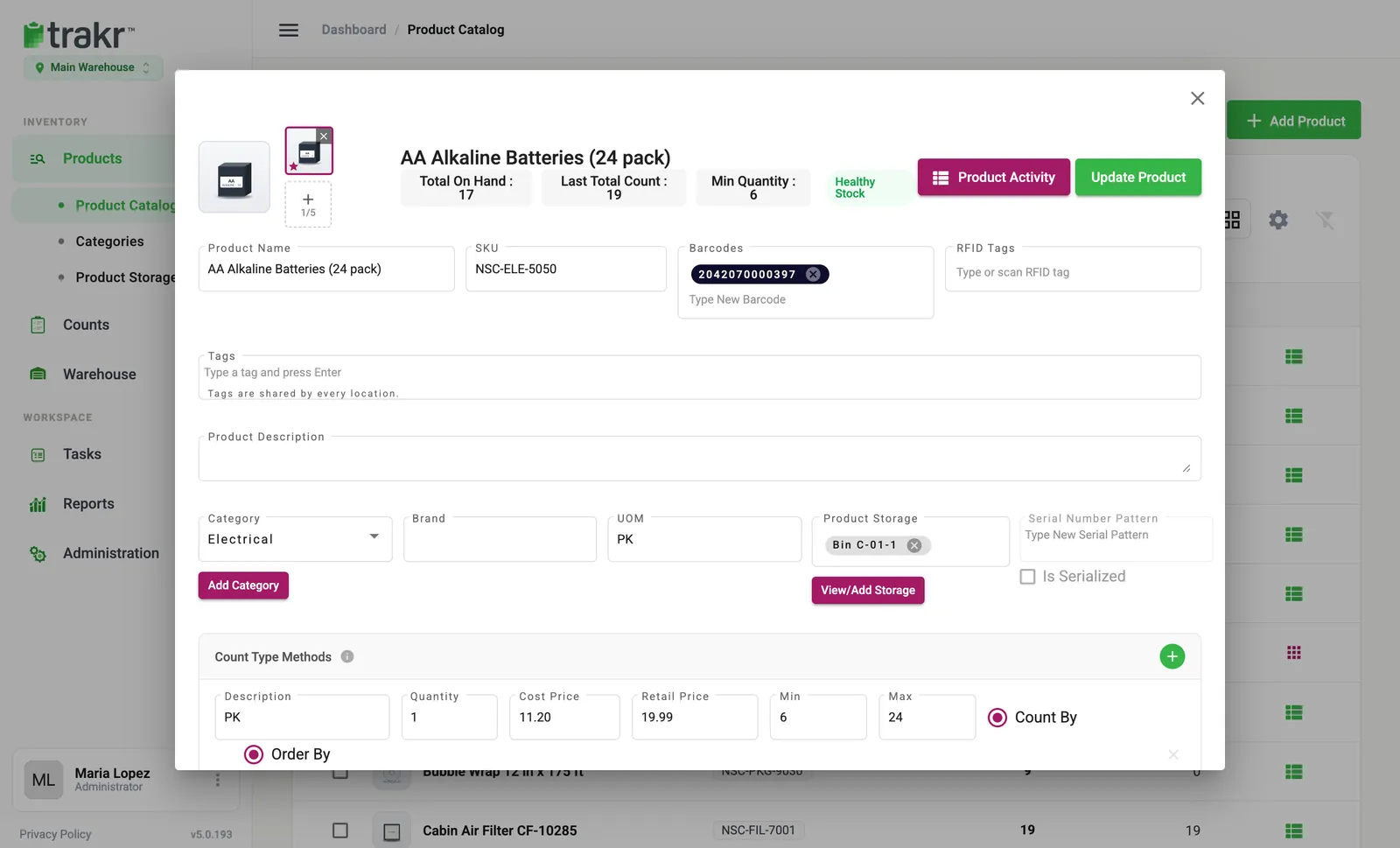
- 1Cover thumbnail
- 2Add another photo
Photos upload as soon as you choose them. A small spinner shows while the upload is running.
Choose the cover photo
The cover photo is the one shown in every product list. A star marks it.
- Open the product.
- Click another thumbnail. It becomes the cover.
Replace or remove a photo
- To remove a photo, click the x on its thumbnail or on the large frame.
- To replace the cover, click the large frame and choose a new image.
If a photo will not upload
Trakr shows a message at the bottom of the screen. “The photo is too large to upload” means you should try a smaller file (the limit is 10 MB). “This file type is not supported” means the image is not a JPEG, PNG, GIF or WebP. Save it in one of those formats and try again.
Common questions
Which image types can I use?
JPEG, PNG, GIF and WebP. Other file types are skipped and Trakr tells you which ones.
My photo will not upload. What should I do?
The most common reason is file size. Photos can be up to 10 MB each. Try a smaller photo or lower the resolution, then upload again.
How many photos can one product have?
Up to five. Remove one if you want to add another.
Where do the photos show up?
The cover photo appears next to the product in the Product Catalog and in the product window.
Related articles
Was this article helpful?
Thanks, that helps us keep the guides honest. Need more help? Contact us