
New88 Guides for Using Trakr Inventory
How can we help?
Step-by-step guides with real screenshots, written for the people who count, receive and pick every day.
Browse by topic
Everything, organized by the job you’re doing
- 8 guidesGetting startedLearn how Trakr fits together and get set up in your first day.Browse
- 10 guidesProductsAdd, import, organize and find the items you track.Browse
- 5 guidesLocations and storageSet up your sites, areas and shelves so stock has a home.Browse
- 8 guidesCountingStart, run and finish a count, then review what changed.Browse
- 7 guidesReceiving and pickingRecord what comes in and what goes out, with a clear trail.Browse
- 5 guidesTasksHand out work to your team and follow it through.Browse
- 10 guidesReportsSee stock levels, variances and what to reorder, and export them.Browse
- 6 guidesUsers and rolesInvite your team and decide who can see and do what.Browse
- 9 guidesSettings and integrationsTune the web app to your business and connect other tools.Browse
- 5 guidesAssets and equipmentTrack tools and equipment, who has them and when they come back.Browse
- 5 guidesAccount and billingManage your plan, payment details and profile.Browse
- 10 guidesTroubleshootingFix common problems quickly, or find out who to ask.Browse
Start here
Set up Trakr in 30 minutes
Five steps from an empty account to your first finalized count. Tick them off as you go.
0 of 5 done≈ 30 min
- Sign in and take the tourFind the side menu, your location and the dashboard.3 min
- Add your company basicsLogo, preferences and the settings your reports use.3 min
- Import your productsBring your catalog in from an Excel or CSV file.6 min
- Invite your teamAdd people and give each one the right role.4 min
- Run your first countCount in the app, review in the web app, then finalize.4 min
Popular
What other teams read most
Set up Trakr in 30 minutes: your first-day checklistGetting started6 minHow to add a productProducts5 minHow to import products from Excel or CSVProducts6 minHow to start a countCounting4 minHow to finalize a count (and what happens to your stock)Counting5 minHow to receive a deliveryReceiving and picking3 min
Watch it work
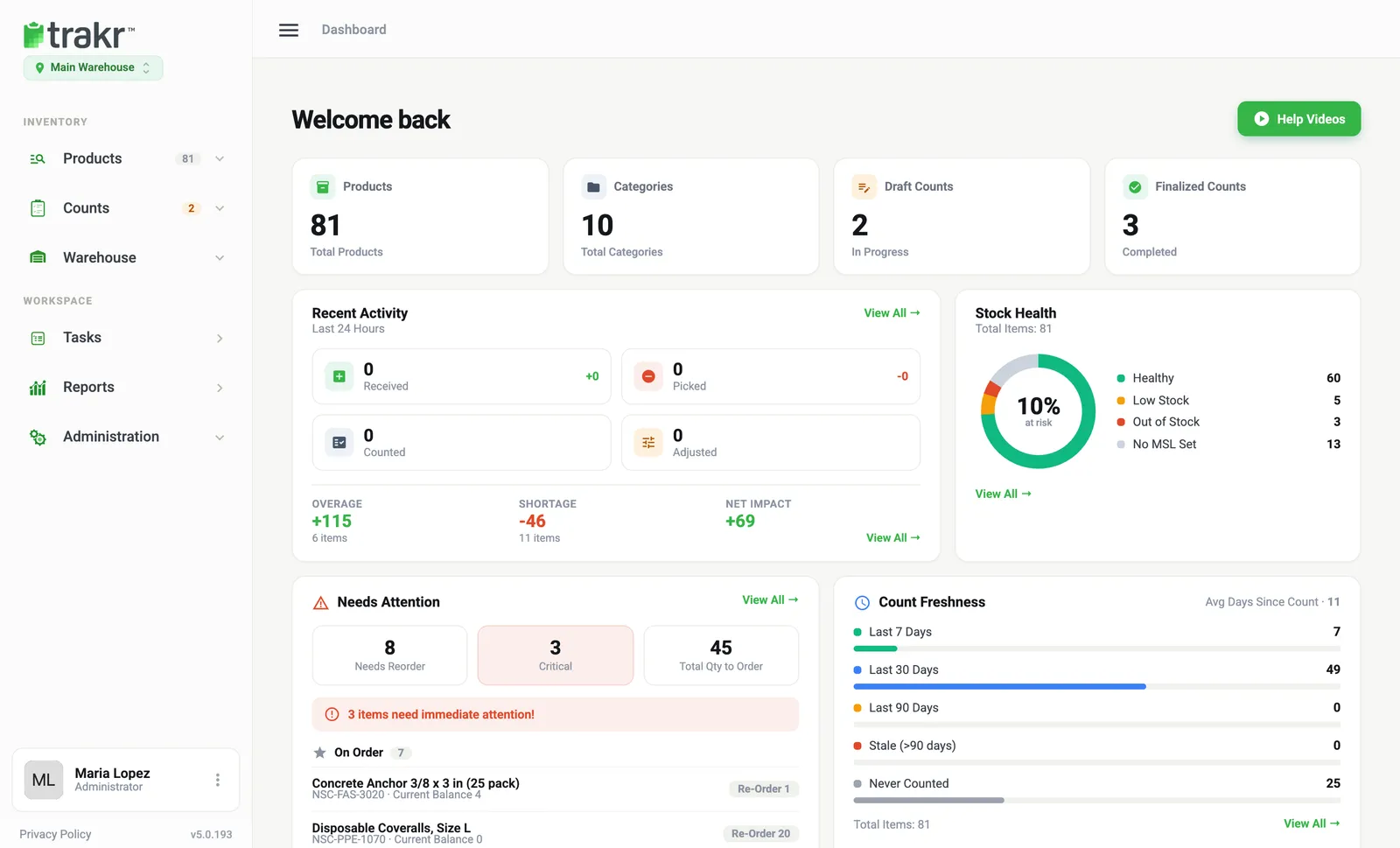
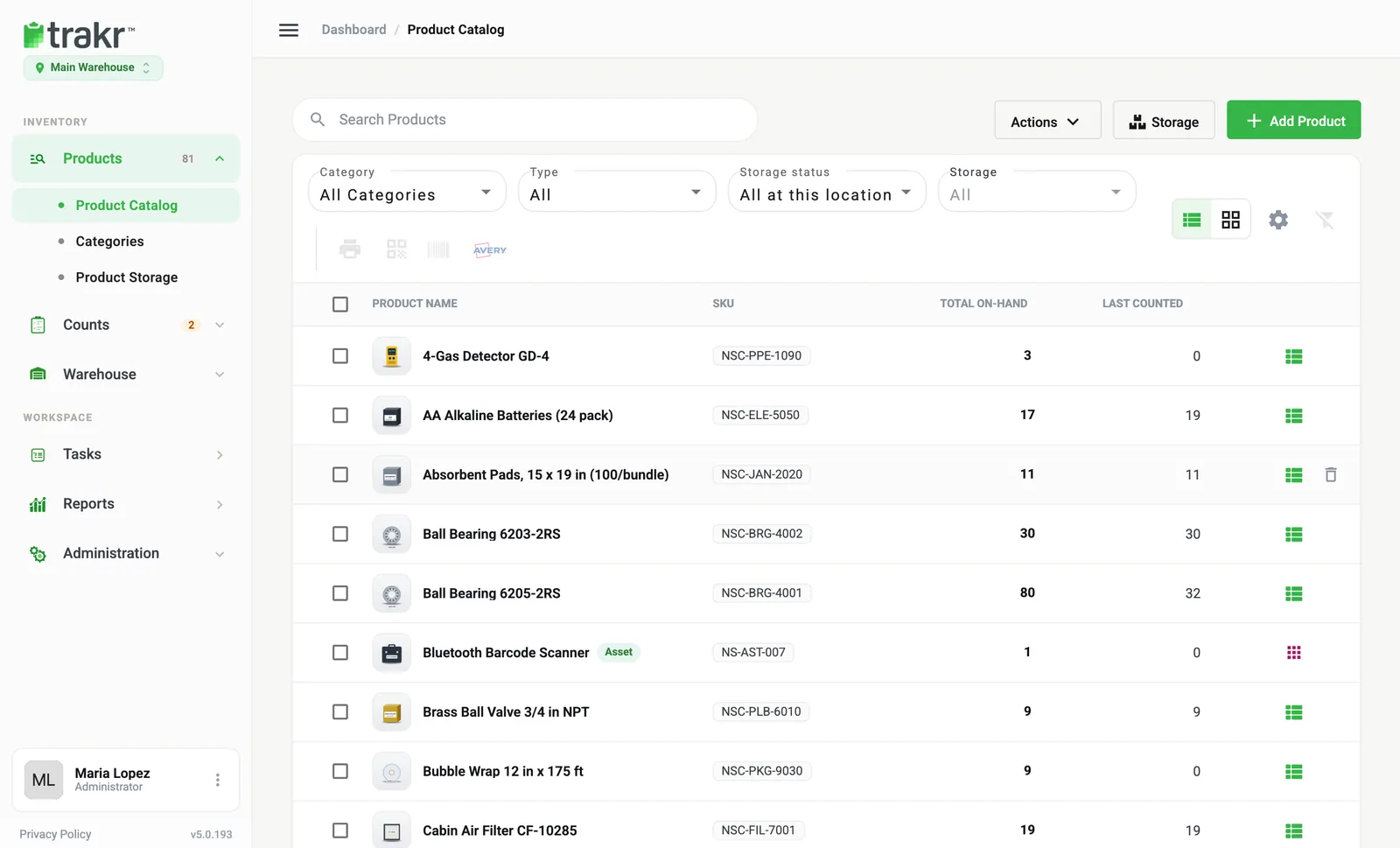
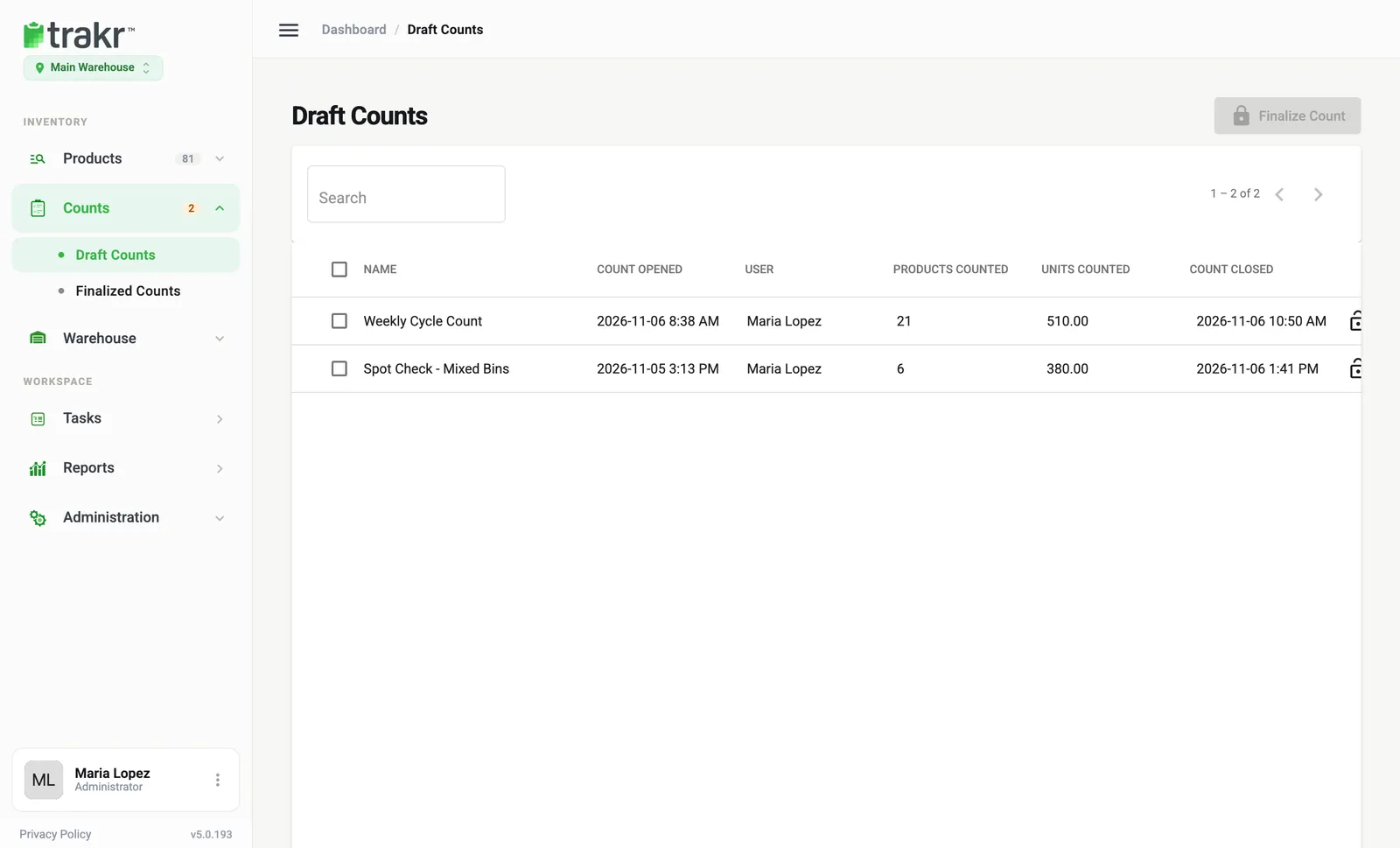
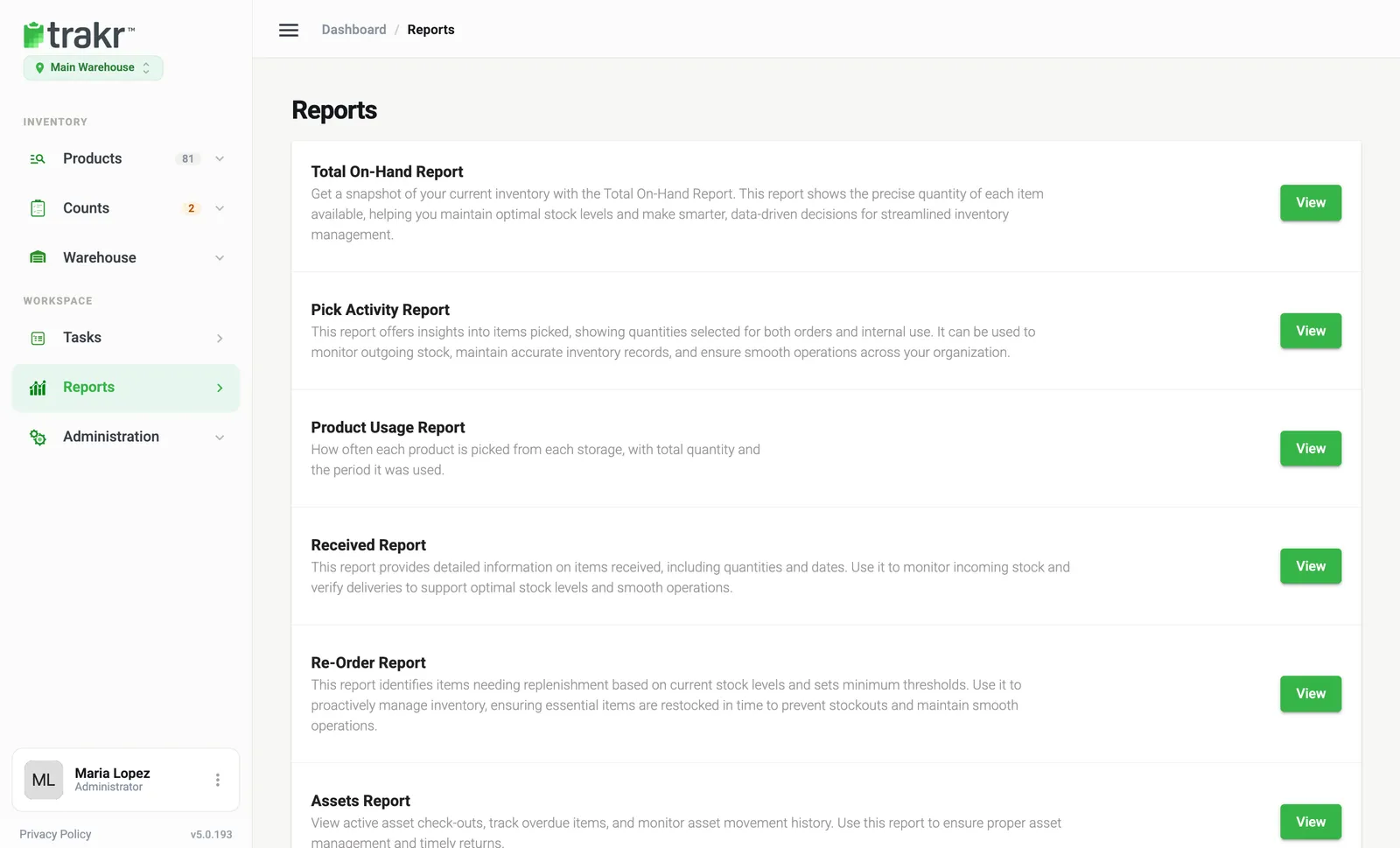
The web app, one screen at a time
Every guide uses screenshots from the real web app, so what you see here is what you’ll see on your own screen. Examples use a sample company, Northshore Supply Co.
Still stuck? A real person will help.
We answer within one business day. Include your company name and what you clicked, and we can usually fix it in one reply.
Reply within one business dayCanadian support team