
How to set your location name and report logo
Set up the basics in Settings: your location name and the logo printed on reports, plus where to find stock alerts and catalog options.
On this page Before you start
A clear location name and your own logo make reports look professional. It takes about two minutes.
Before you start
You need access to Administration > Settings. If you don’t see it, ask an admin.
Set your location name and report logo
- In the side menu, click Administration, then Settings.
- Find the Branding card.
- Edit Location Name. This is the name shown under the Trakr Inventory logo, for example Main Warehouse.
- Under Report Site Upload, click Choose File and pick your logo.
- Crop or rotate the image in the window that opens, then click Save Image.
- If you changed the name, click Save in the bar that appears at the bottom of the page.
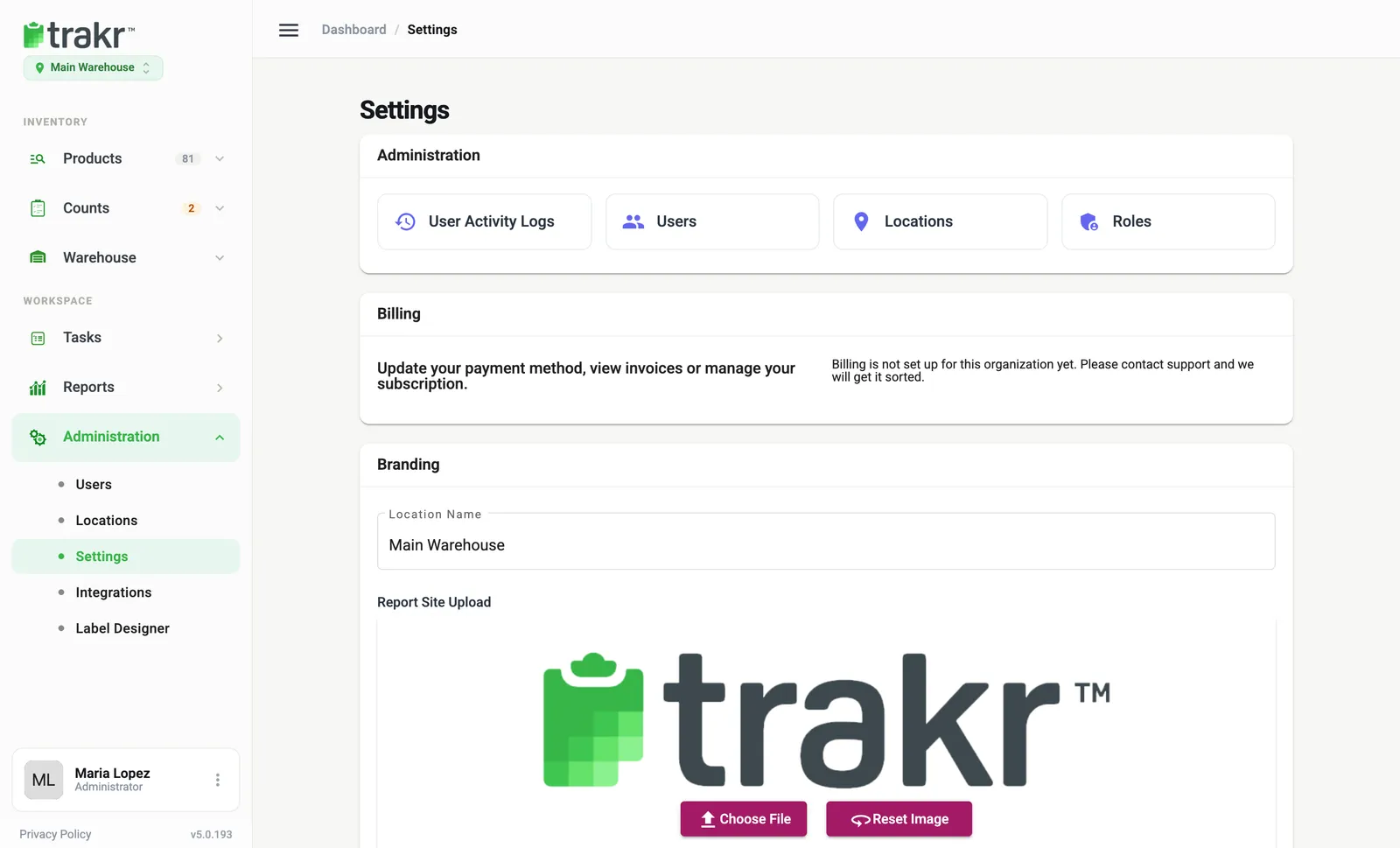
- 3Location Name
- 4Choose File
Your logo is used on reports you export. To remove it, click Reset Image to go back to the default.
Other settings worth a look
The same page has more cards. You don’t need them today, but you will likely want them soon:
- Preferences: turn on Minimum Stock Alerts to get an email when products run low. See Preferences and Catalog settings.
- Catalog: rename minimum levels, add custom product fields and Autogenerate Barcodes.
- Printing: label printers and the label logo.
- Modules: switch features such as Asset Module and Serialized Module on or off.
- Billing: administrators update the card and see invoices here. Plan changes go through support.
For the full list, see A tour of Settings. More on logos: Branding.
Common questions
What file types can I use for the logo?
The picker accepts PNG, GIF and JPEG images. After you choose a file, you can crop and rotate it before you save it.
How do I go back to the Trakr logo?
Click Reset Image under the logo. It removes your upload and brings back the default.
I changed the name but nothing happened. Why?
On the Settings page, changes are not saved until you click Save in the bar at the bottom. Click Discard to throw them away.
Related articles
Was this article helpful?
Thanks, that helps us keep the guides honest. Need more help? Contact us