
How to add your logo and location name
Set your location name and upload a logo for your reports from the Branding card in Settings, then reset it to the default whenever you like.
On this page Before you start
Put your own logo and location name in front of your team, so exports and reports look like they came from your company.
Before you start
- Have your logo saved as an image file (PNG, GIF, JPEG or SVG).
- Your role needs permission for branding. If you do not see the Branding card, ask an administrator.
Change the location name
- Open Administration > Settings and find the Branding card.
- Click the Location Name box and type the new name, for example Main Warehouse. The name is required.
- Choose Save in the bar that appears at the bottom of the page.
The new name shows in the location switcher under the Trakr Inventory logo.
Upload a logo for your reports
- In the Branding card, look under Report Site Upload.
- Choose Choose File and pick your logo. A window opens so you can crop it.
- Use the buttons above the picture to rotate or flip it, and drag the box to frame the part you want. Contain Aspect Ratio keeps the whole picture visible, and Fill Aspect Ratio fills the frame.
- Choose Save Image.
The logo is stored as soon as you choose Save Image. You do not need to use the bottom bar for it.
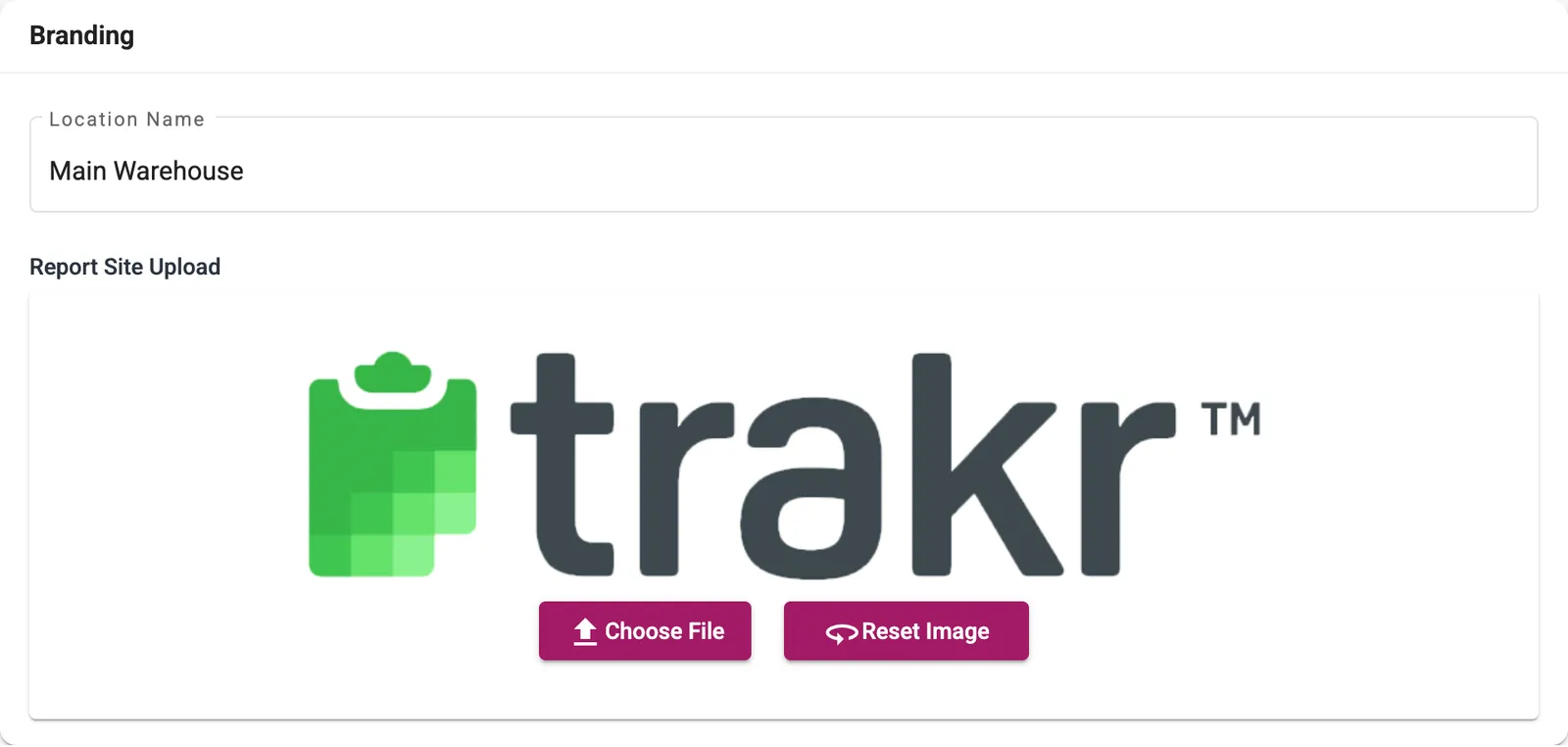
- 1Location Name
- 2Choose File
- 3Reset Image
Go back to the default logo
Choose Reset Image under the logo. The Trakr logo returns right away.
Good to know
The site logo in the top left of the web app stays as the Trakr logo. Only the report logo is yours to change.
Printed labels have their own logo setting. See Print barcode labels.
Common questions
What file types can I upload?
The file picker accepts PNG, GIF, JPEG and SVG images. A PNG with a clean background works best.
Can I go back to the Trakr logo?
Yes. Choose Reset Image under the logo and the default image comes back.
Why can't I see the Branding card?
The card only shows for roles that are allowed to edit branding. Ask an administrator to check your role's permissions.
Related articles
Was this article helpful?
Thanks, that helps us keep the guides honest. Need more help? Contact us