
How to design and edit labels
Start from a built-in label or a blank size, drag in product fields like name, SKU and barcode, then save it as your own template.
On this page Start a new label
The Trakr Inventory Label Designer lets you build labels that match your shelves, bins and tools. You choose a size, drop in the fields you want, and save the result as a template you can reuse.
Open it from Administration > Label Designer.
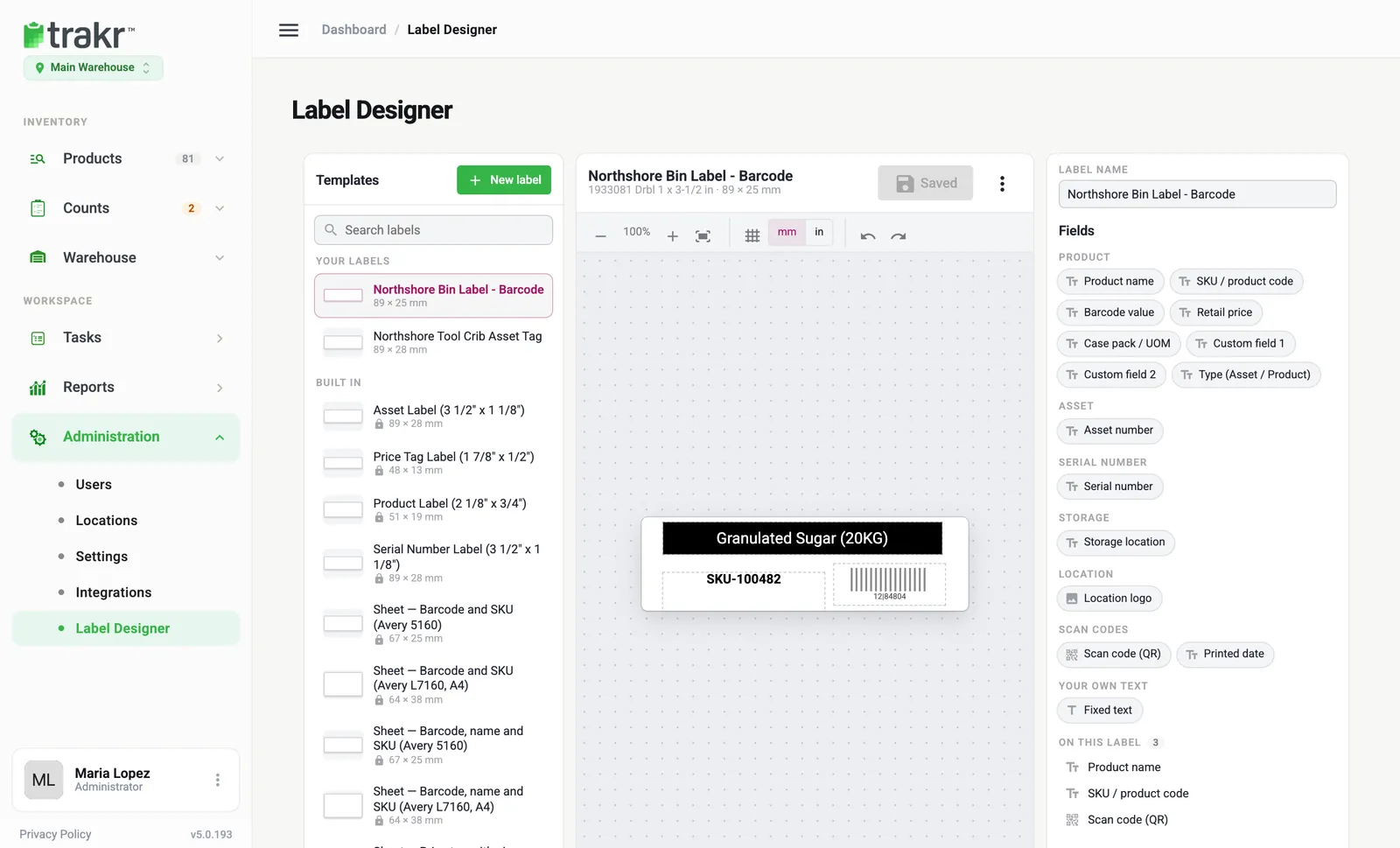
- 1New label
- 2Your template
- 3Product name field
- 4The label
- 5Save
Start a new label
- Choose New label.
- Pick a size. The list is split into Roll — label printer and Sheet — office printer.
- Name the label in the Label name box on the right.
You can also start from an existing one. The list shows Your labels and Built in ones, for example Product Label (2 1/8” x 3/4”), and Search labels filters them by name.
Edit a built-in label
Built-in labels are read-only. Select one and choose Duplicate to edit. You get a copy with your own name that you can change.
Add fields
- Under Fields, click a chip to add it, for example Product name, SKU / product code, Barcode value or Retail price.
- There are also fields for Asset number, Serial number, Storage location, Location logo, Scan code (QR) and Printed date.
- Choose Fixed text to add words of your own.
Everything on the label appears under On this label. Click an item there to select it, then set its Left, Top, Width and Height, change the font size, make it bold or align it. Remove takes it off.
You can also drag items on the label itself. Arrow keys nudge the selected item.
Check, save and tidy up
- Use the zoom buttons, Fit to window and the grid to see the label clearly. Switch between mm and in for measurements.
- Undo and Redo sit above the label.
- Choose Save. The button reads Saved once everything is stored.
- The More actions menu has Rename, Duplicate, Copy to another size… and Delete.
Where to use your label
Sheet labels for Avery sizes show up in the Print labels window on the Products page. See Print barcode labels for the steps.
Common questions
Why can't I edit a built-in label?
Built-in labels are locked so everyone keeps a reliable starting point. Choose Duplicate to edit and you get your own copy that you can change freely.
Can I change a label's size after I create it?
Not in place. Use the More actions menu and Copy to another size, which makes a copy on the new size.
Can I undo a mistake?
Yes. The Undo and Redo buttons above the label step through your changes, and nothing is stored until you choose Save.
Related articles
Was this article helpful?
Thanks, that helps us keep the guides honest. Need more help? Contact us