
A tour of Settings
See what each Settings card does, from Administration shortcuts to Branding, Catalog, Printing and Modules, and where to go for each task.
On this page The cards at a glance
Settings is the one page where you shape how Trakr Inventory works for your team. This tour shows what each card does, so you can jump straight to the one you need.
Open it from the side menu: Administration > Settings. The page is a stack of cards, one per topic.
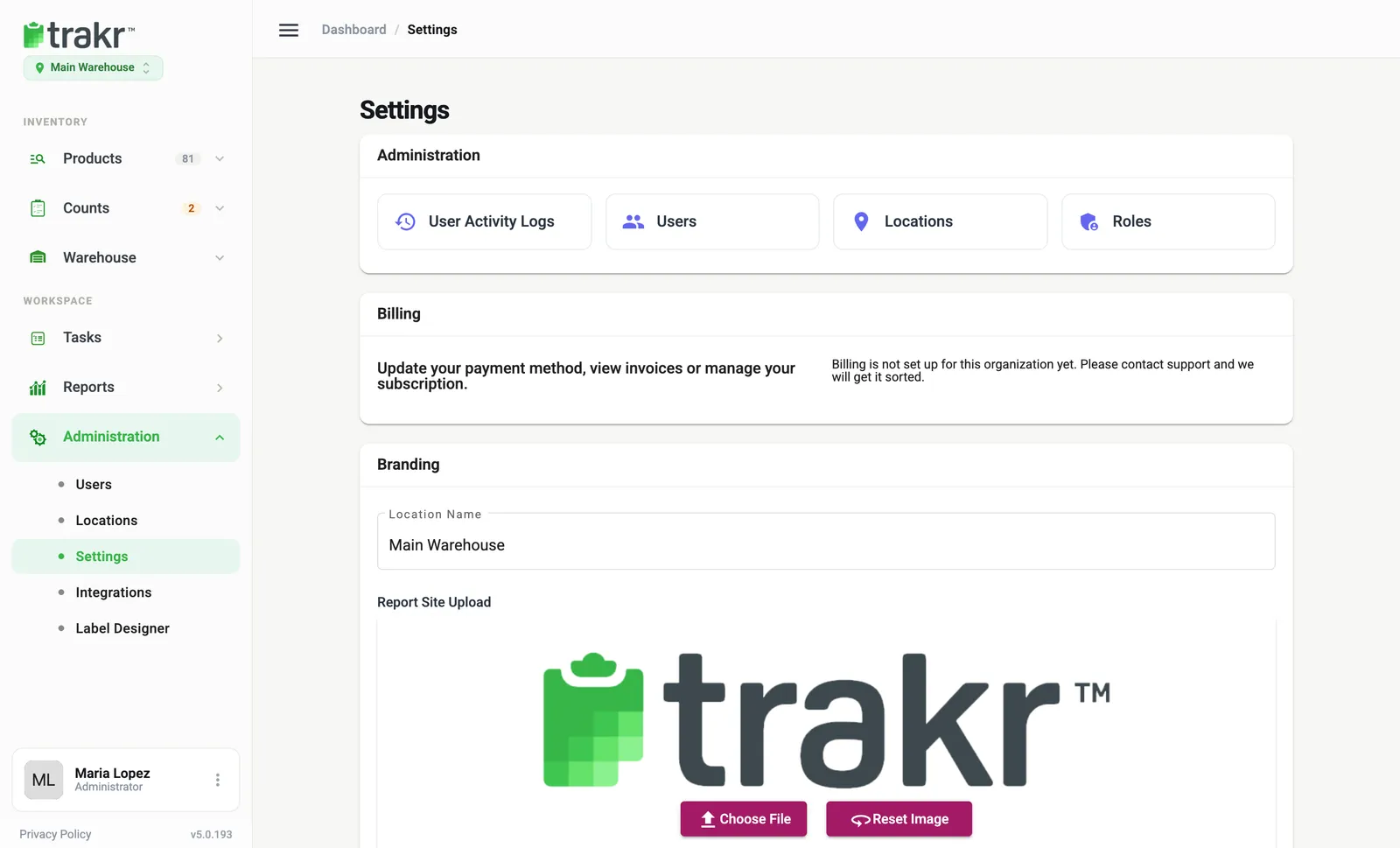
The cards at a glance
| Card | What it is for | Applies to |
|---|---|---|
| Administration | Shortcuts to User Activity Logs, Users, Locations and Roles | Your company |
| Billing | Where to go for payment questions | Your company |
| Branding | Location name and the logo used on reports | The current location |
| Preferences | Your own low-stock email alerts | Only you |
| Catalog | Names for your minimum stock levels, custom product fields, automatic barcodes | The current location |
| Printing | Dymo and Brother label printers, label logo | The current location |
| Modules | Turn Assets, Serialized products and handheld editing on or off | The current location |
Administration
Four shortcut buttons take you to the people and places side of Trakr: User Activity Logs, Users, Locations and Roles. They are the same pages you reach from the side menu, gathered in one spot.

- 1User Activity Logs
- 2Users
- 3Locations
- 4Roles
Billing
The Billing card is for administrators. When billing is linked to your company, Manage Billing opens our secure Stripe page for your card and invoices. If it is not linked yet, the card asks you to contact support, and the team will sort it out. See Billing and invoices for the details.
Branding, Preferences and Catalog
- Branding holds your location name and your report logo. See Add your logo and location name.
- Preferences holds your personal low-stock email alert.
- Catalog controls how products look and behave. Both are explained in Preferences and Catalog settings.
Printing and Modules
- Printing switches label printers on and sets the logo for Dymo labels. See Print barcode labels.
- Modules turns the Asset and Serialized features on or off. See Turn Assets and Serialized products on or off.
Good to know
Settings that belong to a location follow the location switcher under the Trakr logo. Switch to Main Warehouse or another location first, then change its settings.
Common questions
Why don't I see some Settings cards?
Settings shows only what your role is allowed to use. If a card or a shortcut is missing, ask an administrator to check your role's permissions.
Do Settings changes apply to everyone?
Most cards (Branding, Catalog, Printing, Modules) apply to the location you are working in. Preferences are personal and only change your own account.
How do I save my changes?
As soon as you change something, a bar appears at the bottom that says "You have unsaved changes". Choose Save to keep them or Discard to go back.
Related articles
Was this article helpful?
Thanks, that helps us keep the guides honest. Need more help? Contact us