
How to connect QuickBooks Online
Sync inventory with QuickBooks Online: sign in from Trakr, send products and counted quantities to QuickBooks, or import your items into Trakr.
On this page Before you start
Connect QuickBooks Online once, and you can keep your product list and on-hand quantities in step with your books.
Before you start
- You need a QuickBooks Online account you can sign in to.
- You need access to Integrations in the web app. If the card is missing, see the questions below.
- Allow pop-ups for Trakr. The sign-in opens in a small window.
Connect
- Open Administration > Integrations. The page is called Integrations Library.
- On the QuickBooks card, choose Connect to QuickBooks.
- Sign in to QuickBooks in the window that opens, and approve Trakr when it asks.
- Back in Trakr, the card now shows Start and Disconnect instead of the connect button.
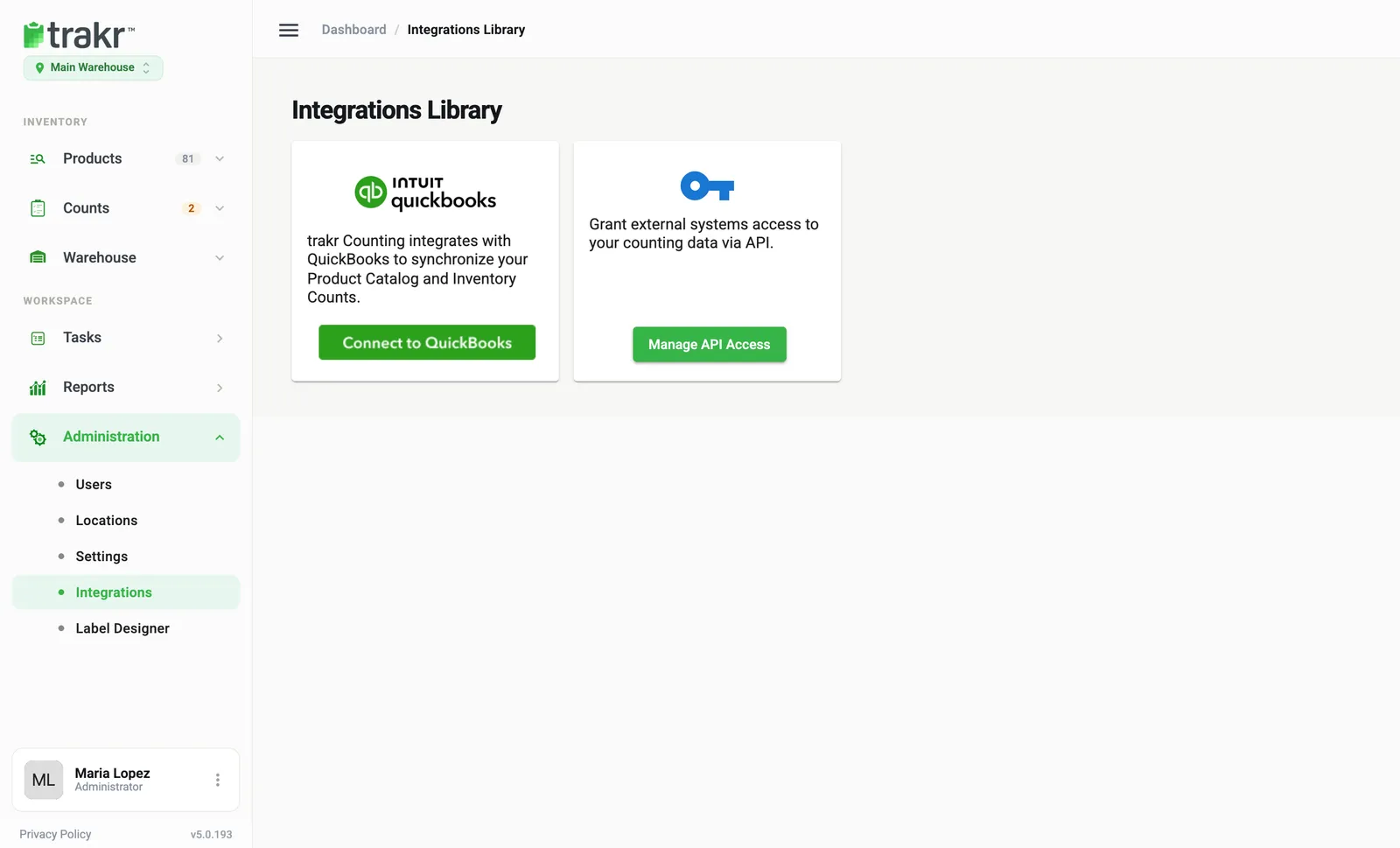
- 1Connect to QuickBooks
Send and receive data
Choose Start on the QuickBooks card. A window opens with two cards, plus a history underneath.
Product Catalog
- Export To QuickBooks sends your products to QuickBooks as inventory items: name, description, SKU, category, sales price and purchase cost.
- Import From QuickBooks pulls your QuickBooks items into Trakr as products, matched by SKU. New products also get their sales price and reorder point.
If some products already exist on the other side, Trakr shows them and asks whether to overwrite. Choose Confirm to go on, or Cancel to stop.
Inventory Count
- Open Choose an inventory count to sync with QuickBooks and pick a count with Select a count.
- Choose Export a Count.
The counted quantities go to QuickBooks as quantity on hand. If you have no counts yet, the window says so. Finish a count first with Finalize a count.
Integration History
Open Integration History to see completed syncs, with the number of items that succeeded, updated or had errors.
What Trakr does not do
Trakr syncs inventory items only. It does not create bills, purchases or purchase orders in QuickBooks, and it does not run on a schedule.
Disconnect
Choose Disconnect under the QuickBooks card. You can reconnect at any time.
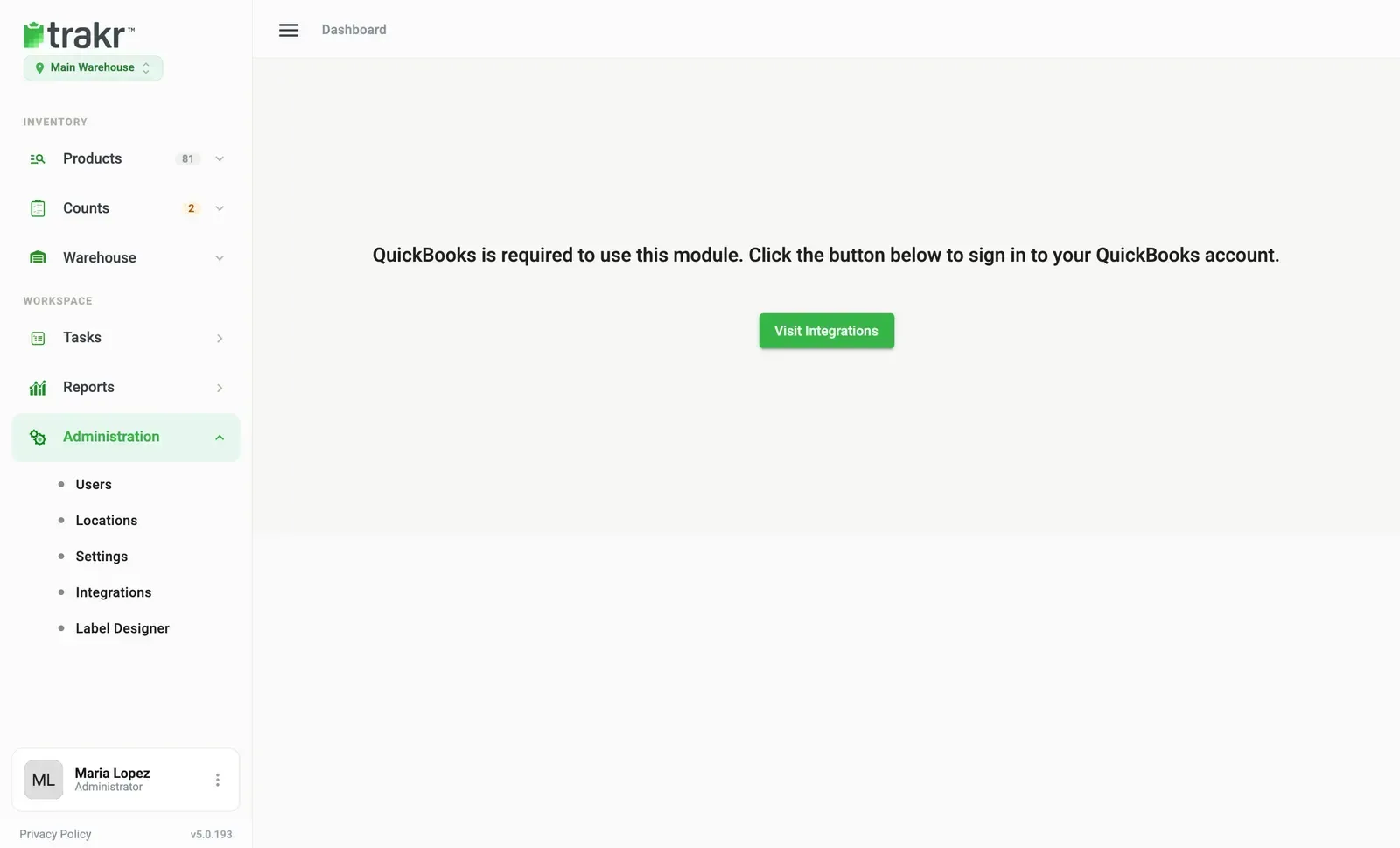
If you see “QuickBooks is required”
If you open the QuickBooks page before connecting, Trakr asks you to sign in first. Choose Visit Integrations and connect from there.
Common questions
Does Trakr sync with QuickBooks automatically?
No. You start each import or export yourself, so nothing changes in QuickBooks until you choose it.
How do I disconnect QuickBooks?
Open Administration > Integrations and choose Disconnect under the QuickBooks card. You can connect again whenever you like.
I don't see the QuickBooks card.
QuickBooks is available on some plans and depends on your role's access to Integrations. Ask an administrator, or contact support if you think it should be on.
The QuickBooks window didn't open.
Your browser probably blocked the pop-up. Allow pop-ups for Trakr and choose Connect to QuickBooks again.
Related articles
Was this article helpful?
Thanks, that helps us keep the guides honest. Need more help? Contact us