
How to finalize a count (and what happens to your stock)
Finalize a draft inventory count in Trakr to close it and keep it on record, and choose whether to update on-hand stock with the counted numbers.
On this page Before you start
Finalizing closes a draft count. It becomes a permanent record in Finalized Counts, and you decide whether your on-hand quantities should take on the counted numbers.
Before you start
- You need a draft count. See Start a count.
- Review it first. See Review a count.
- Your role must allow finalizing counts. If Finalize Count is missing, ask an administrator.
Finalize
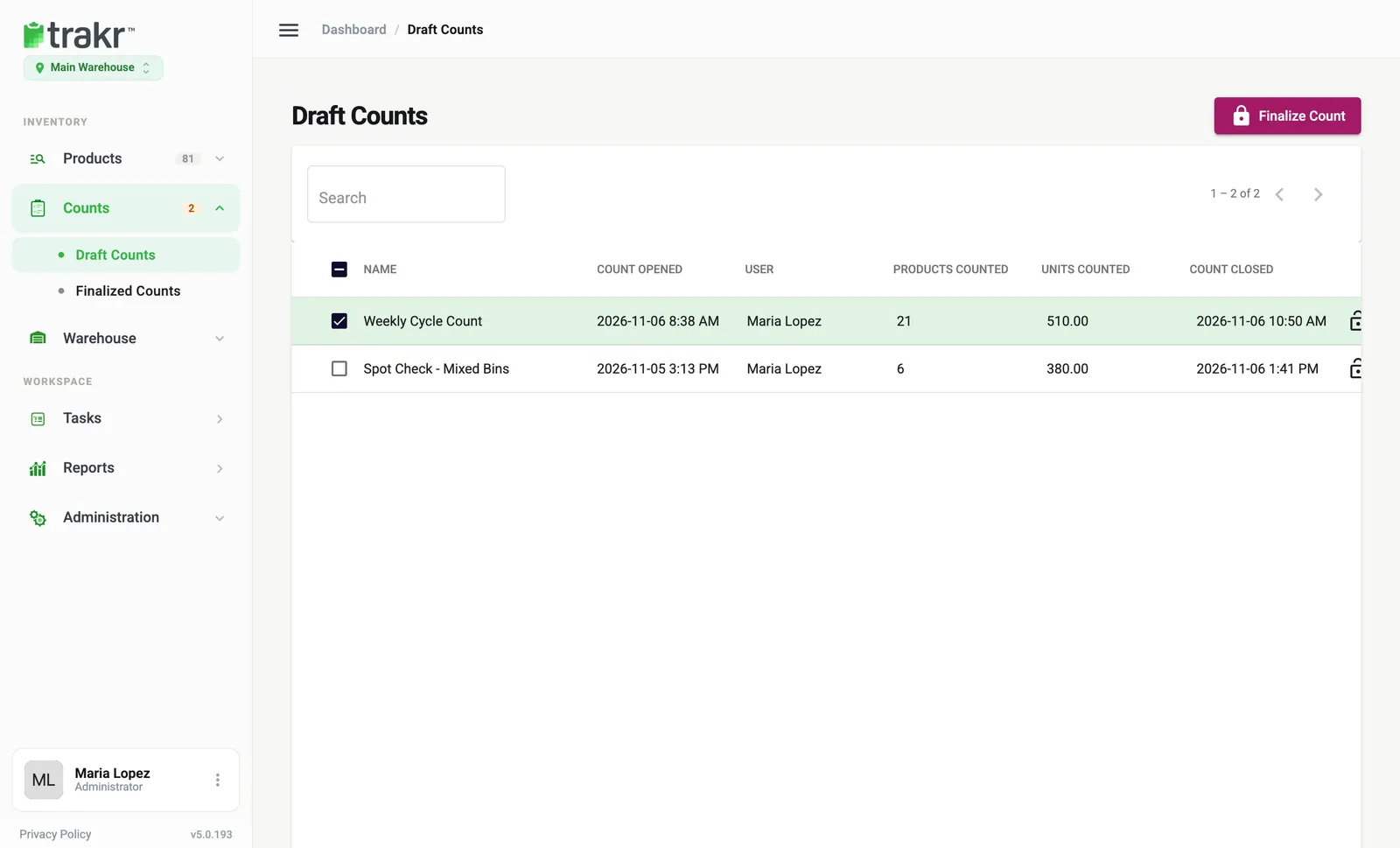
- Go to Counts > Draft Counts.
- Tick the box beside each count you want to finalize. Tick the box in the header to select all.
- Click Finalize Count. It stays grey until something is ticked.
- Trakr Inventory compares the counted quantities with your current on-hand. What you see next depends on the result.
- 2Tick the count
- 3Finalize Count
If the counts match your stock
A small box says “Press confirm if you would like to finalize selected counts.” Click Confirm. The count moves to Finalized Counts. Your quantities already agree, so nothing needs updating.
If some counts differ from your stock
A Stock Variance Detected window opens with a table of every product that differs:
| Column | Meaning |
|---|---|
| Product, SKU | What was counted |
| Storage | Where it was counted |
| Counted | The quantity you counted |
| On-Hand | What Trakr currently shows |
| Variance | Counted minus on-hand, with an up or down arrow |
Under the table, the line Total items with variance gives the number of products affected. Then choose:
- Update system on-hand with count results is ticked by default. Leave it ticked if the count is right and your stock should match it. You can add an Adjustment Message (optional, up to 500 characters), for example “Annual shelf count”.
- Click Adjust & Finalize to finalize and set the on-hand of each listed product to the counted quantity. The change is recorded as an adjustment, and your message is saved with it.
- Click Finalize Only to finalize and leave your on-hand quantities exactly as they are. Use this when you want the count on record but plan to investigate first.
- Click Cancel to stop. Nothing is changed.
After you finalize
- The count leaves Draft Counts and appears in Counts > Finalized Counts. See Find a past count.
- A finalized count is read-only. Its report keeps the counted numbers as they were.
- Products you did not count are not changed.
Revert to draft
If you finalized by mistake, open Counts > Finalized Counts, tick the count and click Revert to Draft, then Confirm. The count goes back to Draft Counts so you can review it again.
Reverting does not undo an on-hand adjustment made with Adjust & Finalize. To correct a quantity afterwards, see Change a quantity.
Common questions
Does finalizing always change my on-hand quantities?
No. If counted and on-hand quantities differ, Trakr shows the differences and lets you choose Finalize Only (stock stays as it is) or Adjust & Finalize (on-hand is updated to the counted numbers). If nothing differs, there is nothing to update.
Can I undo a finalize?
You can send a finalized count back to draft with Revert to Draft. Stock adjustments you already made with Adjust & Finalize stay in the product's history, so use Adjust in Product Activity if you need to correct a quantity.
I don't see the Finalize Count button.
The button is only shown to people whose role allows finalizing counts, and it stays grey until you tick at least one count. Ask an administrator to check your role.
Can I finalize several counts at once?
Yes. Tick them all, then click Finalize Count.
Related articles
Was this article helpful?
Thanks, that helps us keep the guides honest. Need more help? Contact us