
How to review a count before finalizing
Open a draft count in the web app, check every counted line, remove mistakes and send or print the report before you finalize.
On this page Open the count report
Reviewing takes a minute and saves you from finalizing a typo. Do it before every finalize.
Open the count report
- Go to Counts > Draft Counts.
- Click the count’s row. A small menu opens.
- Choose View Reports. The Count Report opens in a large window.
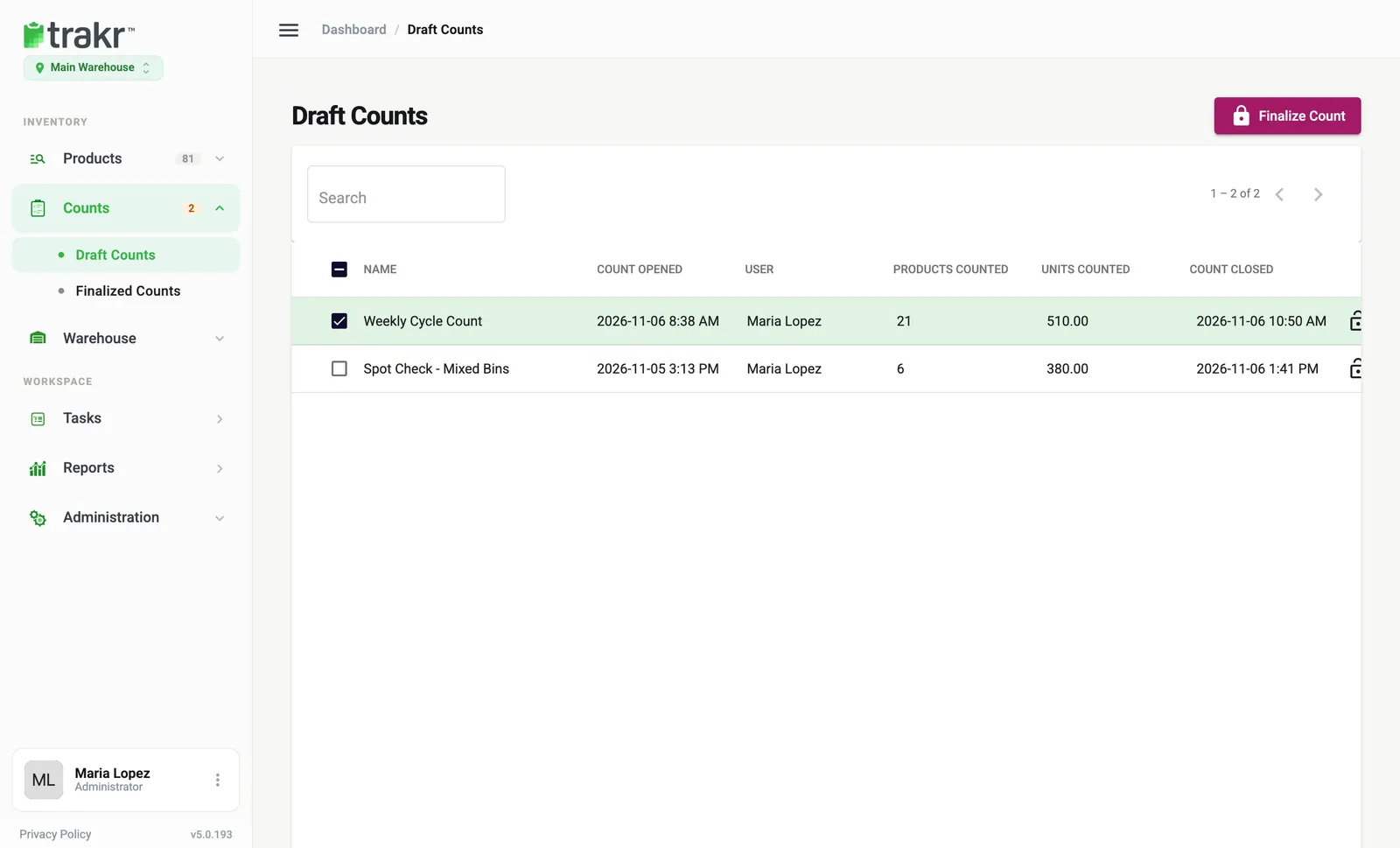
- 2Click the row
What you see
At the top: Counted By, the Start time and the End time of the count. Below, a table with one line per product:
| Column | Meaning |
|---|---|
| Code | The product SKU |
| Name | The product name |
| UOM | The unit of measure |
| Count | The quantity counted |
At the bottom are Products Counted and Units Counted totals. Click a column heading to sort. If your company uses custom fields, they show as extra columns.
Check the numbers
- Sort by Count or Name and look for anything unusual: a zero, a huge number, a duplicate.
- Click a product line to open that product and compare it with what you expect.
- To drop a wrong line from the draft, click its trash icon, then type DELETE to confirm. Recount that product in the app if needed.
Share the report
Use the buttons at the top of the report:
- Send Report emails it to an address you enter.
- Generate PDF downloads a PDF.
- Select Report switches the view: Count, Value, Reorder, By Category, By Product Storage, Count Sheet or Excel. You may only see some of these, depending on your role.
Compare with your stock
You don’t compare line by line yourself. When you click Finalize Count, Trakr Inventory checks the counted quantities against the current on-hand and lists every difference before anything is saved. See Finalize a count.
Ready? Go to Finalize a count. If numbers look off, see Count numbers look wrong.
Common questions
Can I change a counted quantity in the web app?
Not on the count report. You can remove a line from a draft (click its trash icon), then recount that product in the app. To fix stock itself, use Adjust in Product Activity.
Does deleting a count erase my stock?
No. A draft count does not change stock, so deleting it only removes the count.
What does the asterisk next to a product mean?
The product was counted in more than one product storage location.
Related articles
Was this article helpful?
Thanks, that helps us keep the guides honest. Need more help? Contact us