
Preferences and Catalog settings
Turn on low-stock email alerts, rename your minimum stock levels, add custom product fields and switch on automatic barcodes from the Settings page.
On this page Preferences: low-stock email alerts
Two Settings cards shape your daily product work: Preferences controls your own email alerts, and Catalog controls how products are labelled and described at your location.
Open Administration > Settings and scroll to the card you want. When you are done, choose Save in the bar at the bottom.
Preferences: low-stock email alerts
Preferences belong to you only. Nobody else’s alerts change.

- 1Minimum Stock Alerts
- Find Minimum Stock Alerts and switch it on. The frequency starts at Daily.
- Open Alert Frequency and choose Daily, Weekly or Monthly.
- Choose Save in the bar at the bottom.
You get one summary email for the period, listing products that fell below their minimum. Weekly arrives on Mondays and monthly on the 1st of the month. Switch the toggle off to stop the emails.
Catalog: labels and fields
The Catalog card applies to the whole location.
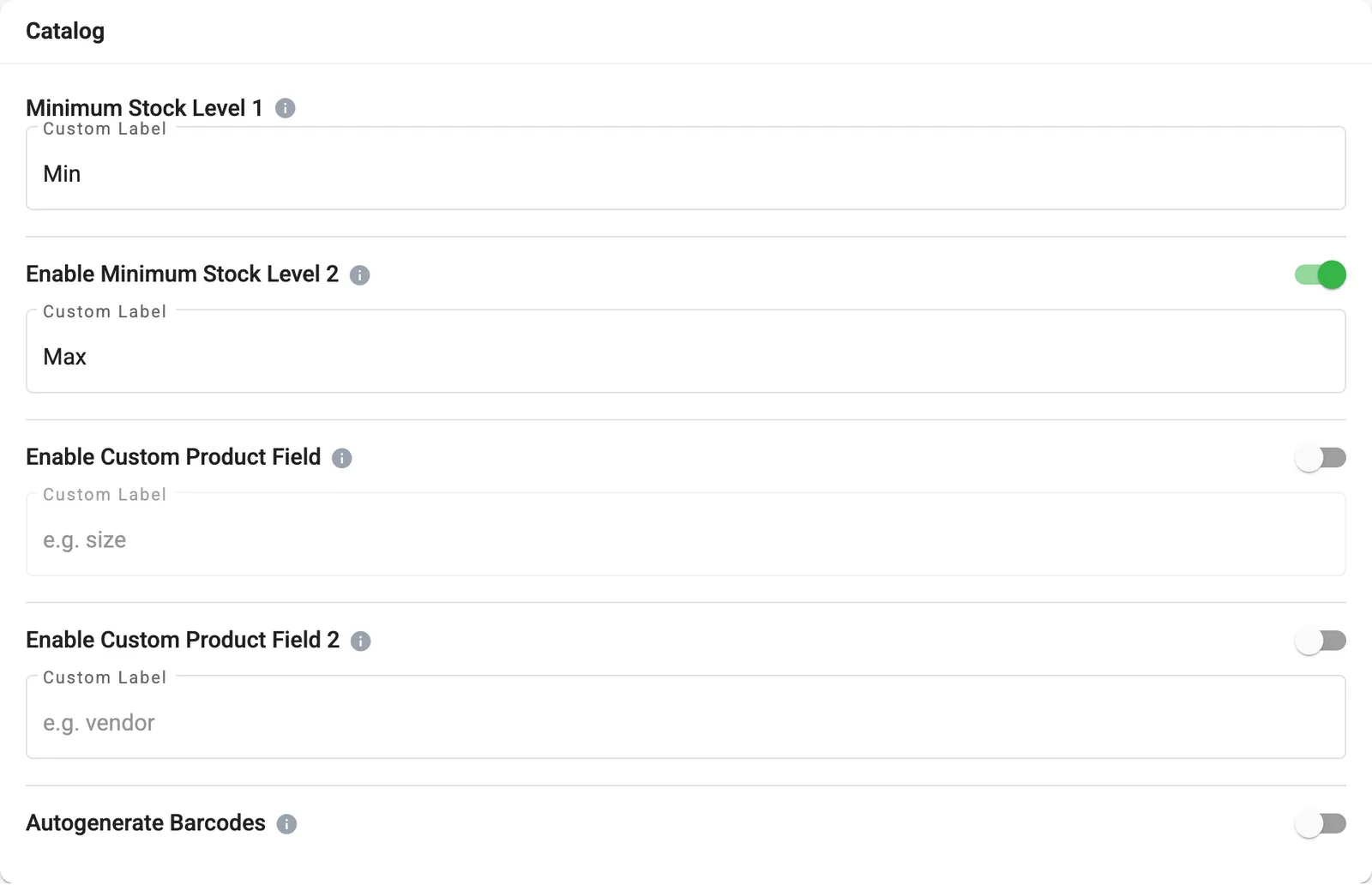
- 1Minimum Stock Level 1
- 2Enable Minimum Stock Level 2
- 3Enable Custom Product Field
- 4Autogenerate Barcodes
Name your minimum levels
- Under Minimum Stock Level 1, type the name you want in Custom Label, for example Min. It is required and can be up to 9 characters.
- To use a second level, switch on Enable Minimum Stock Level 2 and name it, for example Max. This is only a name: it is a second minimum threshold, not a maximum quantity.
Products below a minimum show up in your Re-Order report. To set the amounts themselves, see Set minimum levels.
Add custom product fields
- Switch on Enable Custom Product Field.
- Type a Custom Label, such as Size. It must be shorter than 12 characters.
- Repeat with Enable Custom Product Field 2 for a second field, such as Vendor.
Each field then appears on your products and in the Excel export. Switch on Lock Custom Field under a field if its value should not change on existing products.
Autogenerate barcodes
Switch on Autogenerate Barcodes and Trakr Inventory creates barcodes for products that do not have one. See Product barcodes for how barcodes work.
Common questions
Will autogenerated barcodes replace barcodes I already have?
No. The setting is meant for products that have no barcode yet, so Trakr can create one for them.
What does Lock Custom Field do?
When a custom field is locked, its value cannot be changed on existing products and imports do not overwrite it. You can still fill it in when you create a new product.
How long can a custom label be?
The minimum stock level labels can be up to 9 characters. A custom product field label must be shorter than 12 characters.
Related articles
Was this article helpful?
Thanks, that helps us keep the guides honest. Need more help? Contact us