
How to see what to reorder
Use the Re-Order report in Trakr Inventory to list low-stock products below their minimum level, see how many to reorder, and export the list.
On this page Before you start
The Re-Order report lists every product that is below its minimum level and tells you how many you need. It is the list to take to your supplier.
Before you start
Products appear here only when they have a minimum level. Set one in the product’s Count Type Methods. See Set minimum levels.
Open the report
- Click Reports in the side menu.
- On Re-Order Report, click View.
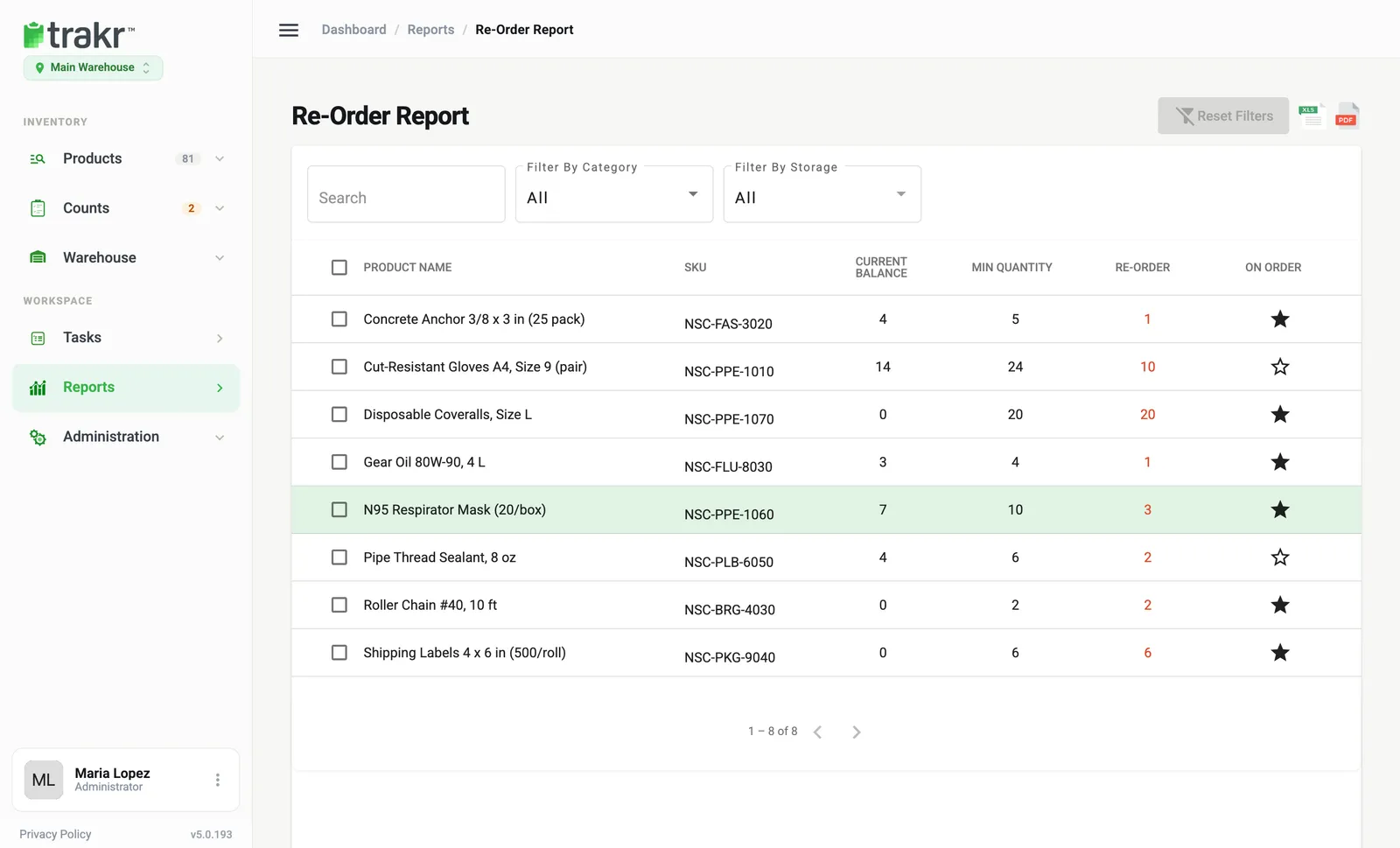
- 1Current Balance
- 2Min Quantity
- 3Re-Order
- 4On Order
Read a row
Take Disposable Coveralls, Size L (NSC-PPE-1070). Current Balance is 0, Min Quantity is 20, so Re-Order is 20.
- Current Balance: what you have on hand.
- Min Quantity: your minimum level.
- Re-Order: minimum minus current balance. The number is red when you are below minimum.
- On Order: a star you click to mark that you have already ordered it.
Mark items as on order
- Click the empty star in the On Order column.
- The star fills in. Marked items also show on the Dashboard under On Order.
- Click it again to clear it.
Filter and export
Use Search, Filter By Category and Filter By Storage, then Reset Filters to clear. Click the XLS or PDF icon to export. Tick rows first to export only those. See Export a report.
Common questions
Does Trakr create purchase orders?
No. The Re-Order report tells you what is short. You place the order with your supplier yourself.
Why is my product not on the report?
Only products with a minimum level, and with on-hand below it, are listed. Set a minimum on the product to include it.
Does the star clear when I receive the delivery?
No. The On Order star is a manual marker. Click it again to clear it.
Related articles
Was this article helpful?
Thanks, that helps us keep the guides honest. Need more help? Contact us