
How to export a report to Excel or PDF
Export any Trakr report to Excel or PDF, choose what goes in the file with filters or ticked rows, and put your company logo on the PDF.
On this page Export from a report
Export a report when you need to share it, print it or work with it in a spreadsheet.
Export from a report
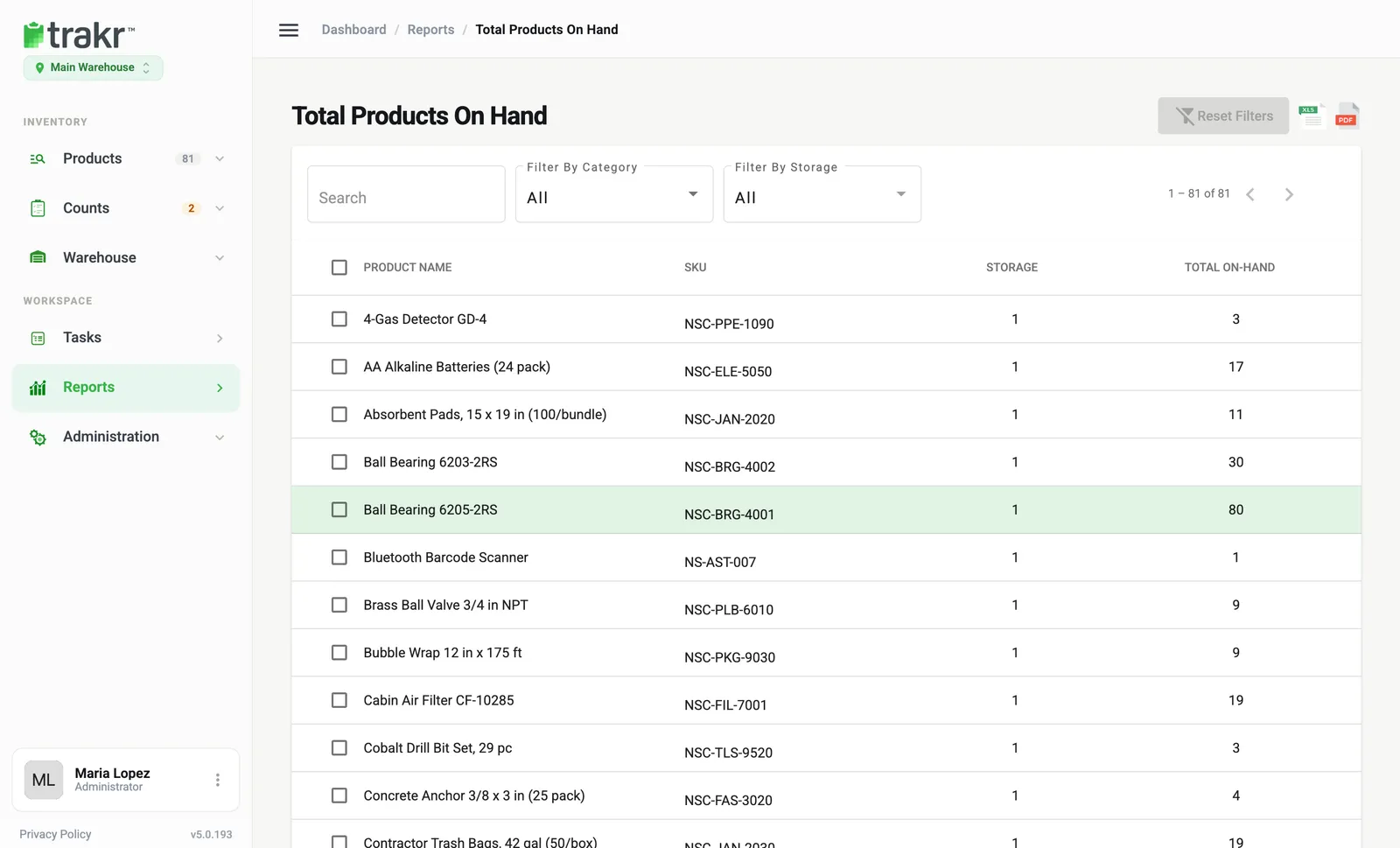
- Open Reports and choose a report, for example Total Products On Hand.
- Optional: narrow the list with Search, Filter By Category or Filter By Storage.
- Optional: tick the checkboxes of the rows you want. Skip this to export everything that matches.
- At the top right, click the green XLS icon for Excel or the red PDF icon for a printable file.
- 1XLS
- 2PDF
What you get
- Excel: a file such as
trakrCountingProductOnHandReport.xlsxwith the same columns as the screen. - PDF: opens in a new tab with a report header, ready to print or save.
Which reports can export
- Total Products On Hand, Re-Order Report, Received Inventory Report, Picked Inventory Report and Product Usage: Excel and PDF.
- Serialized products: the Export button gives CSV or Excel.
Put your logo on the PDF
PDF reports use the logo from your location settings. If none is set, the Trakr Inventory logo is used. Upload yours under Administration > Settings > Branding. See Set up company basics.
If the export is empty
An empty export means no rows match your filters. Click Reset Filters and try again. If the report itself is empty, see Report is empty.
Common questions
Where does the file go?
Excel downloads through your browser. The PDF opens in a new browser tab, where you can print or save it. If nothing opens, allow pop-ups for the web app.
Does the export include every page of the list?
The export follows your search and filters. When no rows are ticked, it is built from everything that matches, not only the rows you see on screen.
Can I export only some products?
Yes. Tick the checkboxes in the first column and the export includes only those rows.
Related articles
Was this article helpful?
Thanks, that helps us keep the guides honest. Need more help? Contact us