
How to see what you have on hand
Open the Total Products On Hand report to see the current quantity of every product, filter by category or storage, and export it.
On this page Open the report
Use this Trakr Inventory report when you need a snapshot of what is in stock right now, for example before a supplier call or a month-end review.
Open the report
- In the side menu, click Reports.
- On Total On-Hand Report, click View.
- The page is titled Total Products On Hand.
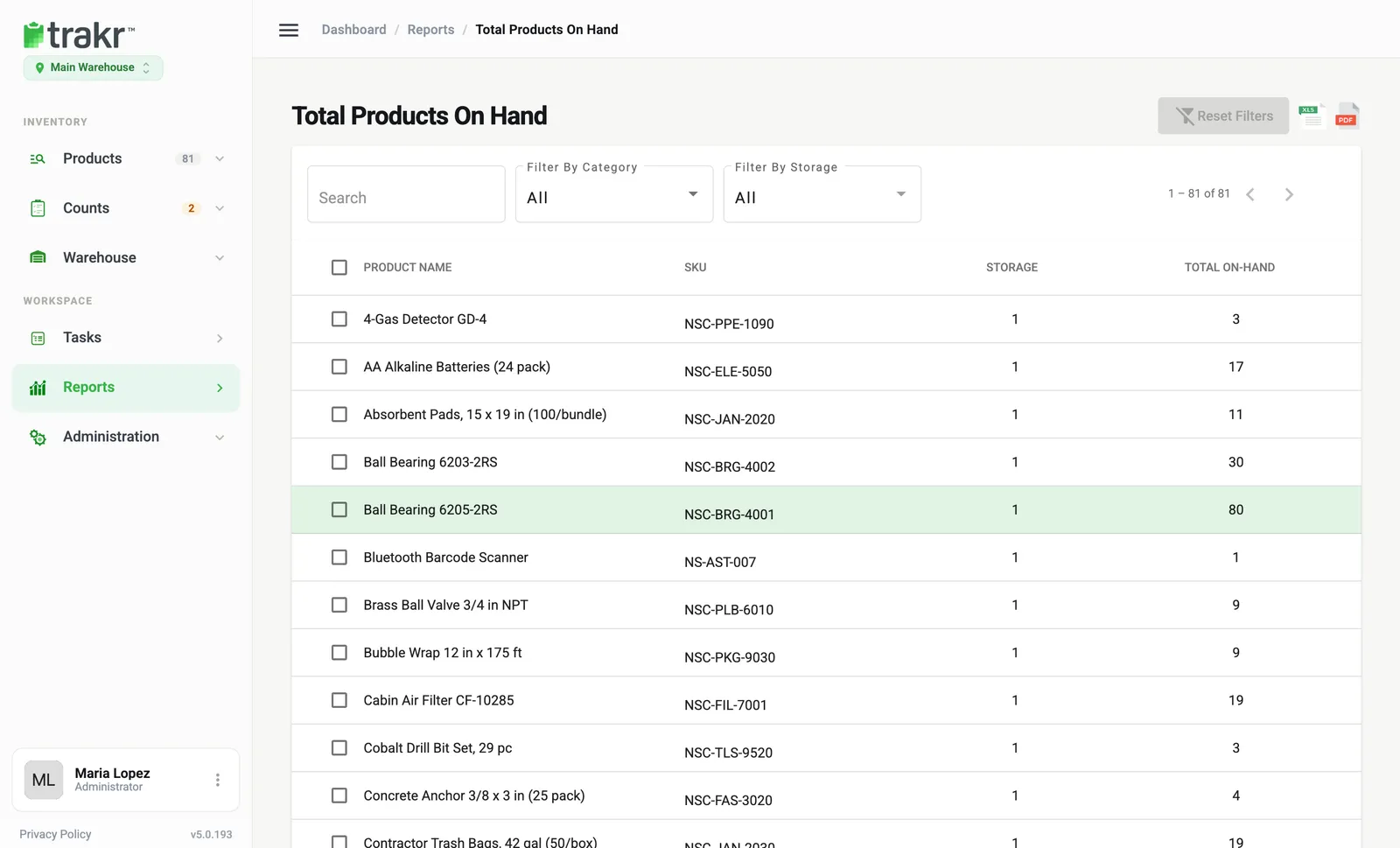
- 1Search
- 2Filter By Category
- 3Filter By Storage
- 4XLS and PDF
Read the table
Each row is one product, for example Ball Bearing 6205-2RS (SKU NSC-BRG-4001) with a Total On-Hand of 80. The columns are:
- Product Name and SKU.
- Storage: how many storage places hold it.
- Total On-Hand: the current quantity.
Click a column heading to sort. The counter near the top (for example 1 - 81 of 81) and the arrows next to it page through long lists.
Narrow it down
- Type in Search to find a name or SKU.
- Pick a Filter By Category value.
- Pick a Filter By Storage value to see a single area.
- Click Reset Filters to start over.
Export it
Click the XLS icon for an Excel file or the PDF icon for a printable report. If you tick rows with the checkboxes first, only those rows are exported. Otherwise the export follows your current search and filters. See Export a report.
Common questions
What does the Storage number mean?
It is how many storage places in this location hold the product. A product on one shelf shows 1.
Why is a product missing from the report?
The report lists products that have been received or counted at the selected location. Archived (deleted) products are left out.
Is the number the same as on the product page?
Yes. It is the current total on hand for the location shown under the Trakr logo.
Related articles
Was this article helpful?
Thanks, that helps us keep the guides honest. Need more help? Contact us