
How to get API access for your own systems
Generate an API key in Trakr, keep it safe, and send it in the X-API-KEY header so your developers can connect other tools to your data.
On this page Before you start
An API key lets your own software, or a developer you work with, read and write Trakr Inventory data without anyone signing in. This article shows how to create, protect and replace the key.
Before you start
- You need access to Integrations in the web app.
- Share the key only with people or systems you trust. It works like a password.
Generate your key
- Open Administration > Integrations.
- On the API card, choose Manage API Access.
- The page shows No API Key Generated and the status No active key. Choose Generate API Key.
- A window shows your new key. Choose Copy to clipboard and store it somewhere safe, such as a password manager.
- Choose I’ve saved it.
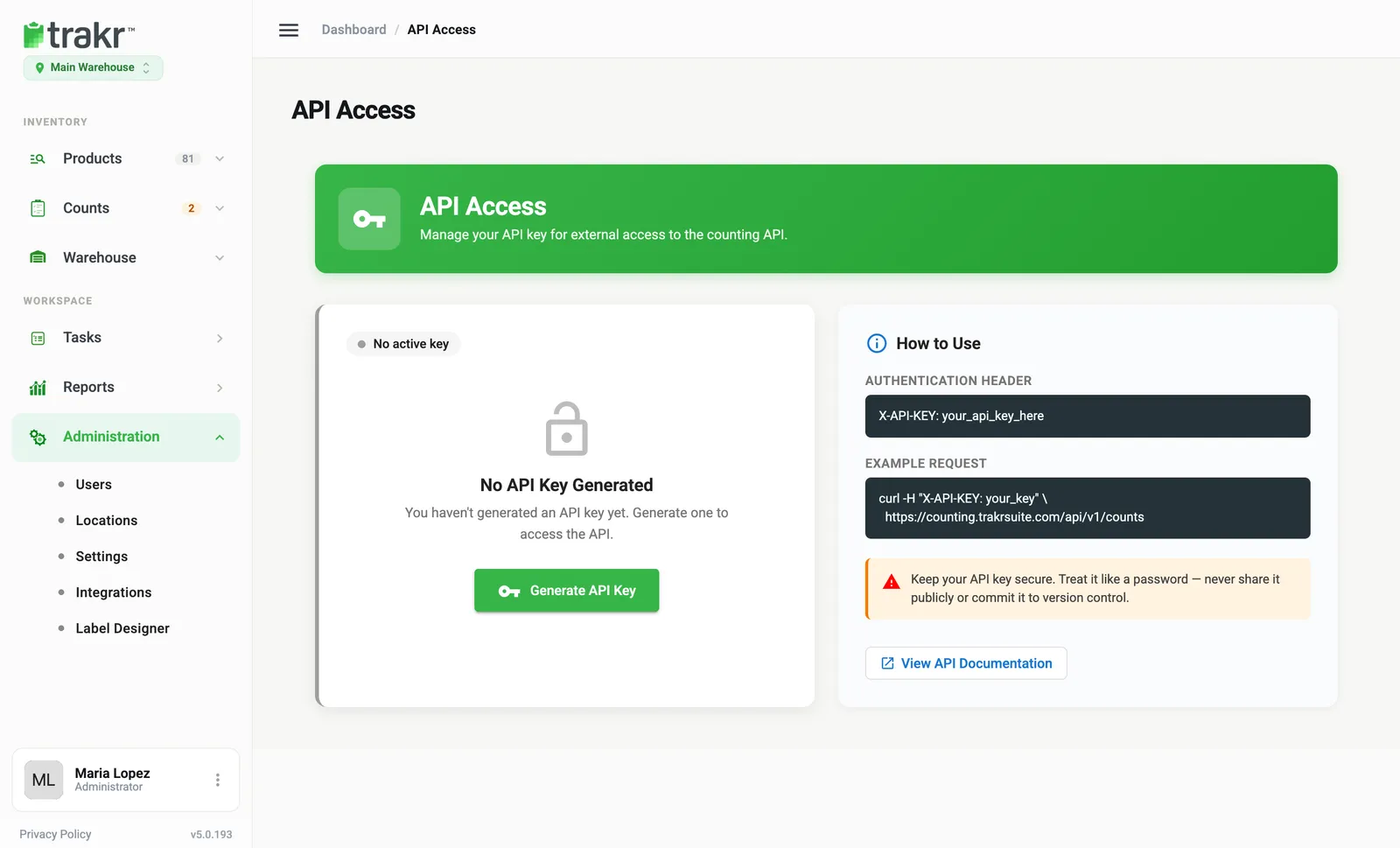
- 1Generate API Key
Use the key
Send the key in a header called X-API-KEY on every request. The web app’s How to Use box gives you an example you can paste into a terminal and adjust:
curl -H "X-API-KEY: your_key" \
  https://counting.trakrsuite.com/api/v1/counts
Replace your_key with your own. Choose View API Documentation on the page for the full reference. It opens in a new tab.
A few rules for your developers:
- Requests are limited to 60 per minute.
- An optional X-LOCATION-ID header picks the location. Without it, Trakr uses your first active location.
Replace or remove the key
Once a key exists, the page shows it as Active key, with only its last four characters and the date it was created.
- Regenerate Key makes a new key and ends the old one right away. Confirm when Trakr warns that systems using the old key will stop working.
- Revoke Key removes the key for good, and anything using it stops working. Confirm when asked.
Never put the key in public code or in a shared document.
Common questions
I lost my API key. Can I see it again?
No. For security Trakr shows the key once, right after you create it. Generate a new one with Regenerate Key and update your systems.
What happens to my old key if I regenerate it?
It stops working at once. Any system still using it needs the new key.
How many requests can I make?
Up to 60 requests per minute. Add an X-LOCATION-ID header to pick a location; without it, requests use your first active location.
Is API access included in my plan?
Plan details can change, so check with support if you don't see Manage API Access on the Integrations page.
Related articles
Was this article helpful?
Thanks, that helps us keep the guides honest. Need more help? Contact us