
How to print barcode labels from your products
Print barcode labels on any office printer from the Products page, or switch on Dymo and Brother printers in Settings for roll labels.
On this page Print sheet labels
Barcode labels in Trakr Inventory let you scan a product in seconds instead of typing its name. You can print them as sheets on a normal printer, or on a roll with a label printer.
Print sheet labels
- Open Products > Product Catalog.
- Tick the checkbox of each product you want labels for. The print and barcode icons above the table turn on once you select something.
- Choose the Print labels icon (the printer).
- In the Label list, pick a layout, for example Sheet — Barcode and SKU (Avery 5160).
- Look at the Preview. It uses sample values. Each real label shows that product’s own data, and a field the product has nothing in prints blank.
- Set Copies of each, for example 2.
- If you are reusing a part-used sheet, set Start at label to the first free spot.
- Choose Create PDF, then print the PDF.
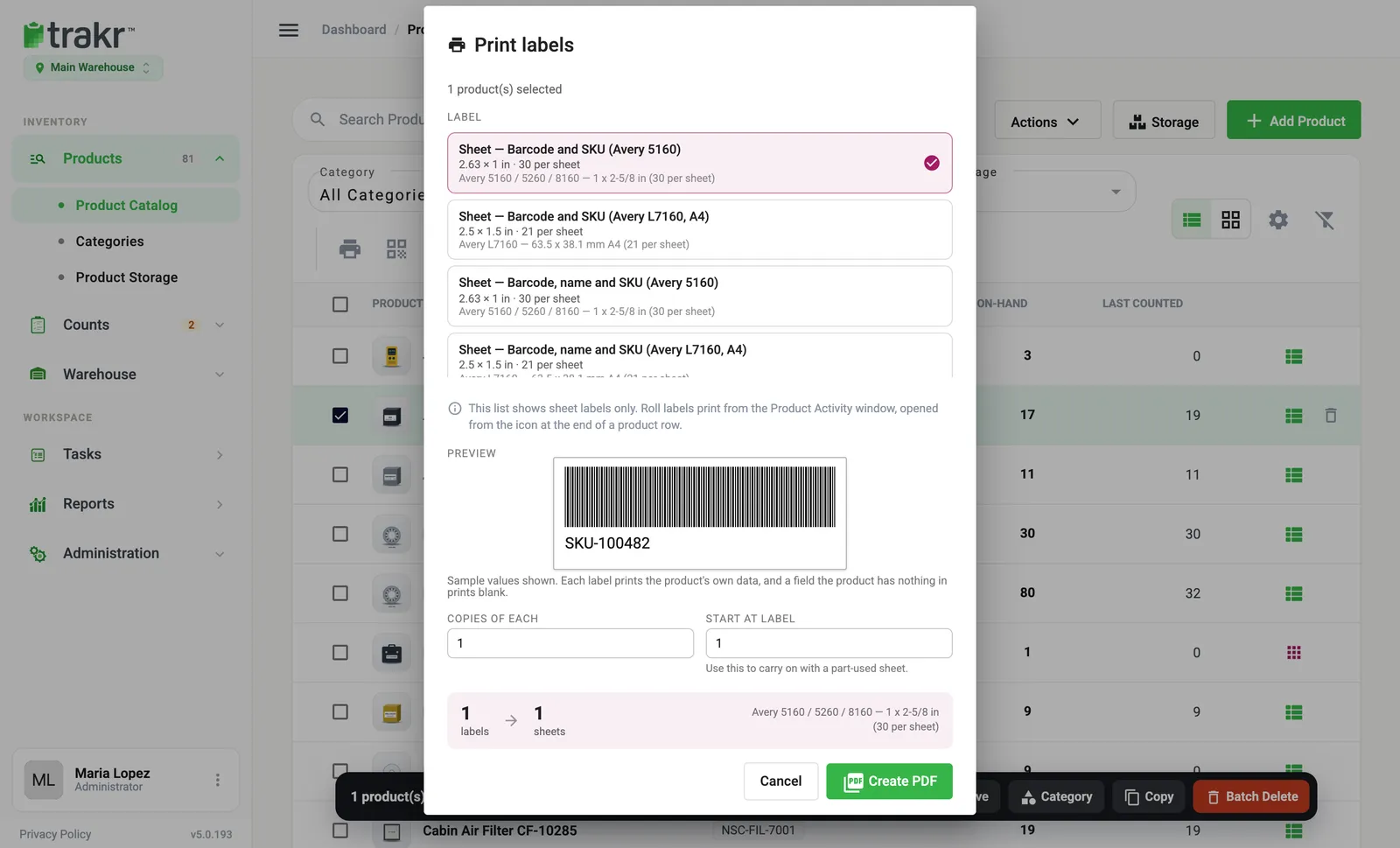
- 1Label
- 2Copies of each
- 3Start at label
- 4Create PDF
The box near the bottom tells you how many labels and how many sheets you will use.
Print roll labels with a label printer
Roll labels need a printer switched on first.
- Open Administration > Settings and find the Printing card.
- Switch on Enable Dymo LabelWriter® 450/550 Printer or Enable Brother Printer.
- Choose Save in the bottom bar.
- In Products > Product Catalog, open the product’s activity window from the icon at the end of its row, then choose Label and pick a label size.
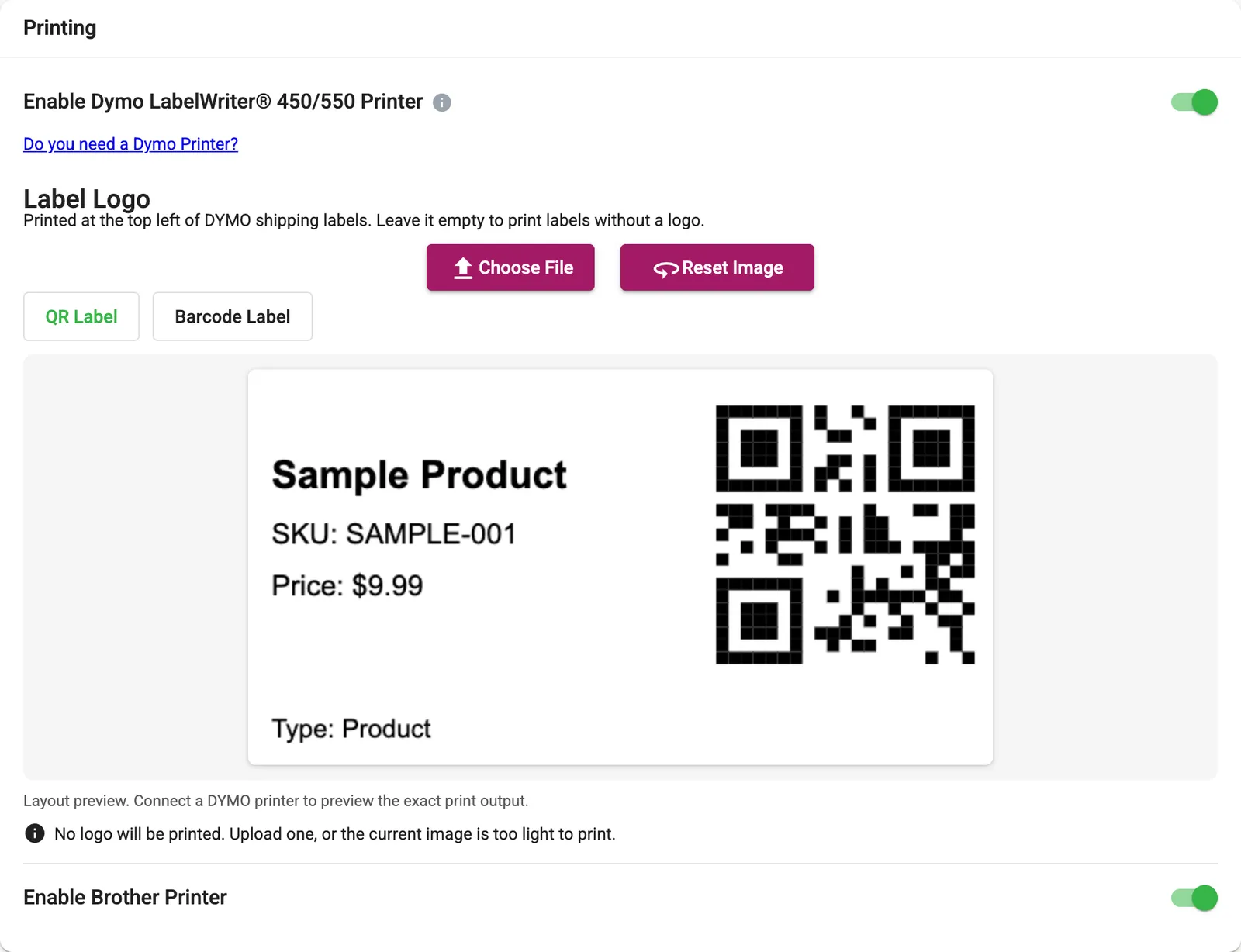
- 1Dymo printer switch
- 2Brother printer switch
Add a logo to Dymo labels
Under Label Logo, choose Choose File to upload a logo. It prints at the top left of Dymo shipping labels. Leave it empty to print without a logo. Switch between QR Label and Barcode Label to preview the layout. Reset Image removes the logo.
Good to know
- Brother printing in the web app works on Windows.
- If you do not own a Dymo printer yet, the Do you need a Dymo Printer? link on the Printing card takes you to a shop page for one.
- Roll labels print from the product’s activity window. The Print labels window only lists sheet labels.
Common questions
Which printers can I use?
Sheet labels create a PDF you can print on any office printer, using Avery sheets or plain paper. For roll labels, Trakr supports the Dymo LabelWriter 450 and 550, and Brother printers on Windows.
What if a product has no barcode?
Labels use the product's SKU when there is no barcode. You can also let Trakr create barcodes for you with the Autogenerate Barcodes switch in Settings.
My sheet is already half used. Can I carry on?
Yes. Use Start at label to begin on the next free label of the sheet.
Related articles
Was this article helpful?
Thanks, that helps us keep the guides honest. Need more help? Contact us