
How to add, scan and change a barcode
Add one or more barcodes to a product so you can find it by scanning, and learn how to change or remove a barcode later from the product.
On this page Add a barcode
A barcode lets you find a product with a single scan, in the web app and in the Trakr Inventory mobile app. This article shows you how to add, change and remove barcodes.
Add a barcode
- Open the product (or start a new one with Add Product). See Add a product.
- Click in the Barcodes box.
- Scan the barcode with a USB or Bluetooth scanner, or type it by hand.
- Press Enter. The barcode turns into a rounded chip.
- Click Add Product (new product) or Update Product (existing product) to save.
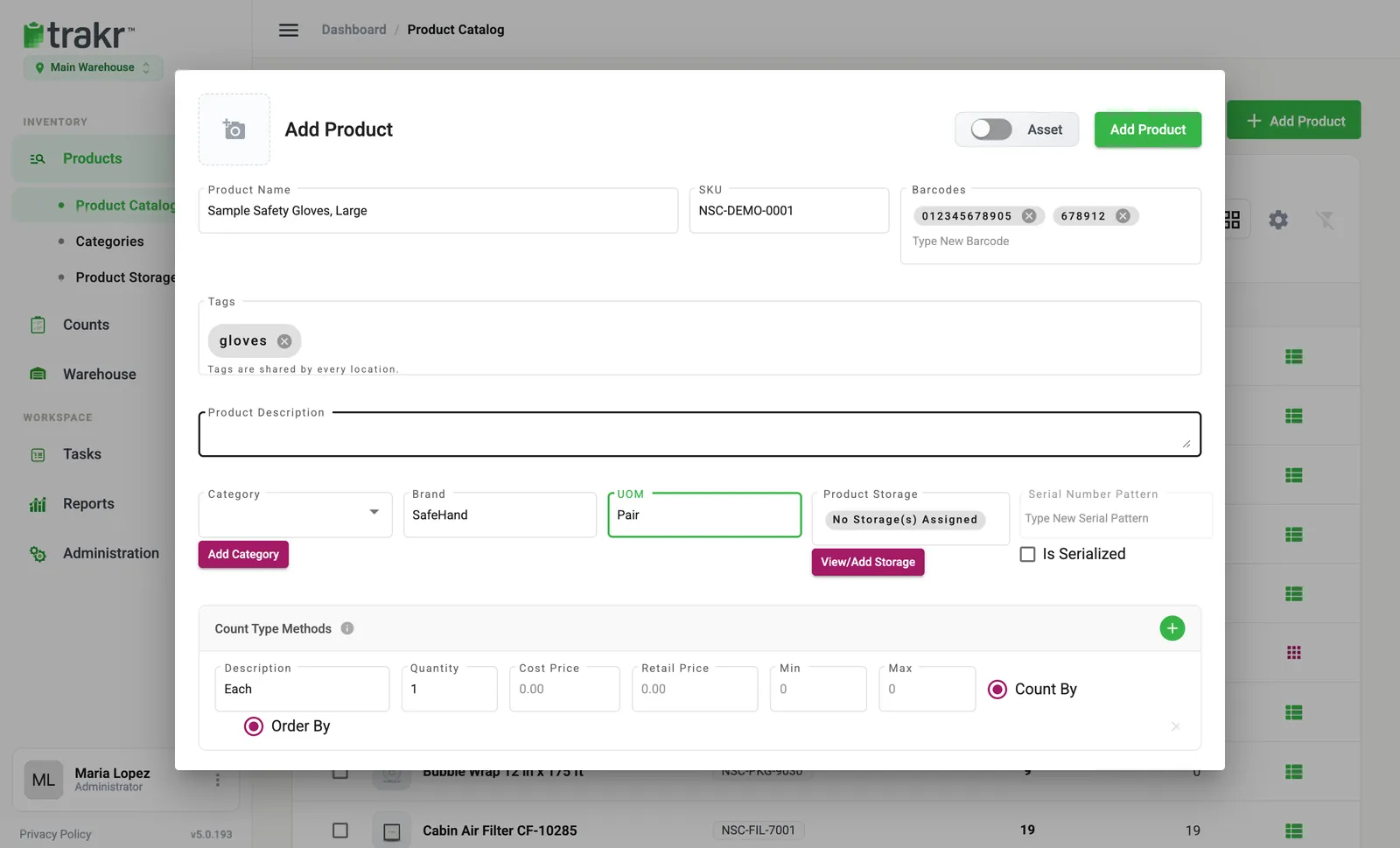
- 1Barcodes
Most scanners press Enter for you after each scan. If yours does not, press Enter yourself.
Remove or change a barcode
- Open the product.
- Click the x on the barcode chip to remove it.
- Type or scan the new barcode.
- Click Update Product.
To change a barcode, remove the old one and add the new one.
When Trakr does not accept a barcode
- Barcode is already in use: the code belongs to another product. Search for it in the catalog to find which one. See Find a product.
- You can only assign one Barcode per product: your plan allows a single barcode per product. Remove the existing one first.
Print labels
If your items do not have a barcode, you can print labels from the catalog. Tick the products, then use the print icon above the list. The label window lets you choose how many Copies of each and the Start at label, which is handy for a part-used sheet. Label design is covered in Printing labels.
Common questions
Can two products share the same barcode?
No. Trakr shows "Barcode is already in use" and will not save it. Each barcode points to exactly one product.
Can a product have more than one barcode?
On plans that allow it, yes, for example a unit barcode and a case barcode. If your plan allows one barcode per product, Trakr shows "You can only assign one Barcode per product".
My product has no barcode. Can I still use it?
Yes. Every product has a SKU, and you can search and work with it using the SKU. You can also print your own label.
Related articles
Was this article helpful?
Thanks, that helps us keep the guides honest. Need more help? Contact us