
How to organize products with categories
Create categories and sub-categories, move products into them and reorder the list, so your catalog is easy to browse and filter.
On this page Open the Categories page
In Trakr Inventory, categories group similar products, such as Fasteners, Filters or Safety & PPE. They make long catalogs easy to browse, filter and count. This article shows you how to set them up.
Open the Categories page
Click Products > Categories in the side menu. The page lists each category with the number of products in it.
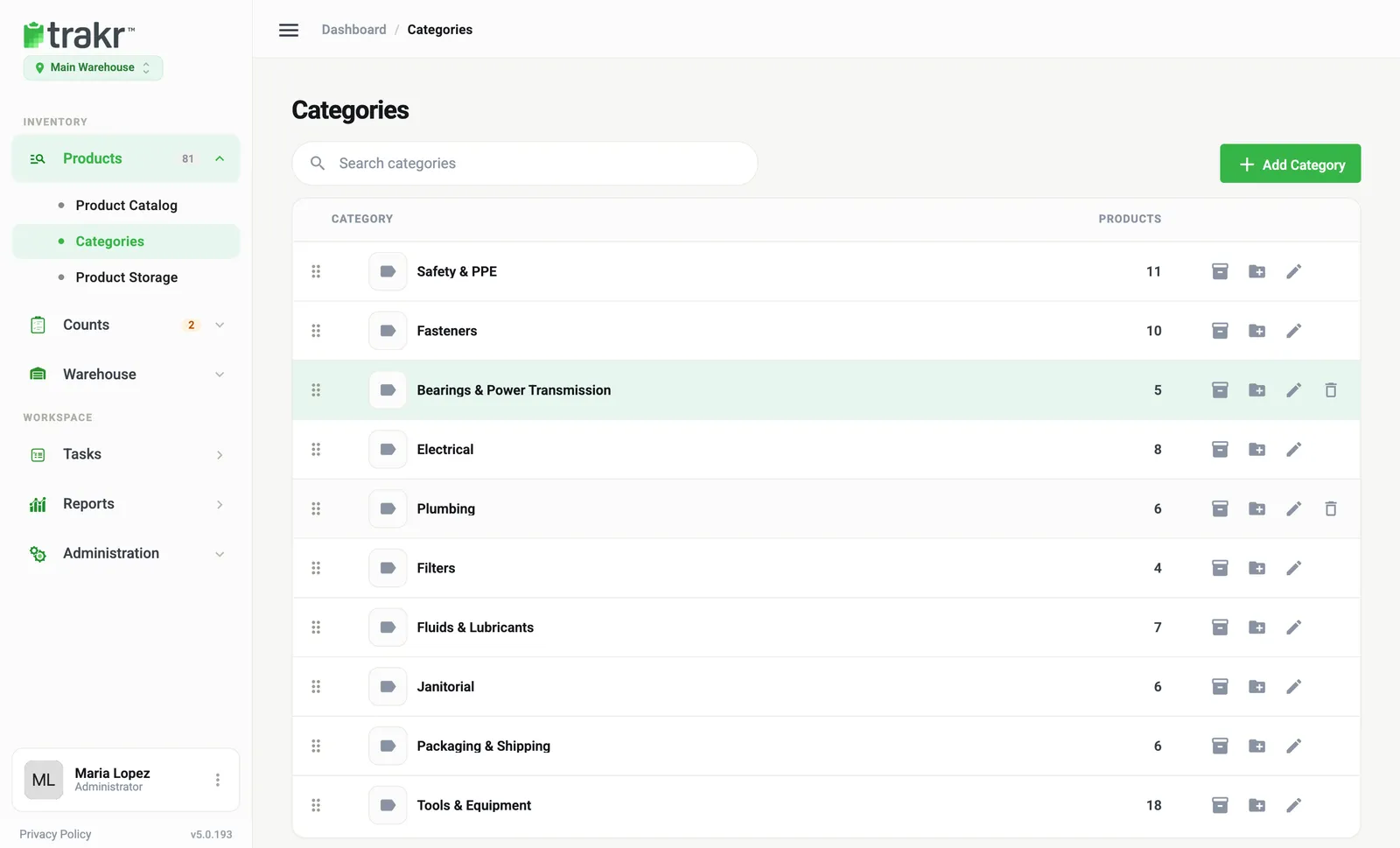
- 1Add Category
- 2Search categories
- 3Add sub-category
- 4Edit
Add a category
- Click Add Category (1).
- Type a name. A name cannot contain the “>” character.
- Optional: under Parent category choose a parent, or leave None (top level).
- Save.
You can also create one while you add or edit a product: click Add Category under the Category box in the product form.
Add a sub-category
- Find the parent category in the list.
- Click the folder icon with a plus (Add sub-category) on its row.
- Type the name and save.
A category with sub-categories shows an expand arrow. The number next to it includes the products in its sub-categories.
Rename or delete a category
- Click the pencil icon (Edit) to rename a category or change its parent.
- Hover over a row and click the bin icon to delete it. Delete is not available for a category that still has sub-categories. Move or delete those first.
Put products into a category
There are three ways:
- One product: open it and use the Category drop-down. See Edit a product.
- Many products: in the Product Catalog, tick them and click Category in the bar at the bottom. Choose the category and save. Selected products are moved to it.
- From the Categories page: click the Products icon on a category’s row to pick which products belong to it.
Change the order
Drag the dotted handle at the start of a row to move a category up or down. Categories can only be reordered within the same parent.
Use categories
Once set up, pick a category in the Category filter on the Product Catalog to see just those products. See Find a product.
Common questions
Can a product be in more than one category?
No. A product has one category. If you add it to a different category, it is moved.
Why can I not delete a category?
A category that has sub-categories cannot be deleted. Move or delete the sub-categories first. The last remaining category cannot be deleted either.
Are categories shared between locations?
Categories belong to the location you are working in. Check the location name under the Trakr logo before you create or change them.
What is the difference between a category and a storage place?
A category says what kind of product it is (for example Fasteners). A storage place says where it is kept (for example Bin A-02-2).
Related articles
Was this article helpful?
Thanks, that helps us keep the guides honest. Need more help? Contact us