
How to put products in areas and shelves
Place products on a shelf or in an area so you know where stock lives. Add stock from Product Storage, assign many products at once, and reorder the list.
On this page Before you start
When every product has a place in Trakr Inventory, receiving, picking and counting get faster, because your team knows where to look. There are three ways to place products, and you can mix them.
Before you start
Create your areas and shelves first. See How to create areas and shelves.
Option 1: Add stock from Product Storage
Best when you are putting away a delivery on a specific shelf.
- Open Products > Product Storage.
- Click the area or shelf in the tree or on the cards, for example Aisle 3.
- Click Add Item. The Add Item window opens with that storage already chosen.
- Choose the Product, check the Storage, and enter the Quantity. You can add an Invoice Number, PO Number and a note.
- Click Add Item. The product appears in the list on the right with its on-hand quantity.
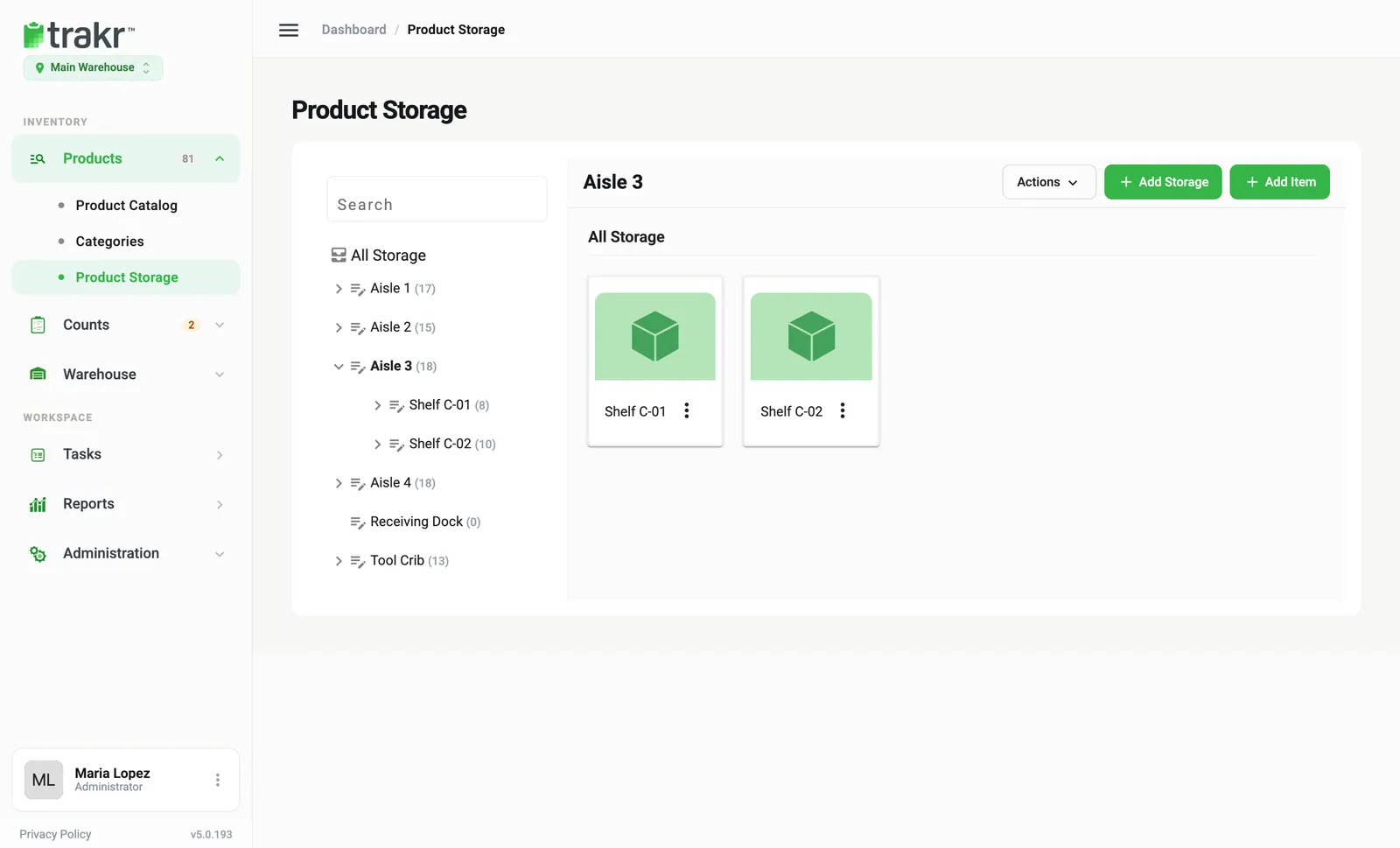
- 1Aisle 3
- 2Add Item
Option 2: From the product
- Open Products > Product Catalog and click a product to edit it.
- Next to the stored places, click View/Add Storage.
- Tick the shelves or areas where the product lives and confirm.
- Save the product.
Option 3: Many products at once
- In the Product Catalog, tick the products you want to place.
- Click Bulk Storage Add in the actions bar that appears.
- Choose the storage and confirm. The products are placed there with a quantity of zero, so on-hand numbers don’t change. A message says the products were assigned to their storage locations.
See and arrange what is on a shelf
Open any area or shelf to see its products with their codes and on-hand quantities.
- Use Search above the list to filter by name or code.
- Drag the handle on the left of a product to change its place in the list. A message confirms the new order was saved. Search must be empty to drag.
- Tick products and click Move to relocate several to another storage at once.
Good to know
- The number in brackets beside each area in the tree is how many products it holds, including those on its shelves.
- Use the Storage status filter in the Product Catalog to find products still waiting for a place.
- The list order you set is only the order of products inside that one storage. The order of areas themselves isn’t set here.
Common questions
Can a product be in more than one area?
Yes. A product can live in several storage spots, for example the main shelf and an overflow rack.
Can I save a product without a storage spot?
Yes. Trakr asks if you want to save without storage. You can add one later, but you need a storage spot before you can pick, receive or count that product.
Why is the Move button missing?
Moving stock does a pick and a receive, so you need permission for both. It also skips assets and serialized products.
How do I find products that have no storage yet?
In the Product Catalog, use the Storage status filter and choose Not in a storage.
Related articles
Was this article helpful?
Thanks, that helps us keep the guides honest. Need more help? Contact us