
How to add a location
Add a new site, store or warehouse to Trakr in four quick steps, and optionally copy storage and categories from an existing location.
On this page Before you start
Add a location whenever you open a new site or want to track a separate stock room on its own. You can start it blank or copy the setup from a location you already run.
Before you start
You need permission to add locations. If you don’t see the Add Location button, ask an administrator. Your plan also sets how many locations you can have.
Add the location
- Open Administration > Locations. You see a list of your locations with their addresses.
- Click Add Location. A four-step window opens: Address Info, Template Location, Data to Copy, Review & Save.
- On Address Info, fill in Name, Address 1, City, Province / State and Postal / Zip Code. Address 2 is optional. Next stays grey until the required fields are valid.
- Click Next. On Template Location, pick an existing location to copy from, or leave No template (start blank).
- Click Next. On Data to Copy, switch on what you want copied: Storages, Categories, Barcodes or Count Type Methods. If you chose no template, this step is skipped.
- Click Next and check the summary on Review & Save.
- Click Register Location. The page reloads and the new location is in the list.
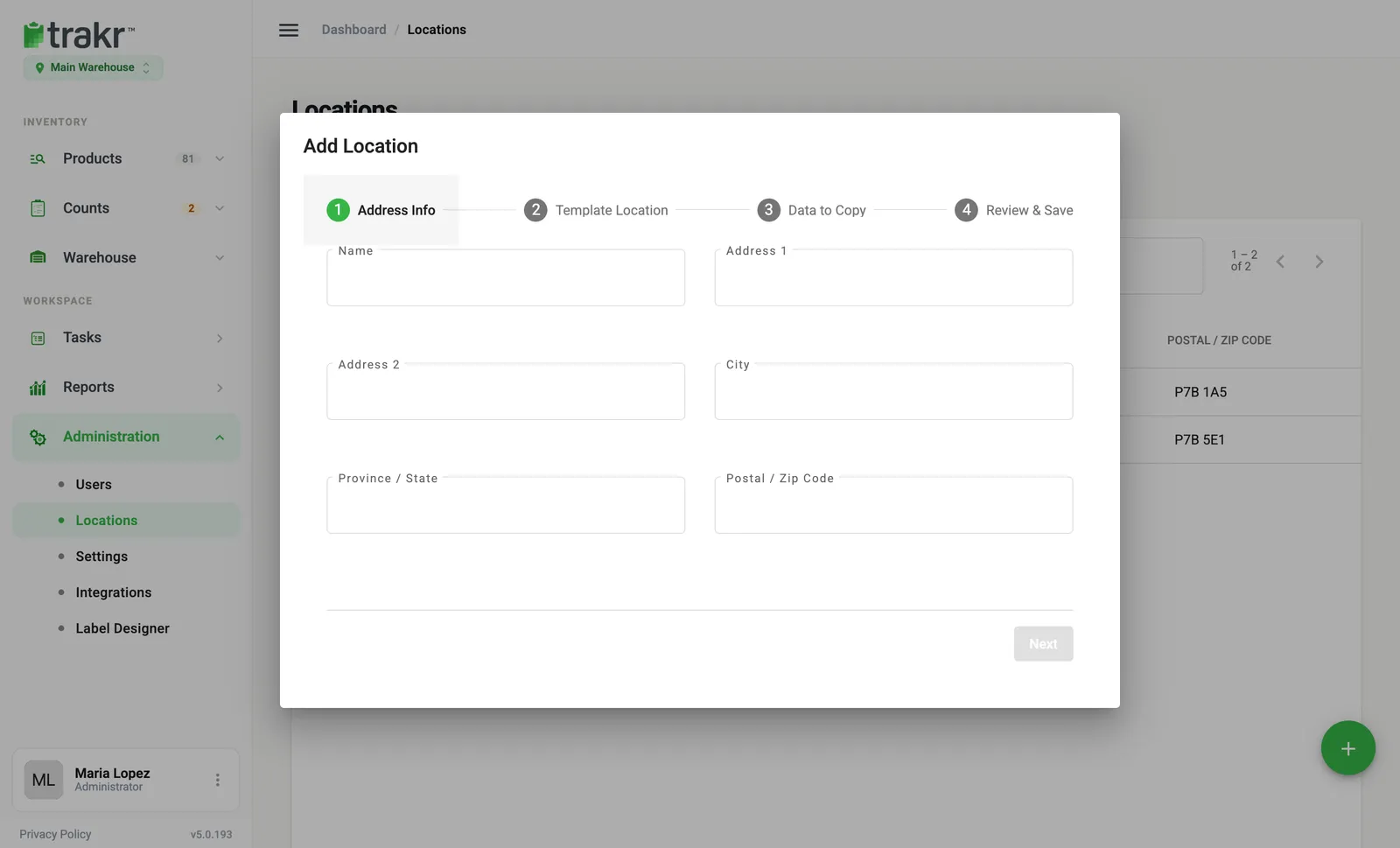
- 1Add Location
- 2Name
- 3Next
Field rules
- Name: 3 to 30 characters, and unique among your locations. Commas are removed.
- Province / State: exactly 2 letters, for example ON or NY.
- Postal / Zip Code: 3 to 10 characters.
After you save
- Administrators are given access to the new location automatically. For everyone else, see Give location access.
- Switch to it from the location menu under the logo. See Switch between locations.
Edit or delete a location
Click a row in the list to get Edit and Delete. If people would be left with no location after a delete, Trakr Inventory asks you to pick a new one for them first.
You can also bring many locations in at once with Import Locations, and download your list with Export Locations.
Common questions
Why can't I add another location?
Your plan includes a set number of locations. If you reach it, Trakr shows "You have reached the maximum number of locations." Contact support if you need more.
What gets copied from a template location?
You choose: storage structure, categories, barcodes and count type methods. Stock quantities are not on that list.
Can I change the address later?
Yes. Open Administration > Locations, click the row, and choose Edit.
Related articles
Was this article helpful?
Thanks, that helps us keep the guides honest. Need more help? Contact us