
How to give someone access to a location
Choose which locations a teammate can work in, so they see, count and move stock only in the places they should, and nowhere else.
On this page Before you start
Each person works in the locations you give them. Add a location to their profile and they can see its stock and work in it. Take one away and it disappears from their view.
Before you start
You need to be able to edit users, and the locations must already exist. To create one first, see How to add a location.
Change a user’s locations
- Go to Administration > Users.
- Click the user’s row. A small menu appears with Edit and Delete.
- Click Edit. The Edit User dialog opens.
- Open the Locations field. Tick each location the person should work in, for example Main Warehouse and Downtown Store. Untick the ones they should not.
- Click Update User.
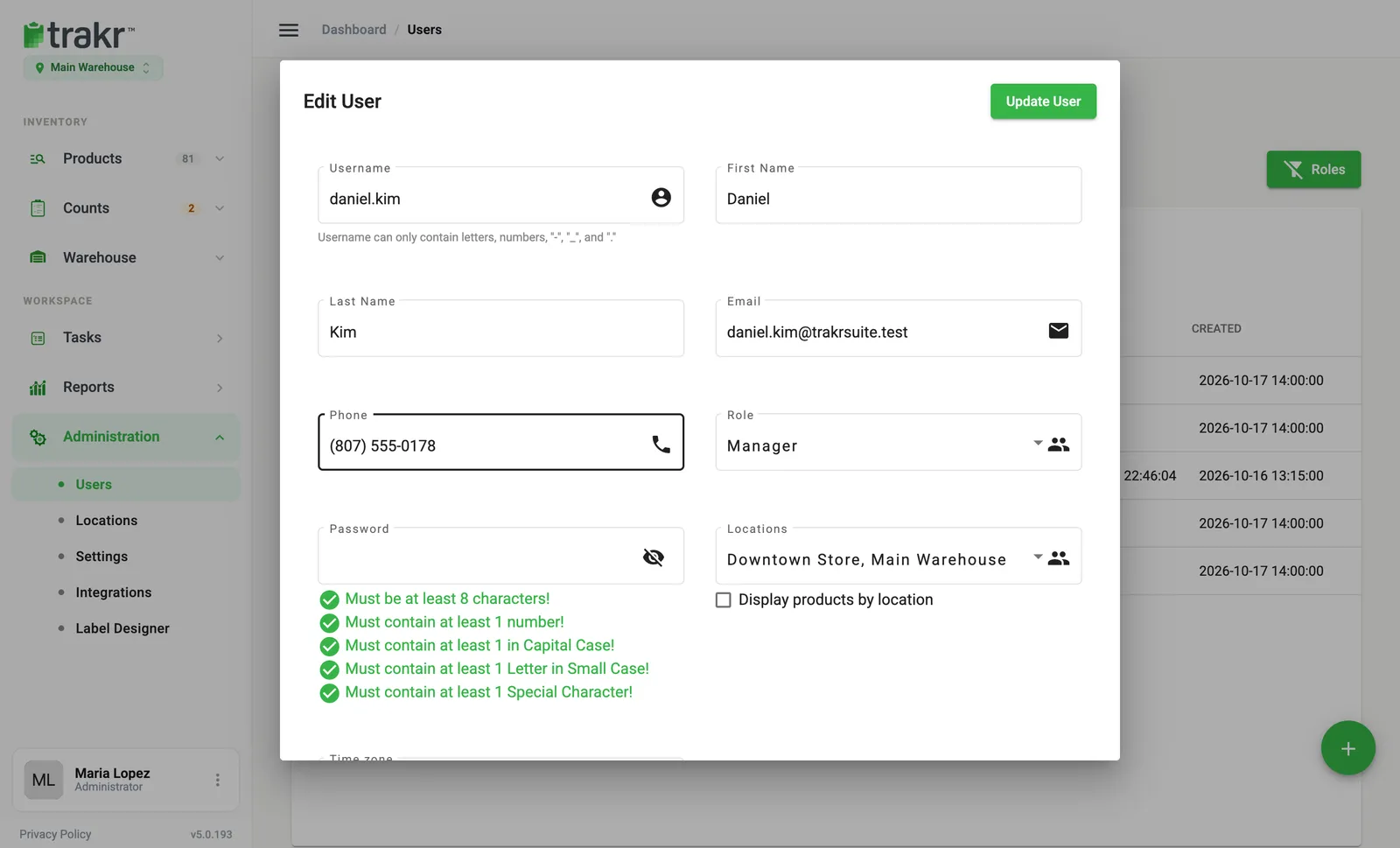
- 4Locations
- 5Update User
When you add a new user, you choose their locations in the same way. See How to add a team member.
What changes for the person
- Their location switcher, under the Trakr Inventory logo, lists only the locations you gave them.
- Products, counts, reports and warehouse activity are shown for the location they have open.
- The Display products by location checkbox under Locations controls the product list. When it is on, they see only the products set up at the location they are in.
Good to know
- Admins get every location automatically. This is why the Locations field is hidden when the Admin role is chosen.
- If you are not an admin, the list only contains the locations you hold yourself. You cannot give away access you do not have.
- If a non-admin deletes a user, Trakr only removes that user from the locations the non-admin holds. The user is fully removed only when no location is left.
Learn more about locations.
Common questions
Why doesn't an Admin have a Locations field?
Admins always have every location, so Trakr hides the field and assigns them all. To limit someone to certain locations, give them a different role.
I can only pick some locations. Why?
If you are not an admin, you can only assign the locations you have yourself. Ask an admin to add the rest.
What does the person see after you add a location?
The location appears in their location switcher under the Trakr logo, and they can switch to it.
Related articles
Was this article helpful?
Thanks, that helps us keep the guides honest. Need more help? Contact us