
Roles and permissions: who can see and do what
See what each Trakr role can do, how the Read, Create, Update and Delete permissions work, and how to build your own custom role.
On this page Open the Roles page
A role is a bundle of permissions. Give a person a role and Trakr shows them only the screens and buttons that role allows. This page explains the built-in roles and how to make your own.
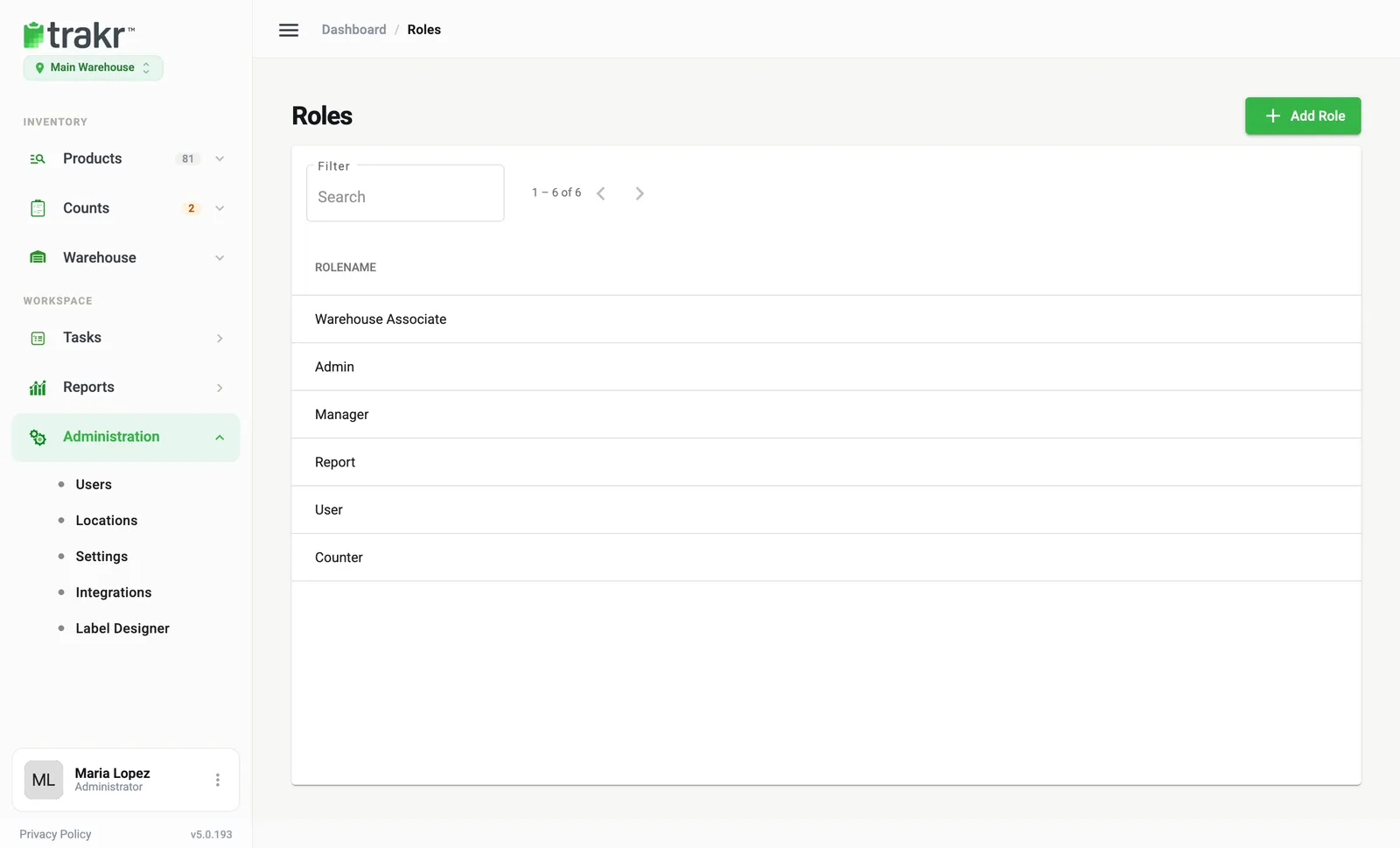
Open the Roles page
- Go to Administration > Users.
- Click Roles (top right).
- Click a role name to open it. You see its Role Name, its User Access (Web, Mobile) and a table of permissions.
- 1Add Role
How permissions work
Every row of the table is an area of Trakr, such as Product Catalog or Users. Four columns say what a role may do there.
| Column | Lets the person |
|---|---|
| Read | See the screen and its data |
| Create | Add new items |
| Update | Change existing items (on counts: finalize them; on finalized counts: revert them) |
| Delete | Remove items |
The rows are: Product Catalog, Category, Draft Counts, Finalized Counts, Users, Locations, Roles, Branding, Reports, Settings, Integration Library, Warehouse (Product Storage, Picking, Receiving, Pick Lists) and Support. If your plan does not include a feature, its boxes are greyed out.
The built-in roles
| Role | In plain words |
|---|---|
| Admin | Everything, in every location. Only admins see this role when they pick roles for a user. |
| Manager | Full access to products, counts, reports, users, roles, locations, settings and the warehouse. |
| Report | Look only. Read access to products, counts, reports, locations and settings. Cannot add, change or delete anything, and cannot see Users or Roles. |
| Counter | Does the counting. Full access to draft counts. Can view products, categories and settings. Cannot see finalized counts, users, roles, locations or integrations. |
| User | Starts with nothing ticked. A blank slate, useful as a base for a custom role. |
These come from Trakr’s starting setup. Click a role to see the exact ticks on your account, including the Warehouse rows.
Create a custom role
Your account may already have one, like Warehouse Associate in the Northshore Supply Co. demo. To make your own:
- On the Roles page, click Add Role.
- Type a Role Name. You cannot reuse a name that is taken, or the name Admin.
- Under User Access, choose Web, Mobile or both.
- Tick the boxes you want. Use Select All above a column to tick the whole column. Or click a starting point under Predefined Roles: Manager, Report, User or Counter. Then adjust.
- Click Add Role.
The new role now shows in the Role list when you add or edit a user. Click a custom role and choose Edit to change it later, or Delete to remove it.
Next: add a team member and give them a role.
Common questions
Why can't a teammate see a menu item or button?
Their role does not include that permission, or your plan does not include that feature. Open the Roles page, open their role, and check the matching row. Then see I can't see a menu item or button in Troubleshooting.
Can I change what Manager or Counter can do?
No. The built-in roles are read-only. Create a custom role with the permissions you want, then give it to the user.
Can someone have two roles?
Yes. Pick more than one in the Role field when you add or edit a user.
Does the role change what people can do on the phone?
Yes. Each role has a User Access setting with Web and Mobile. Web decides whether the role works in this web app. Mobile decides whether it works in the Trakr Inventory app.
Related articles
Was this article helpful?
Thanks, that helps us keep the guides honest. Need more help? Contact us