
How to add a team member
Add a user to your Trakr account, pick their role and locations, and let them set their own password with a reset email.
On this page Before you start
Add a user so a teammate can sign in to Trakr, count stock and work in the locations you choose. It takes about a minute.
Before you start
You need a role with permission to add users, such as Admin or Manager. If you do not see the Add User button, your role does not include it. See Roles and permissions.
Add the user
- Open Administration > Users in the side menu. The page lists everyone on your account.
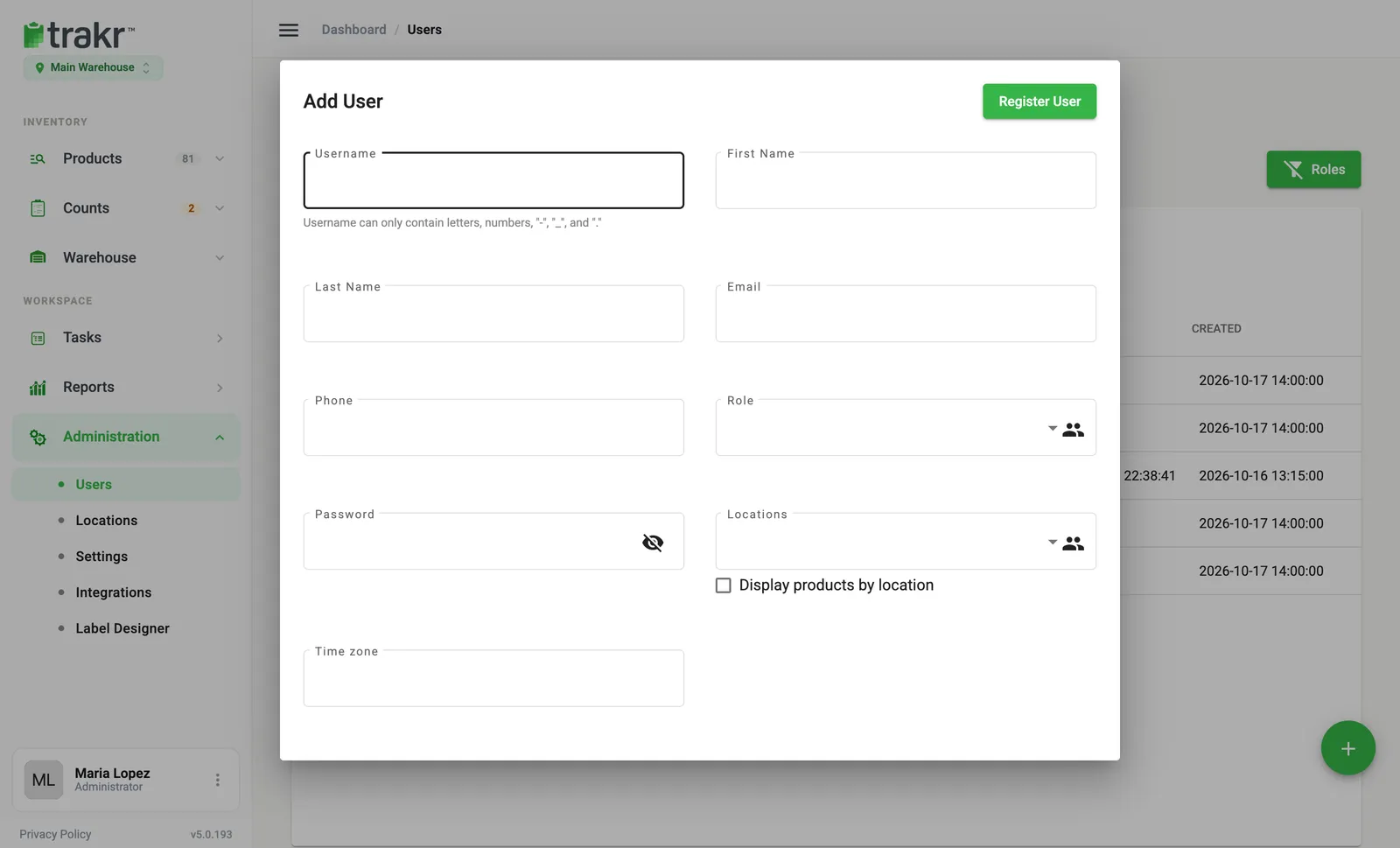
- Click Add User. A dialog opens (you can also use the round + button in the corner).
- Type a Username. Use letters, numbers, dots, dashes or underscores, 2 to 50 characters. Trakr checks that nobody else has it.
- Fill in First Name, Last Name and Email. Phone is optional.
- Choose a Role. You can pick more than one. Not sure which? Read Roles and permissions first.
- Type a Password. A checklist shows what is still missing: at least 8 characters, one number, one capital letter, one small letter and one special character.
- Pick the Locations this person can work in. This field is hidden when you choose the Admin role, because admins get every location.
- Choose the Time zone. Start typing and pick from the list. Dates in Trakr show in this time zone for this person.
- Click Register User. A message confirms the user was added and they appear in the list.
- 3Username
- 4Email
- 5Role
- 6Password
- 7Locations
- 9Register User
Let them choose their own password
Scroll to the bottom of the dialog and turn on Send password reset email to this user. Trakr emails a link so they can set a password that only they know. This is the safest way to start a new account.
Good to know
- Display products by location is a checkbox under Locations. Turn it on to show this person only the products that are set up at the location they are working in. Leave it off to show the whole catalog.
- New users appear in the Users list with the role, email and the date they were created. Logged In stays empty until their first sign-in.
- Your plan may limit how many users you can have. If you reach the limit, contact support (see Plans and limits).
- To add many people at once, use Import Users above the list.
Next, learn how to give someone access to another location.
Common questions
Does the new person get an email with their login?
Only if you turn on Send password reset email to this user. Then they get a link to choose their own password. If you leave it off, give them the username and the password you typed.
Why does Trakr say the username or email is already in use?
Each username and each email can belong to one person. Check the Users list, including the Filter box, for an existing account. If you find one, edit that user instead of adding a new one.
Can one person have more than one role?
Yes. The Role field accepts several roles, and the person gets the combined access.
Do new users use the same login on the phone?
Yes. The same username and password work in the Trakr Inventory app. The role decides whether a person can use the web app, the mobile app, or both.
Related articles
Was this article helpful?
Thanks, that helps us keep the guides honest. Need more help? Contact us