
How to switch between locations
Move between your sites with the location menu under the Trakr logo. Everything on screen then shows that location's stock.
On this page Before you start
If you work across more than one site, switch location to see and manage that site’s products, counts and reports.
Before you start
You need access to at least two locations. With only one, Trakr Inventory hides the menu because there is nothing to switch to.
Switch location
- Look under the Trakr logo at the top of the side menu. The pill shows your current location, for example Main Warehouse.
- Click it. A list of your locations opens, with a round button next to each name.
- Click the location you want, for example Downtown Store.
- Wait a moment. The page reloads and the name under the logo changes.
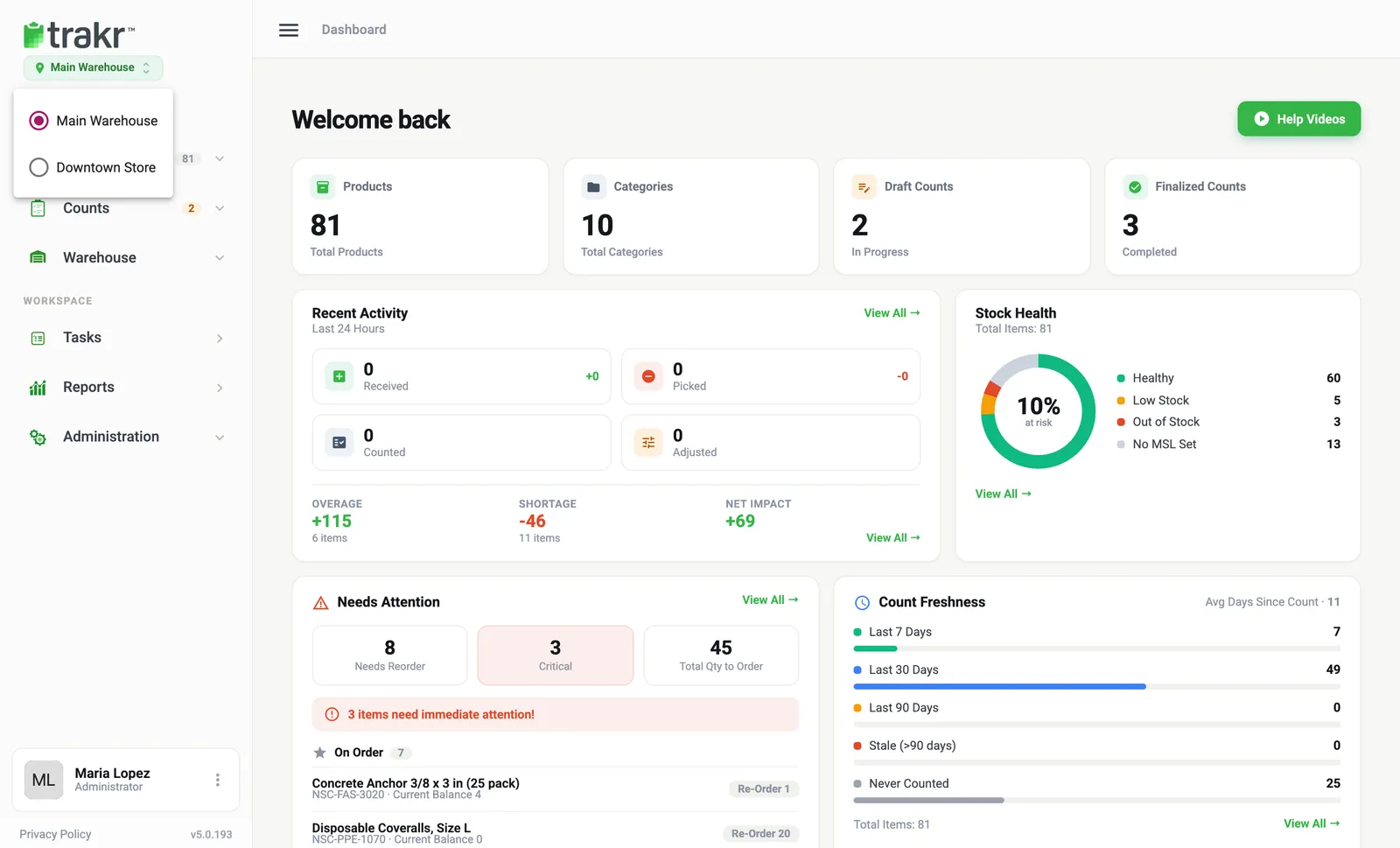
- 1Location pill
- 2Downtown Store
What changes when you switch
- Products, counts, receiving, picking and reports show the selected location.
- Product Storage shows that location’s own areas and shelves. See Locations, areas and storage spots.
Good to know
- You can switch back at any time.
- Every location you can reach is listed here. To add a missing one for a teammate, see Give location access.
Common questions
Why don't I see the location menu?
The menu only appears when you have access to more than one location. Ask an administrator to give you access to the others.
Does switching location sign me out?
No. The page reloads and you stay signed in, now working in the other location.
Can I see all locations at once?
No. The web app works in one location at a time, so switch to compare.
Related articles
Was this article helpful?
Thanks, that helps us keep the guides honest. Need more help? Contact us