
How to edit a product
Open a product in the Product Catalog to change its details, see its activity history, copy it, or remove it from your location in a few clicks.
On this page Edit a product
Product details change: a new barcode, a different shelf, a renamed item. This article shows you how to edit a product, check its history, and remove it when you no longer stock it.
Edit a product
- Go to Products > Product Catalog. Find the product with the search box. See Find a product.
- Click the product. Its window opens, with the photo and the quick numbers at the top: Total On Hand, Last Total Count and Min Quantity, plus a stock badge such as Healthy Stock.
- Change what you need. The fields are the same as when you added the product.
- Click Update Product.
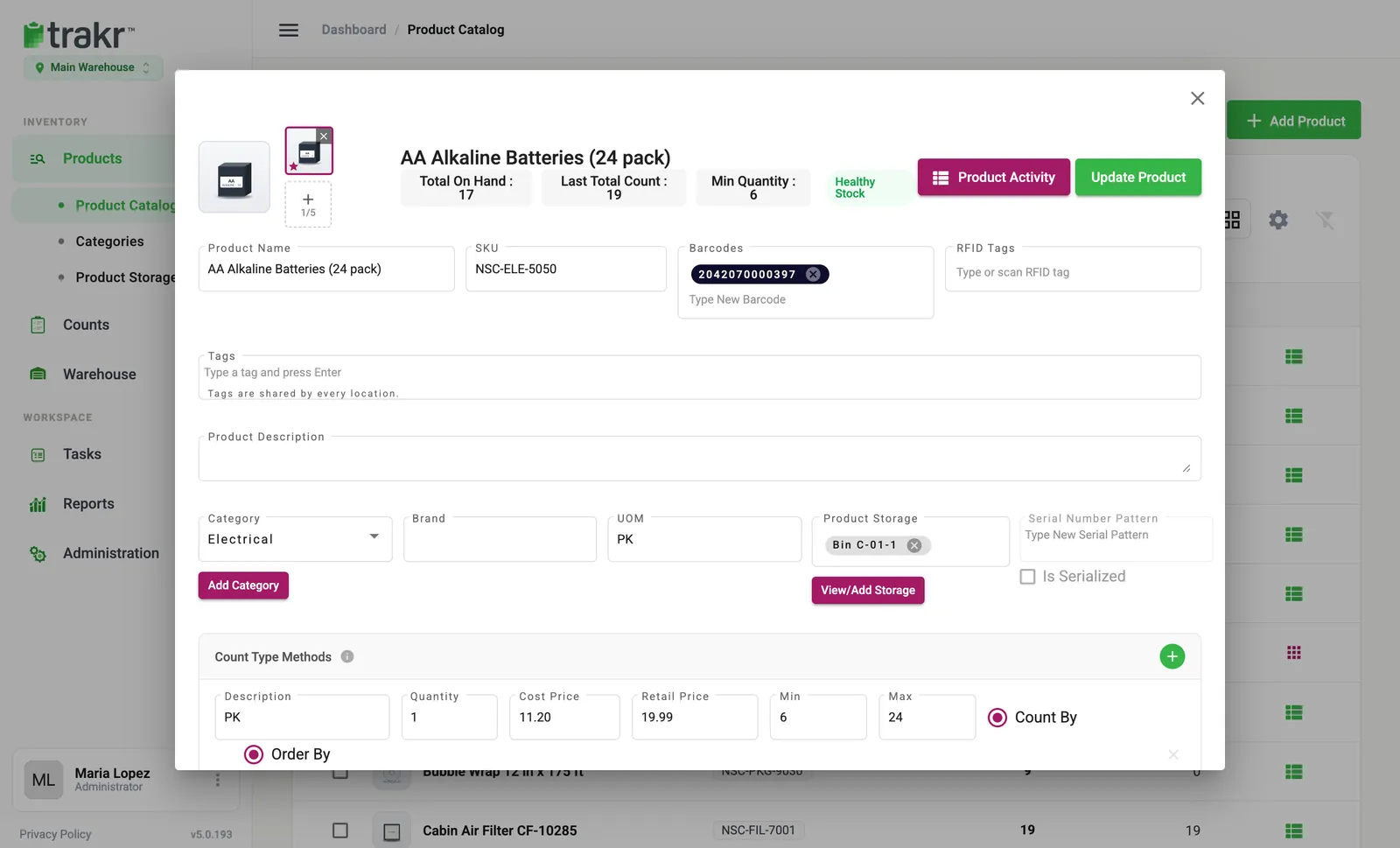
- 1Product Activity
- 2Update Product
- 3Minimum level
See a product’s activity
Click Product Activity (1). A window opens for each storage place the product sits in. It shows the On Hand and Last Count quantities and a table with Time, Action (Picked, Counted or Received), User, Note and Quantity.
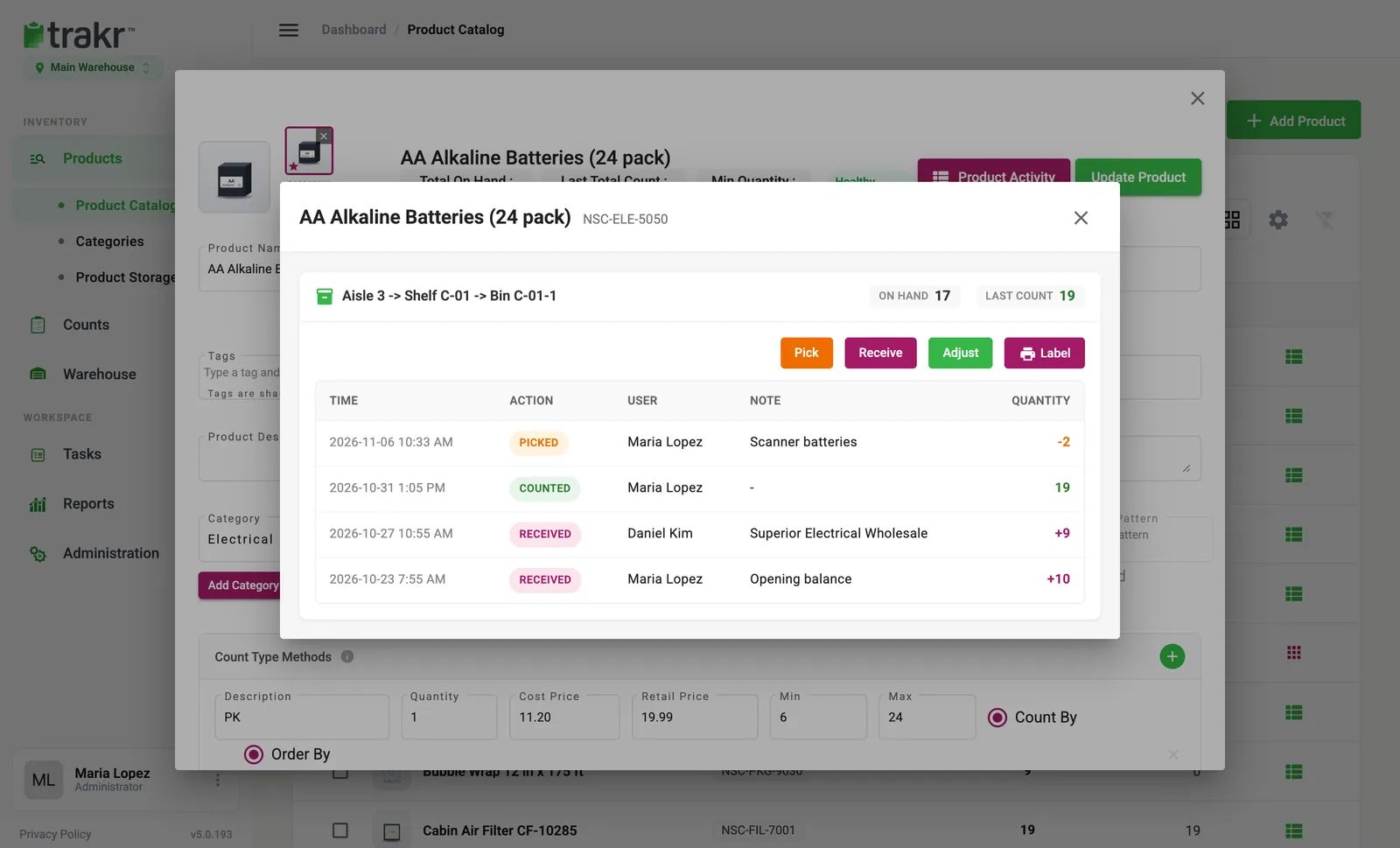
In the same window you will find Pick, Receive, Adjust and Label buttons for that storage place. Use Adjust to correct a quantity. See Change a quantity.
Copy a product
Tick one product in the list, then click Copy in the bar at the bottom. Trakr Inventory creates a copy of the product and the list refreshes. Open the copy and change its name, SKU and anything else that differs. It is a quick way to create a similar product, such as the same item in another size.
Remove a product
- Tick the product (or several) in the list.
- Click Batch Delete in the bar at the bottom.
- Choose the scope. Remove from this location keeps the product in your other locations. Delete from the entire account removes it everywhere and cannot be undone.
- Enter a reason and type DELETE to confirm.
Administrators see both choices. Other users can only remove a product from the location they are in.
Common questions
Can I change a SKU after the product is created?
Yes, open the product, edit the SKU and click Update Product. The SKU must stay unique and no longer than 18 characters.
What is the difference between removing a product from a location and deleting it?
Removing takes the product out of the location you are in and keeps it in your other locations. Deleting from the entire account removes it everywhere and cannot be undone. Only administrators see the second choice.
Where do I see what happened to a product's stock?
Open the product and click Product Activity. It lists every pick, count and receipt with the person, the note and the quantity.
Related articles
Was this article helpful?
Thanks, that helps us keep the guides honest. Need more help? Contact us