
How to track serial numbers
Turn on the Serialized Module, mark a product as serialized, and follow every unit by its own serial number from receiving to picking.
On this page Before you start
Some items need to be tracked one by one: a gas detector, a power tool, a laptop. With serial numbers, every unit has its own record, so you always know where it is and what happened to it.
Before you start
Serial numbers are an optional feature. Turn the module on once:
- Go to Administration > Settings.
- In the Modules card, switch on Serialized Module.
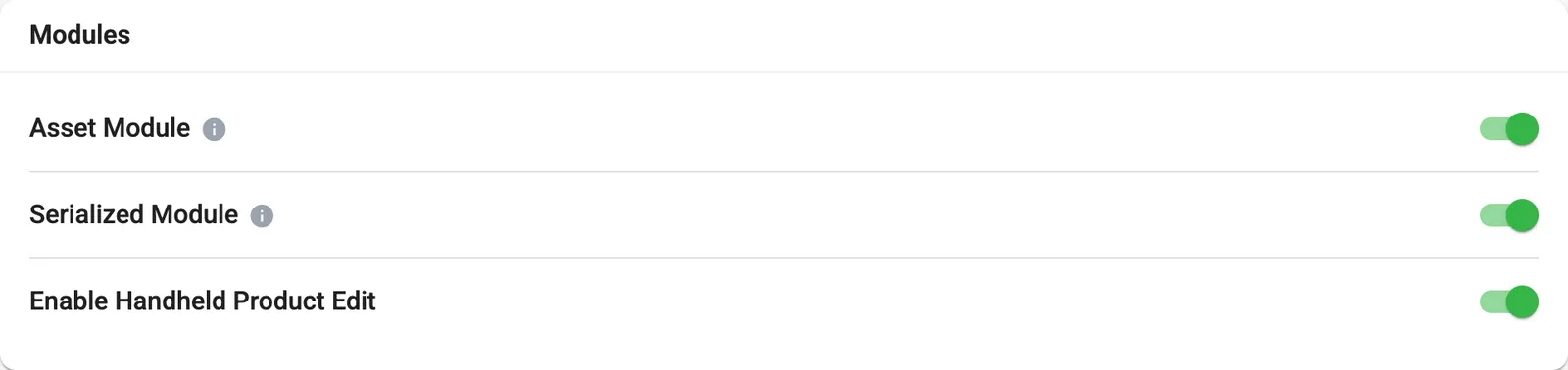
Switching it on shows the serialized options on products and adds the Serialized products report.
Mark a product as serialized
- Open the product, or start a new one. See Add a product.
- Find Serial Number Pattern and Is Serialized next to Product Storage.
- Tick Is Serialized.
- Type a Serial Number Pattern and press Enter. The pattern is how serial labels for this product begin, for example GD4-. Trakr Inventory uses it to recognize which product a scanned serial belongs to.
- Click Add Product or Update Product.
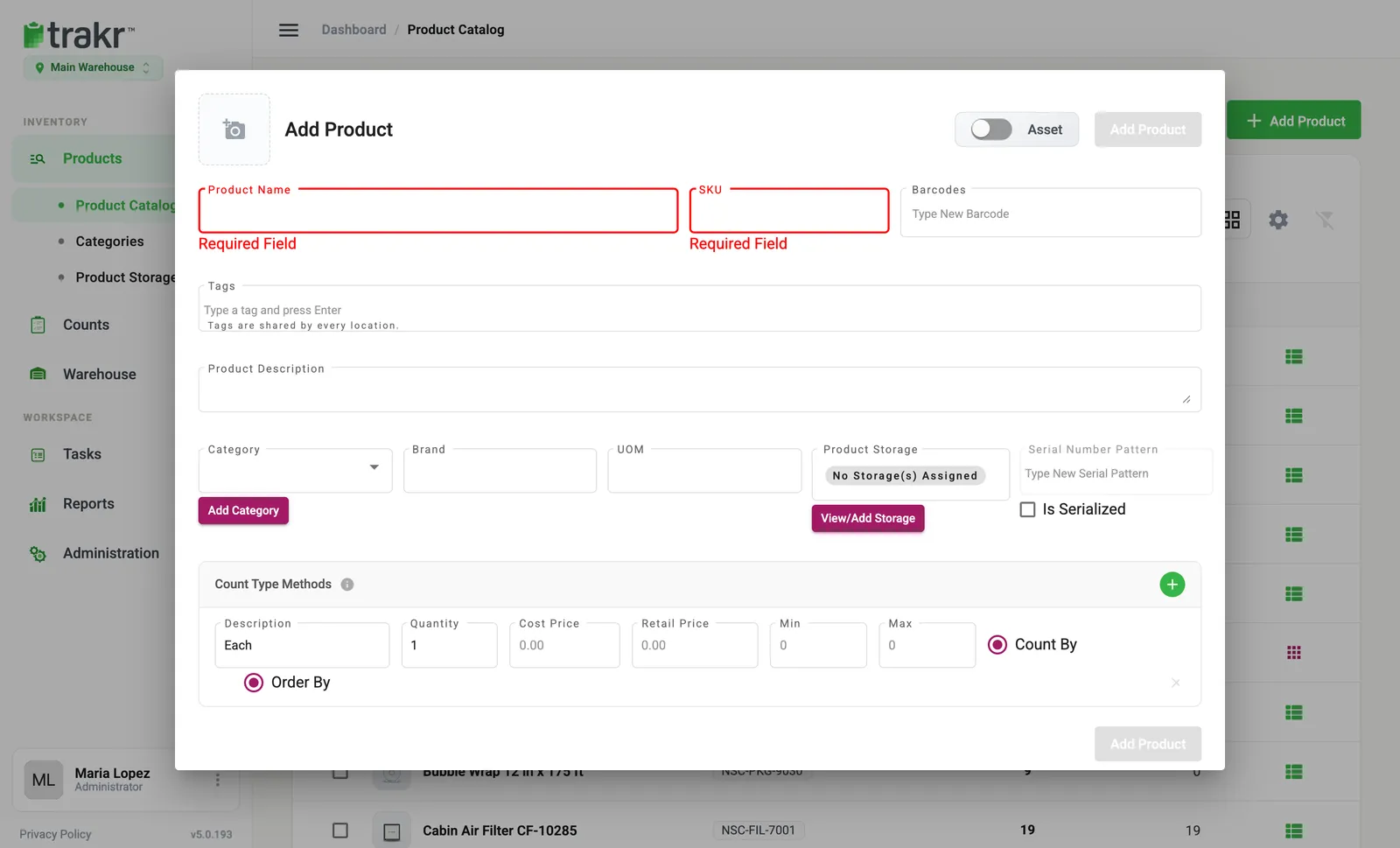
- 1Serial Number Pattern
- 2Is Serialized
The save button stays disabled while Is Serialized is ticked and no pattern has been added.
Receive and pick serialized products
Serial numbers are recorded in the Trakr mobile app: you scan each unit as you receive it, and scan it again when you pick it. If you try to receive or pick a serialized product in the web app, Trakr tells you to use the mobile app. Serialized products are also left out of the web app’s bulk Pick, Receive and Move actions.
Counts work with serial numbers too: scan each unit while counting.
See your serial numbers
- In the product window, a Serial numbers card lists the serials in stock, grouped by storage place. It is read-only.
- For everything at once, go to Reports > Serialized products.
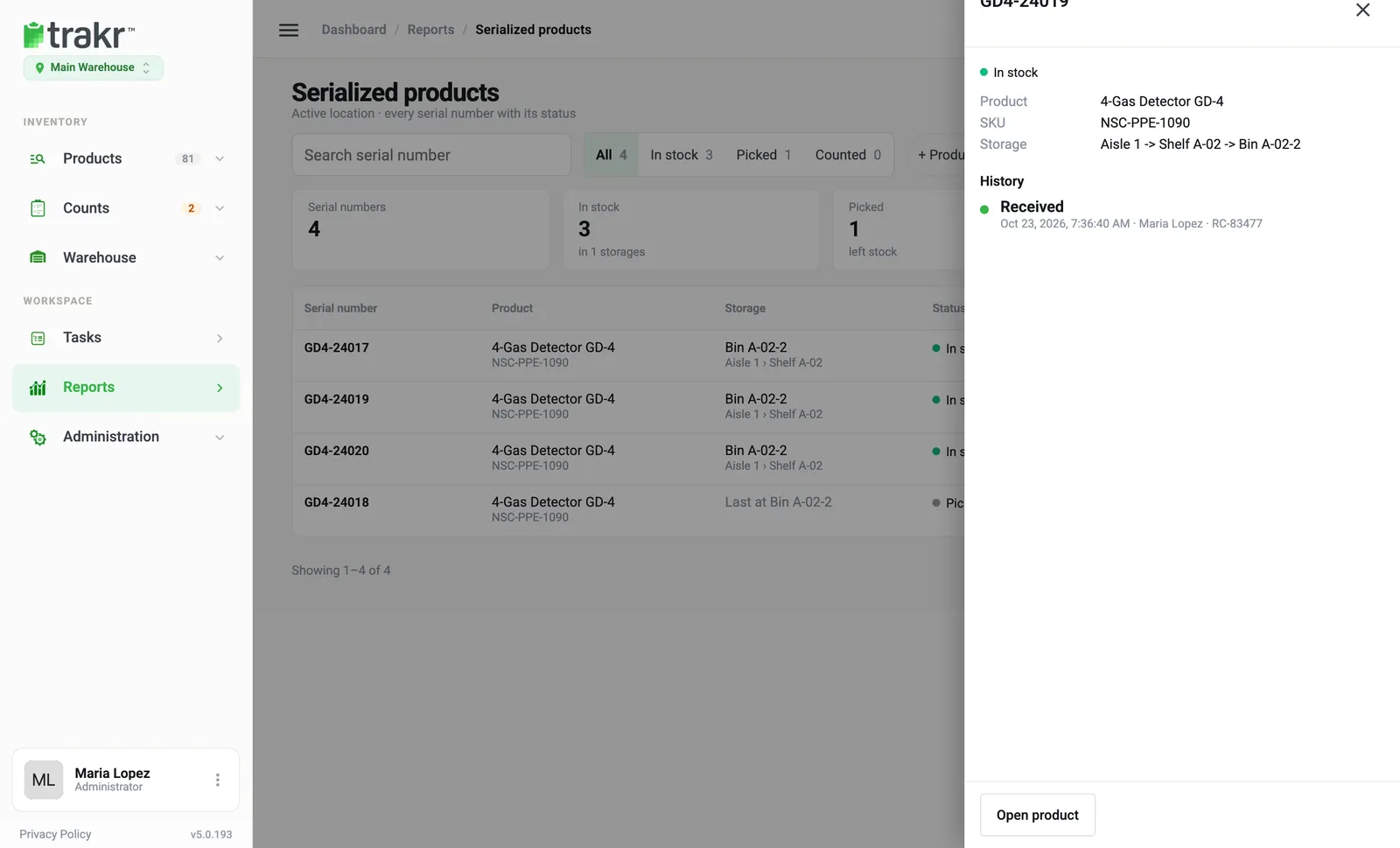
On the report you can:
- Search a serial number in Search serial number.
- Filter by status: All, In stock, Picked or Counted. Counted means the unit was found in a count but has no receipt.
- Click a row. A web app opens with the status, product, SKU, storage and a History of when it was received and picked, and by whom.
- Click Open product to jump to the product.
See Serialized products report for more.
Good to know
Serial numbers are different from barcodes. A barcode identifies the product type, and every unit shares it. A serial number identifies one single unit. See Barcodes.
Common questions
Why is the Is Serialized box greyed out?
Once a product has serial numbers on record, or has been received, its serialized setting is locked so the history stays correct. Trakr shows a note explaining which case applies.
Can I receive or pick serialized products in the web app?
No. Serialized products are received and picked in the Trakr mobile app, where you scan each unit. The web app shows the result.
What does "Serial Number Pattern is already in use" mean?
Each pattern can belong to only one product. Pick a pattern that is not used by another product.
Can I edit a serial number in the web app?
No. Serial numbers come in through receiving and leave through picking, so they are read-only in the product window.
Related articles
Was this article helpful?
Thanks, that helps us keep the guides honest. Need more help? Contact us