
How to import products from Excel or CSV
Import products from an Excel or CSV file into Trakr Inventory: download the template, match your columns, check for problems and confirm.
On this page Before you start
If you already keep your products in a spreadsheet, you do not need to type them in one by one. This article walks you through the four-step import wizard.
Before you start
- Your file needs two things for every row: a SKU and a Product Name. Everything else is optional.
- You need permission to add and edit products. If you do not see Import Products, ask an administrator.
Import your file
- Go to Products > Product Catalog.
- Click Actions, then Import Products, then Excel / CSV. The Product Import wizard opens.
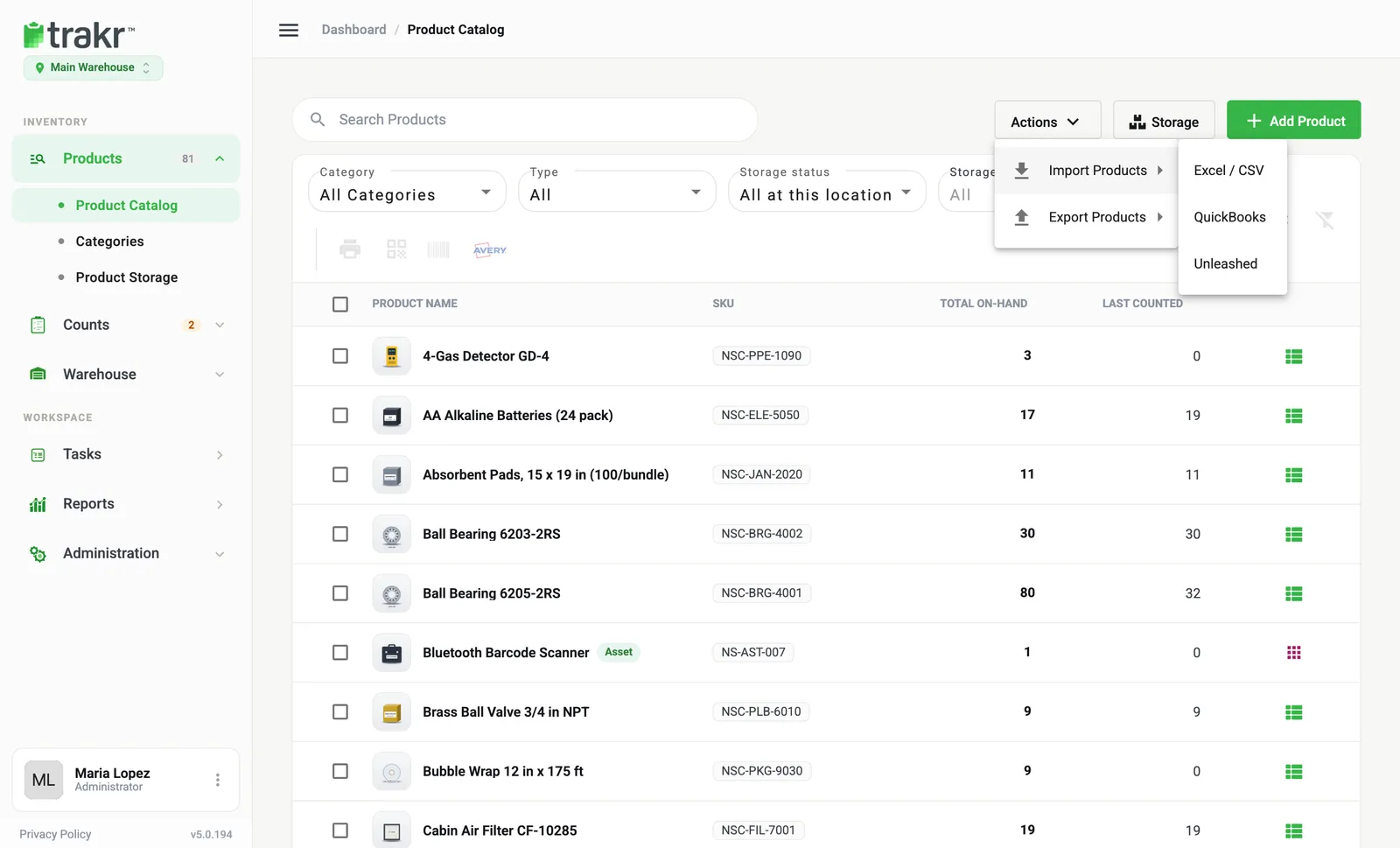
- 1Actions
- 2Import Products
- 3Excel / CSV
Upload your file
- New to this? Click Review/Download Template to get a ready-made Excel file with the right column headings. Required headings are marked in red.
- Drag your file onto the box, or click browse and pick it. The file types supported are XLSX, XLS and CSV.
- When the file is added, the column headings it contains appear as small chips. Click Next.
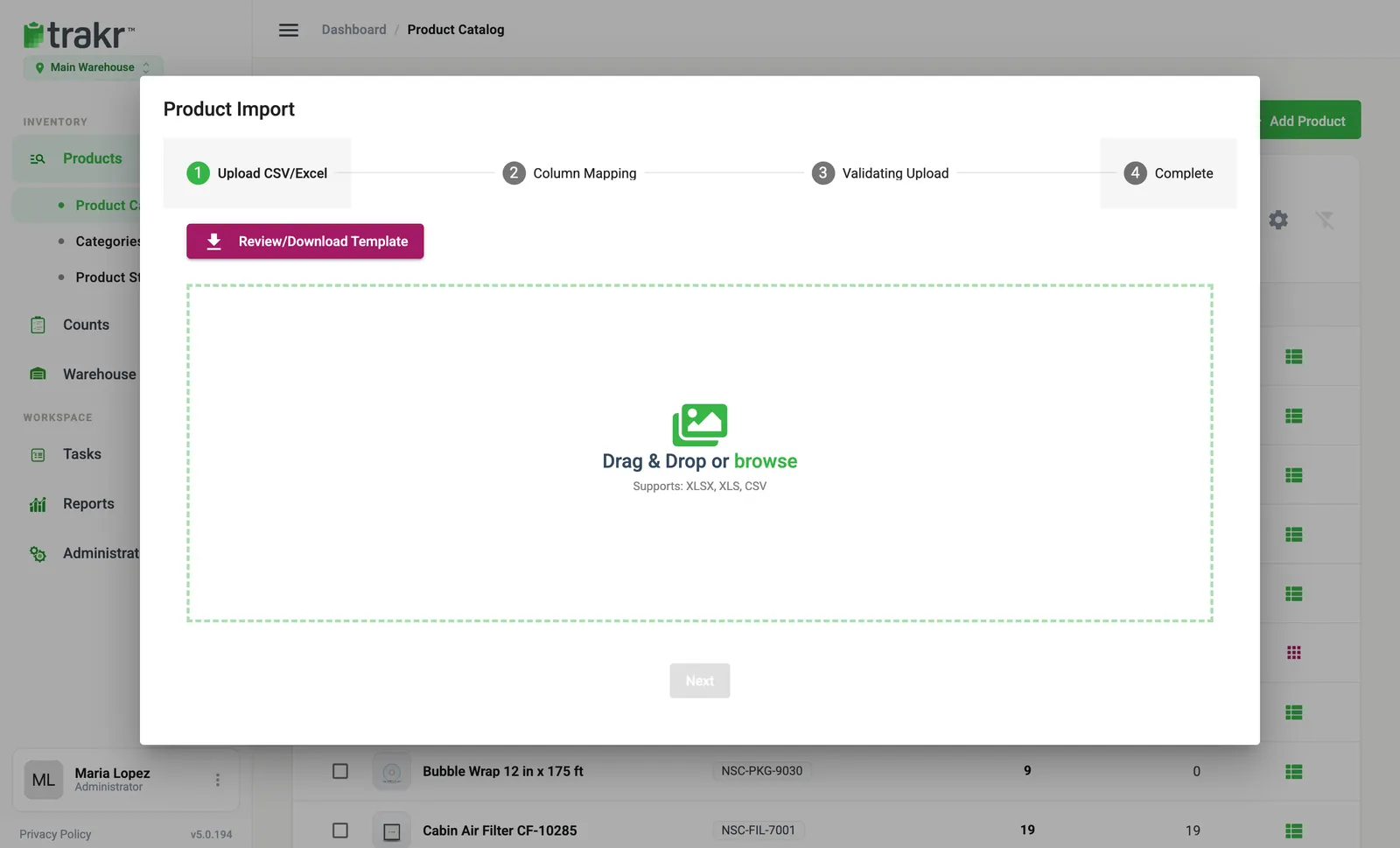
- 3Review/Download Template
- 4Upload box
- 5Next
Match your columns
- Each Trakr field is listed with a drop-down labelled Select a column. Trakr fills in the ones it recognizes and shows a green tick, with a small preview of the first rows from your file.
- For any field that is empty, open the drop-down and choose the matching column from your file. Fields with no match show No Value Set.
- SKU and Product Name are required (marked with a star). Click Next.
The fields you can map include Product Description, Product Barcode, Brand, UOM, Category, Cost Price, Retail Price, Tags, your minimum levels, your custom fields, Storage Paths and, if the Asset Module is on, Is Asset and Asset Number.
Check for problems
- Trakr checks the file and lists problems in tables: Missing or Duplicate SKUs in your file, Duplicate Barcodes in your file and Empty Products Names in your file. Each row shows the row number from your spreadsheet.
- Fix the problems in your spreadsheet and start again. When all is well you see “It’s all good!” Click Confirm Import.
Finish
- A summary lists the products imported successfully and any that failed. Click View Product Catalog to see them.
Good to know
- Storage Paths are matched to storage places that already exist. Paths Trakr cannot find are skipped, and Trakr tells you which.
- An existing SKU is updated, not duplicated.
- If your plan allows only one barcode per product, Trakr warns you when your file has several for one product.
Something went wrong? See Import errors.
Common questions
Which file types can I upload?
Excel (.xlsx or .xls) and CSV. Upload one file at a time.
What if my column headings do not match yours?
That is fine. Trakr matches headings it recognizes automatically, and in the Column Mapping step you choose the right column for each field yourself.
What happens if a SKU in my file already exists in Trakr?
The existing product is updated with the values from your file instead of being duplicated. Duplicate SKUs inside the same file are flagged before anything is imported.
Can I undo an import?
There is no one-click undo. Check the Validating Upload step carefully. Products can be removed afterwards from the Product Catalog.
Related articles
Was this article helpful?
Thanks, that helps us keep the guides honest. Need more help? Contact us