
My product import failed or looks wrong
Fix product import problems: missing SKU or name column, duplicate SKUs and barcodes, product limit errors, skipped storage paths and rounded prices.
On this page Check these, most likely first
You uploaded a spreadsheet and the import stopped, skipped rows, or saved something you did not expect. The import is a 4-step wizard (Upload CSV/Excel, Column Mapping, Validating Upload, Complete), and most problems show up in step 3 with a list of what to fix.
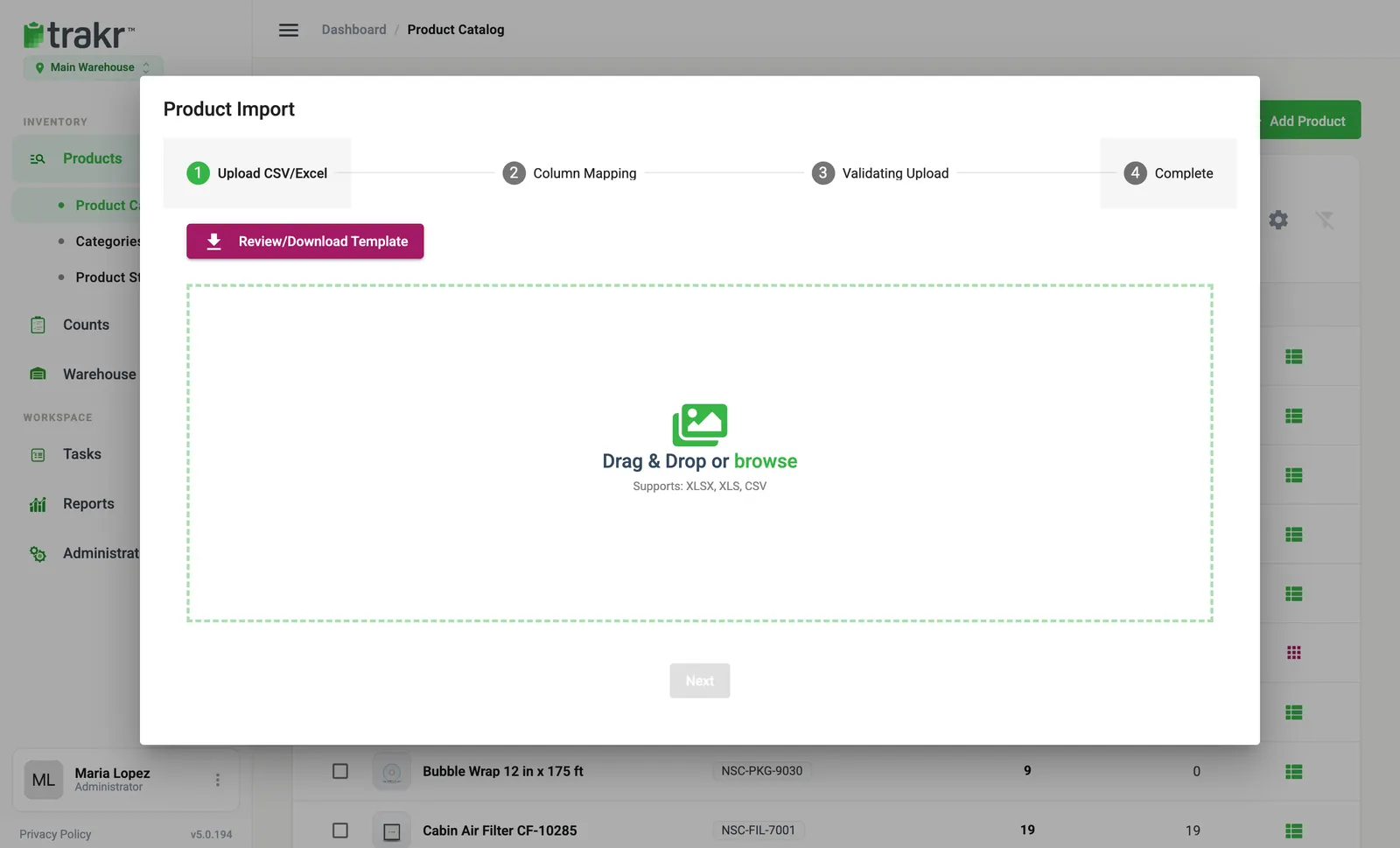
- 1Review/Download Template
- 2Next
Check these, most likely first
1. A required column was not matched
In Column Mapping every column needs a match. If you see You need to go back to the previous step and assign a column for Product Name (or for SKUs), click back and choose the right column from Select a column. The easiest way to get this right is Review/Download Template (1) and paste your data into it.
2. Some rows have no SKU
Rows flagged SKU Missing are counted under records with problems. Fill in a SKU for each one. A SKU can be up to 18 characters.
3. A SKU or barcode already exists
Trakr Inventory lists the SKUs or barcodes that are already in use. Change them in your file, or remove those rows, then upload again. If a barcode cell holds several barcodes, separate them with commas and make sure none repeats. More on barcodes: Product barcodes.
4. The import would go over your plan’s limit
You will see how many products you have, what your limit is, and how many you tried to add. Product limits apply only to the older Solo and Teams plans. Remove products you no longer stock, or contact us about your plan. Details: I hit my product limit.
5. Some storage paths were skipped
If the message says Some storage paths were not found in the system and were skipped, the product was still imported but without that storage. Create the missing areas first, or correct the spelling in your file. See Create areas.
6. The file itself is the problem
Use one file at a time, in Excel or CSV format. An empty file, a missing header row or a file open in another program can fail. Save it again, close it, and upload once more.
7. Prices look slightly different
Values with more than 2 decimals are rounded to 2. The wizard shows each field, the value in your file and the value saved.
Related
How the import works from start to finish: Import products.
Common questions
Does a failed import add some of my products anyway?
No. The wizard checks the whole file in step 3 and stops you until the listed problems are fixed, so nothing is added from a file that did not pass.
Why does the import say prices were rounded?
Prices are saved with 2 decimals. If your file has more, Trakr rounds them and shows which values changed, so you can compare before you confirm.
Related articles
Was this article helpful?
Thanks, that helps us keep the guides honest. Need more help? Contact us