
Assets: track equipment you lend out
Learn what an asset is in Trakr, how it differs from stock you use up, and how to turn on the Asset Module in Settings so you can lend equipment out.
On this page Asset or regular product?
Some things you own are not meant to be used up. A cordless drill, a laser level or a laptop goes out, then comes back. With the Asset Module you can record who has it, where it is going and when it is due back.
Asset or regular product?
An asset is a normal entry in your Product Catalog with one difference: instead of being picked and received, it is checked out and returned.
| Regular product | Asset | |
|---|---|---|
| Example | Ball Bearing 6205-2RS | Cordless Drill 20V Kit |
| How stock goes down | Picked, or a count is finalized | Checked out to a person |
| How stock comes back | Received | Returned |
| What you track | How many are on hand | Who has it and when it is due |
| Where it appears | Product Catalog, counts, warehouse | Product Catalog with an Asset badge, check-outs, Assets Report |
Use an asset for tools, equipment, devices and anything else you lend and expect back. Use a regular product for supplies you consume.
Turn on the Asset Module
The Asset Module is off until you switch it on. You need access to Settings.
- Open Administration > Settings.
- Find the Modules card.
- Switch on Asset Module. Hover the info icon next to it for a short reminder: it tracks assets that are checked out and returned, like equipment and tools.
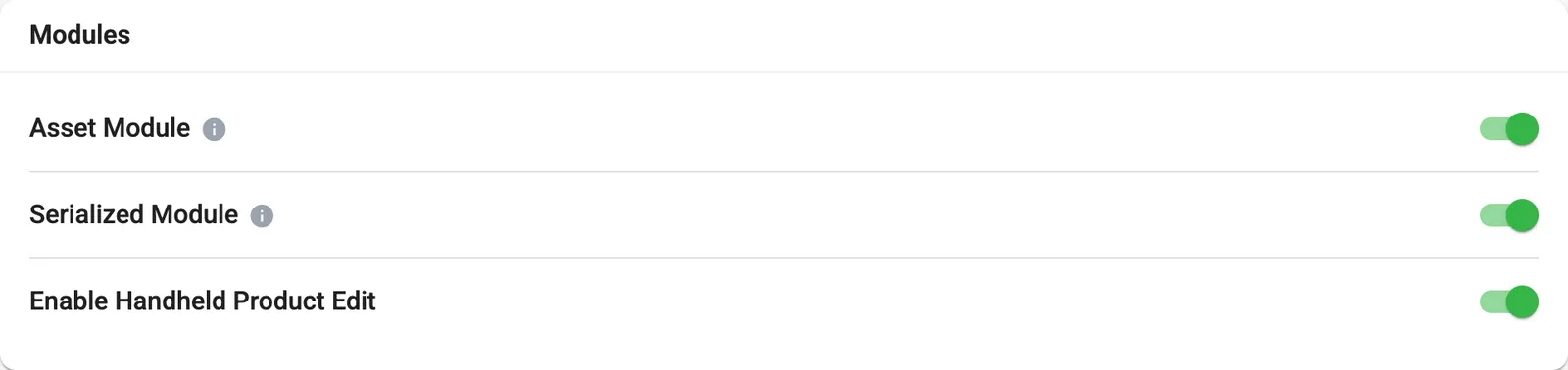
- 3Asset Module switch
Once it is on, you will see these things:
- An Asset switch when you add a product.
- An Asset badge on asset products in the Product Catalog.
- A Check Out / Return button on asset products.
- An Assets Report card on the Reports page.
- An Assets Due Back card on your dashboard when something is due or late.
How an asset moves
- You add the asset once, with a unique Asset Number.
- When someone takes it, you check it out and say who and until when.
- When it comes back, you return it. If it comes back damaged, attach photos.
- The Assets Report shows every check-out, including late ones.
Good to know
- You can mix assets and regular products in the same catalog. On the Products page, the Type filter has an Assets only option.
- Turning the module off hides the asset features. It does not delete your asset products.
- Assets work per location, like the rest of your stock.
Common questions
Can I turn an existing product into an asset?
No. A product's type is set when you create it. An existing product cannot be converted to an asset, and an asset cannot be converted back to a normal product. Create a new asset product instead.
Why can't I pick or receive an asset?
Assets are lent out and brought back, not used up. Picking and receiving are blocked for asset products. Use Check Out and Return instead.
Do assets show up in my counts?
Asset products are skipped when counts are written, so they do not appear as count lines. You track them through check-outs instead.
Related articles
Was this article helpful?
Thanks, that helps us keep the guides honest. Need more help? Contact us