
How to read the Assets Report
See every asset check-out in one table: who has it, what it is for, when it is due, and what is overdue. Search it and export it.
On this page Before you start
The Trakr Inventory Assets Report answers three questions: who has our equipment, when is it due back, and what is late. You can export the table to share it.
Before you start
The Asset Module must be on. Otherwise the report is hidden.
Open the report
- Click Reports in the side menu.
- Find Assets Report and click View. The card says you can view active asset check-outs, track overdue items and monitor asset movement.
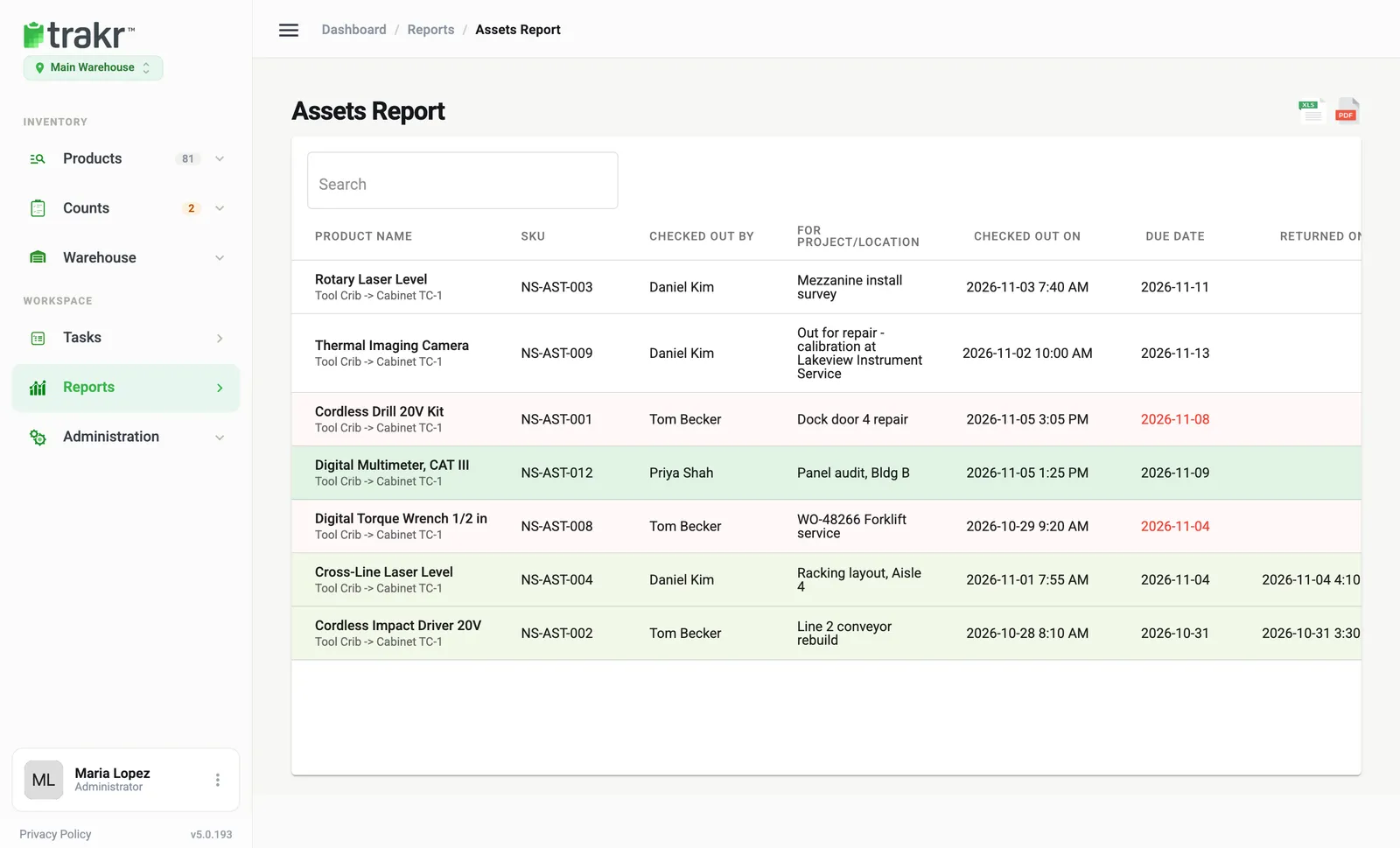
- 1Search
- 2Excel and PDF export
- 3A late due date
Read the table
Each row is one check-out.
| Column | What it tells you |
|---|---|
| Product Name | The asset, with its storage path underneath |
| SKU | The asset’s SKU |
| Checked Out By | The person who has it |
| For Project/Location | Where it went, for example “Dock door 4 repair” |
| Checked Out On | When it left |
| Due Date | When it is expected back. Red if late and not yet returned |
| Returned On | When it came back. Empty while it is out |
| Quantity | The number of units. A partial return shows remaining over total, like 2 / 3 |
| Status | Active, Overdue (with the days late, like 4d), Partially returned (like 1/3) or Returned |
Scroll right on a narrow screen to see the last columns.
Find what you need
- Type in the Search box to filter by product name, SKU, person or project. For example, type “Daniel” to see everything Daniel Kim has.
- Look for red due dates first. They are what needs a phone call.
- Open the asset’s Check Out / Return dialog from the Product Catalog to return it or read its history.
Export
Click the Excel icon for a spreadsheet or the PDF icon for a printable copy. The export matches what is on screen, so search first if you only want one person or project. For more on exports, see Export a report.
Good to know
- Every check-out and return is kept, so this report doubles as your equipment log.
- Teammates without full access see only their own check-outs on the Asset Check-Outs page. Reports access follows your role, see Roles explained.
Common questions
I don't see the Assets Report.
It only shows when the Asset Module is on. Turn it on under Administration > Settings > Modules, then open Reports.
What do the colours mean?
An overdue check-out has a red due date and a light red row. A returned check-out has a light green row.
Does the report show returned items?
Yes. Returned check-outs stay in the table with their Returned On date and a Returned status, so you keep the full record.
Can I send this to a manager or a customer?
Yes. Use the Excel or PDF icons at the top right. They export the rows you see, after your search.
Related articles
Was this article helpful?
Thanks, that helps us keep the guides honest. Need more help? Contact us