
How to add an asset
Create an asset product with an Asset Number and a storage place, so you can check it out to people and track when it comes back.
On this page Before you start
Add each tool or piece of equipment once, and give it an Asset Number. After that you can lend it out and see where it is at any time.
Before you start
The Asset Module must be on. If you do not see an Asset switch when you add a product, turn it on first: Assets explained.
Steps
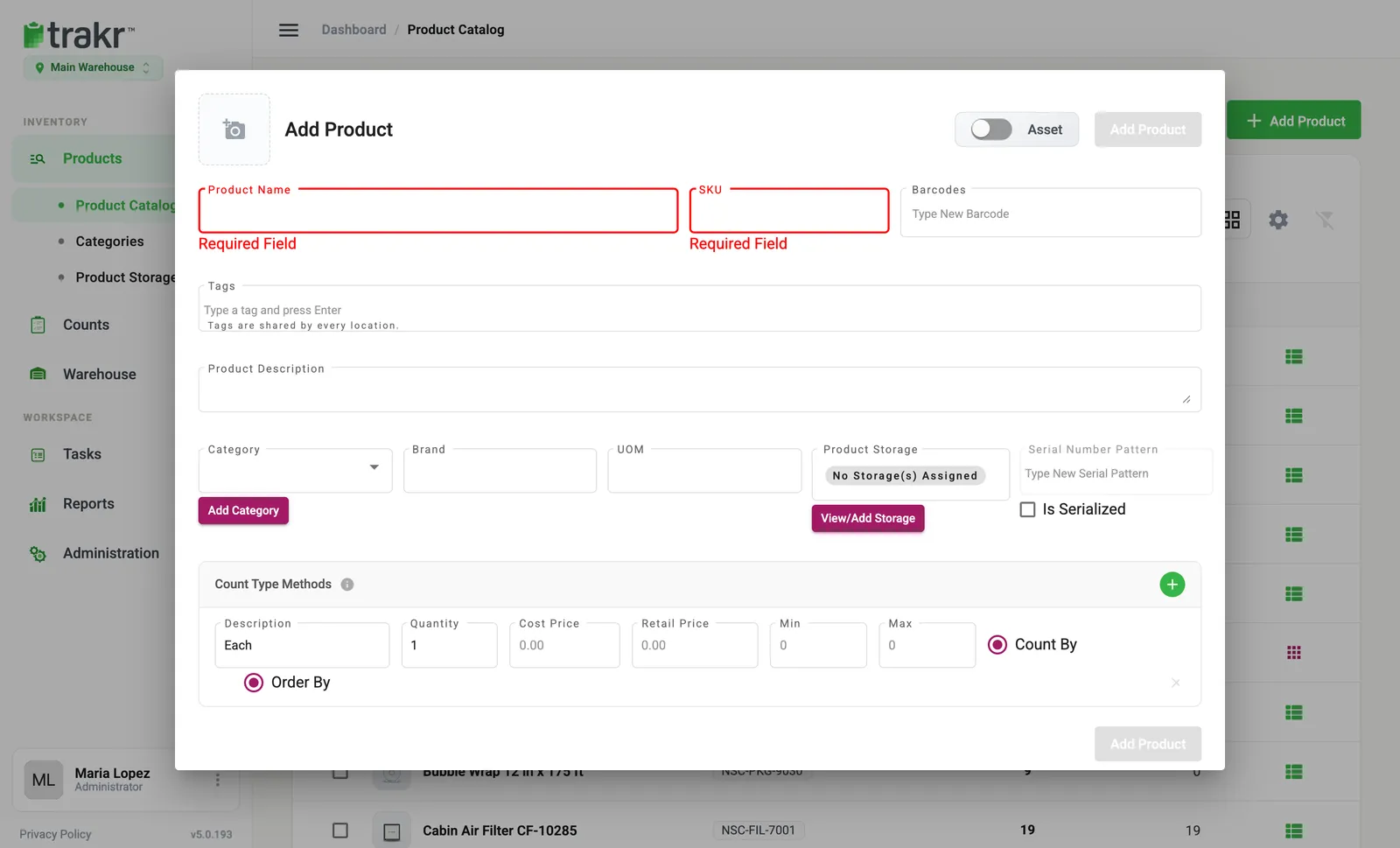
- Open Products > Product Catalog and click Add Product.
- Choose Add New Product in the chooser.
- Switch on Asset, at the top right of the dialog. A new Asset Number field appears next to the product name. Hover over the switch to read “This is an Asset (checked out and returned)”.
- Type the Product Name, for example “Cordless Drill 20V Kit”.
- Type the Asset Number, for example NS-AST-001. It is required, and it must be unique. If another product already uses it, Trakr Inventory tells you which one.
- Check the SKU. If it is empty, Trakr copies the Asset Number into it. You can change it.
- Pick a Category and Brand if you use them. Everything else is optional.
- Under Product Storage, click View/Add Storage and choose where the asset lives, for example Tool Crib > Cabinet TC-1. An asset has one storage. If you pick more than one, only the first is kept.
- Click Add Product.
- 3Asset
- 8View/Add Storage
- 9Add Product
The new asset appears in the Product Catalog with an Asset badge next to its name.
Good to know
- Quantity is fixed at 1 in the Count Type Methods row. Each asset is its own record.
- Storage is optional when you save, but required to lend. The Check Out tab shows “Storage location required” until the asset has a storage with stock.
- You can add a photo, barcodes and tags as with any product. See Product barcodes.
- To label your equipment, open the asset’s Check Out / Return dialog and click the print icon (shown when printing is set up for your location). It offers Print Asset Label with your label templates. The Asset Number is also available as a field in the Label Designer.
- You can search for one quickly: on the Products page, set Type to Assets only.
Common questions
Can I change a product into an asset later?
No. The Asset switch is locked after the product is created, and Trakr will not convert an existing product to an asset or an asset to a normal product. Add a new product with the Asset switch on.
Why is the quantity always 1?
When you add an asset, its quantity is fixed to 1: each tool or device gets its own entry and its own Asset Number. If you hold several identical units, use Adjust Stock on the asset later to set the total.
Can I import many assets at once?
Yes. The product import has Is Asset and Asset Number columns. Each Asset Number must be unique, and an asset can only have one storage, so only the first storage path in a row is used.
Can I save an asset without a storage?
Yes, but you cannot check it out until it has a storage with stock. Edit the product and assign a storage first.
Related articles
Was this article helpful?
Thanks, that helps us keep the guides honest. Need more help? Contact us