
Welcome to Trakr Inventory: how it all fits together
Meet Trakr Inventory in five minutes: the web app, the mobile app, and how products, locations and counts work together to keep stock accurate.
On this page Two tools, one set of numbers
Trakr Inventory helps you know exactly what you have, where it is, and when to reorder. This page gives you the whole picture in five minutes, so every other article makes sense.
Two tools, one set of numbers
Trakr has two parts that share the same data:
| The web app | The mobile app | |
|---|---|---|
| What it is | The website you open on a computer | The Trakr Inventory app on a phone or scanner |
| Best for | Setting up, reviewing, reporting, managing people | Counting, scanning, receiving and picking on the floor |
| Who uses it most | Admins and managers | Anyone on your team |
Anything your team does in the app shows up in the web app. Read more in Use the web app with the mobile app.
The building blocks
- Products are the things you stock. Each has a name, a SKU or barcode, and a quantity. Your full list is the Product Catalog.
- Locations are your sites, such as a warehouse or a store. Each location keeps its own stock.
- Areas are named places inside a location, like a shelf, a cooler or an aisle.
- Counts are how you check what is really on the shelf.
New to the words? The glossary explains every term in one line.
How stock stays accurate
- Set up your products, locations and team in the web app.
- Count with the app. Your team scans or types the real quantities.
- Review the count under Counts > Draft Counts. A draft does not change stock yet, so you can check it first.
- Finalize it. Your on-hand quantities update, and the count moves to Finalized Counts.
- Keep it current with Receiving when stock arrives and Picking when stock leaves.
Where you land
When you sign in you arrive at the Dashboard. It shows your product and category totals, counts in progress, the last 24 hours of activity, and which items need attention.
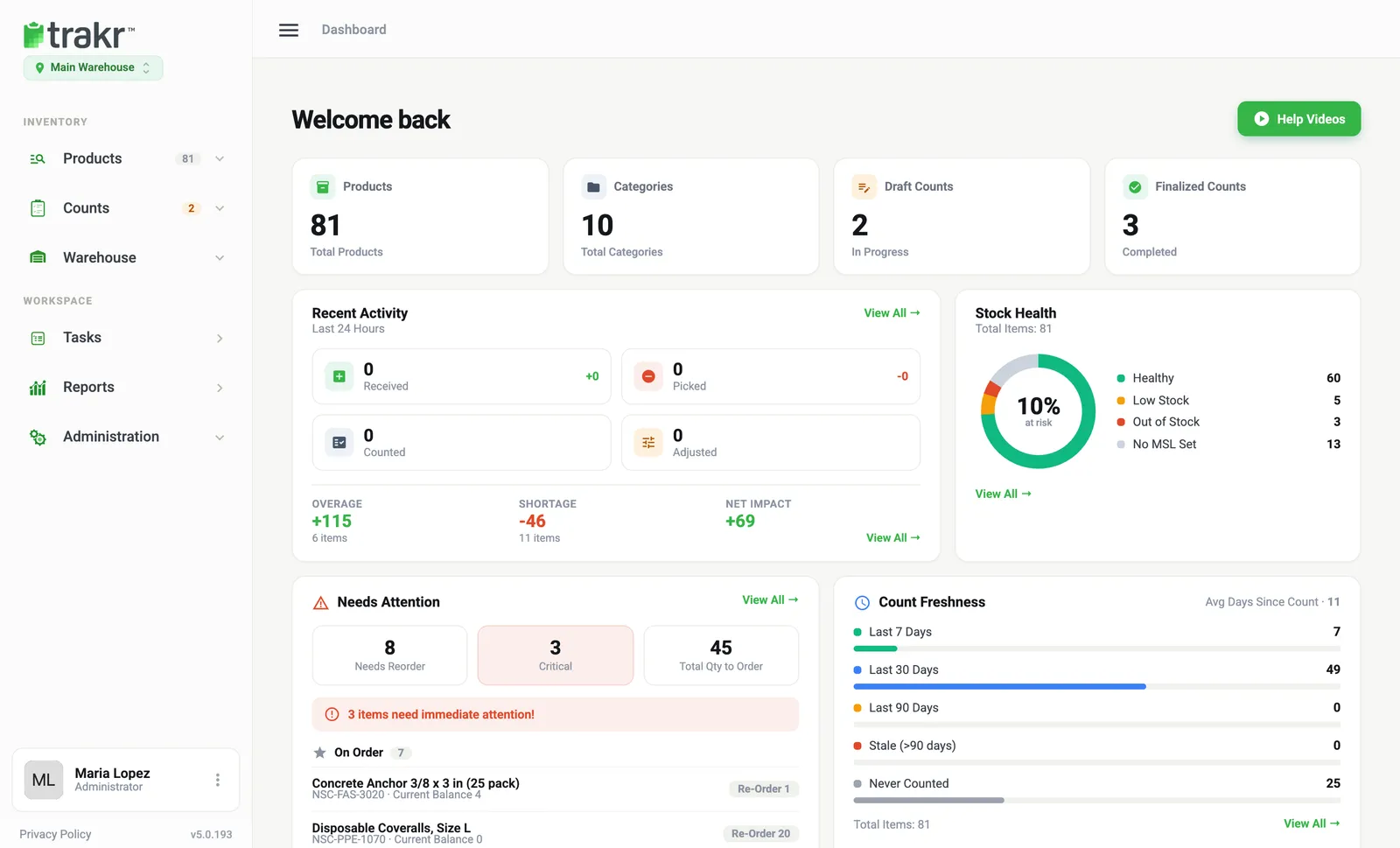
- 1Location switcher
- 2Side menu
- 3Help Videos
- The location switcher sits under the Trakr logo. It appears when your company has more than one location.
- The side menu is split into Inventory (Products, Counts, Warehouse) and Workspace (Tasks, Reports, Administration).
- Help Videos opens short walkthrough videos.
What to do next
- Follow the 30-minute setup checklist to get your first count done today.
- Prefer to look around first? Take the quick tour.
- Can’t find something? Try Where do I find it?
Common questions
Do I need the mobile app to use Trakr?
You can manage everything in the web app, but counting is done in the Trakr Inventory app. The app is where your team scans and counts. The web app is where you review the results.
Does counting change my stock straight away?
No. A count arrives in the web app as a draft. Your on-hand quantities only change when a manager finalizes it.
Can I use Trakr for more than one site?
Yes. Each site is a location with its own stock. If your company has more than one, a location switcher appears under the Trakr logo.
Related articles
Was this article helpful?
Thanks, that helps us keep the guides honest. Need more help? Contact us