
A quick tour of the Trakr web app
Learn what is in the side menu, how to switch location, change language or theme, and reach your profile, in about two minutes of reading.
On this page The side menu
Everything in Trakr is reached from one side menu. This tour shows what each part is for, so you can move around with confidence.
The side menu
The menu on the left has two groups.
Inventory is for the stock itself:
- Products: Product Catalog, Categories and Product Storage.
- Counts: Draft Counts (counts waiting for review) and Finalized Counts (approved counts).
- Warehouse: Picking, Receiving and Pick Lists.
Workspace is for running the business:
- Tasks: work assigned to people.
- Reports: all your reports in one place.
- Administration: Users, Locations, Settings, Integrations and Label Designer.
Click a group with an arrow to open it. The numbers next to Products and Counts show how many products you have and how many counts are in progress.
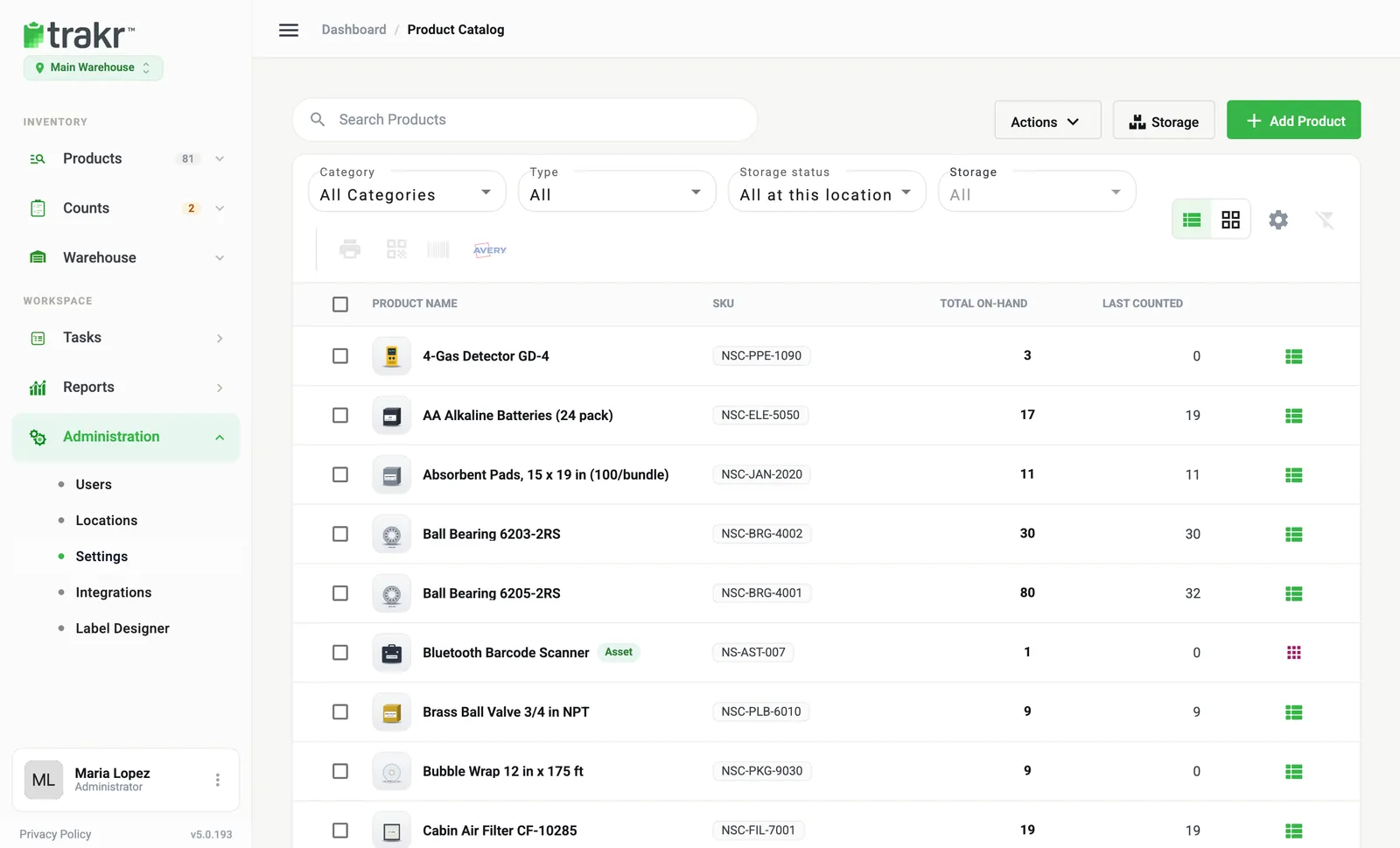
- 1Location switcher
- 2Inventory group
- 3Your user menu
The top and bottom of the menu
- Location switcher. Under the Trakr logo you see your current location, for example Main Warehouse. If your company has more than one, click it to switch. Everything you see afterwards is for that location. See Switch between locations.
- The Trakr logo takes you back to the Dashboard from anywhere. The breadcrumb at the top (such as Dashboard / Product Catalog) shows where you are.
- Your user card sits at the bottom. Click it to open your user menu.
Your user menu
Click your name at the bottom of the menu to find:
- A light and dark theme switch.
- A language selector.
- Profile: your name, phone, time zone and photo. You can also change your password there.
- Contact support: send a message to the Trakr team. See How to contact support.
- Logout.
The menu button (three lines) at the top left folds the side menu to make more room.
Where to go next
- Looking for a specific task? Use Where do I find it?.
- Setting up for the first time? Follow the 30-minute checklist.
Common questions
Why is a menu item missing for me?
Menu items depend on your role and your company's settings. If you can't see something you expect, ask an admin to check your role.
Can I use the web app on a phone or tablet?
Yes, the web app adjusts to smaller screens and the menu slides in over the page. For counting and scanning, the Trakr Inventory app is the better tool.
Related articles
Was this article helpful?
Thanks, that helps us keep the guides honest. Need more help? Contact us