
How to record products picked or used
Take stock out in Trakr when it is used, sold or handed out: choose the product, pick the storage area and quantity, and on-hand drops straight away.
On this page Before you start
When someone takes stock, record it so the shelf count in Trakr Inventory still matches the shelf. Picking is how you do that.
Before you start
- You need access to Picking. If it is not in your menu, see Why can’t I see Picking or Receiving?.
- Check the location under the Trakr logo. Picking works on that location only.
Pick a product
- In the side menu, open Warehouse and select Picking. The Picked Products page opens.
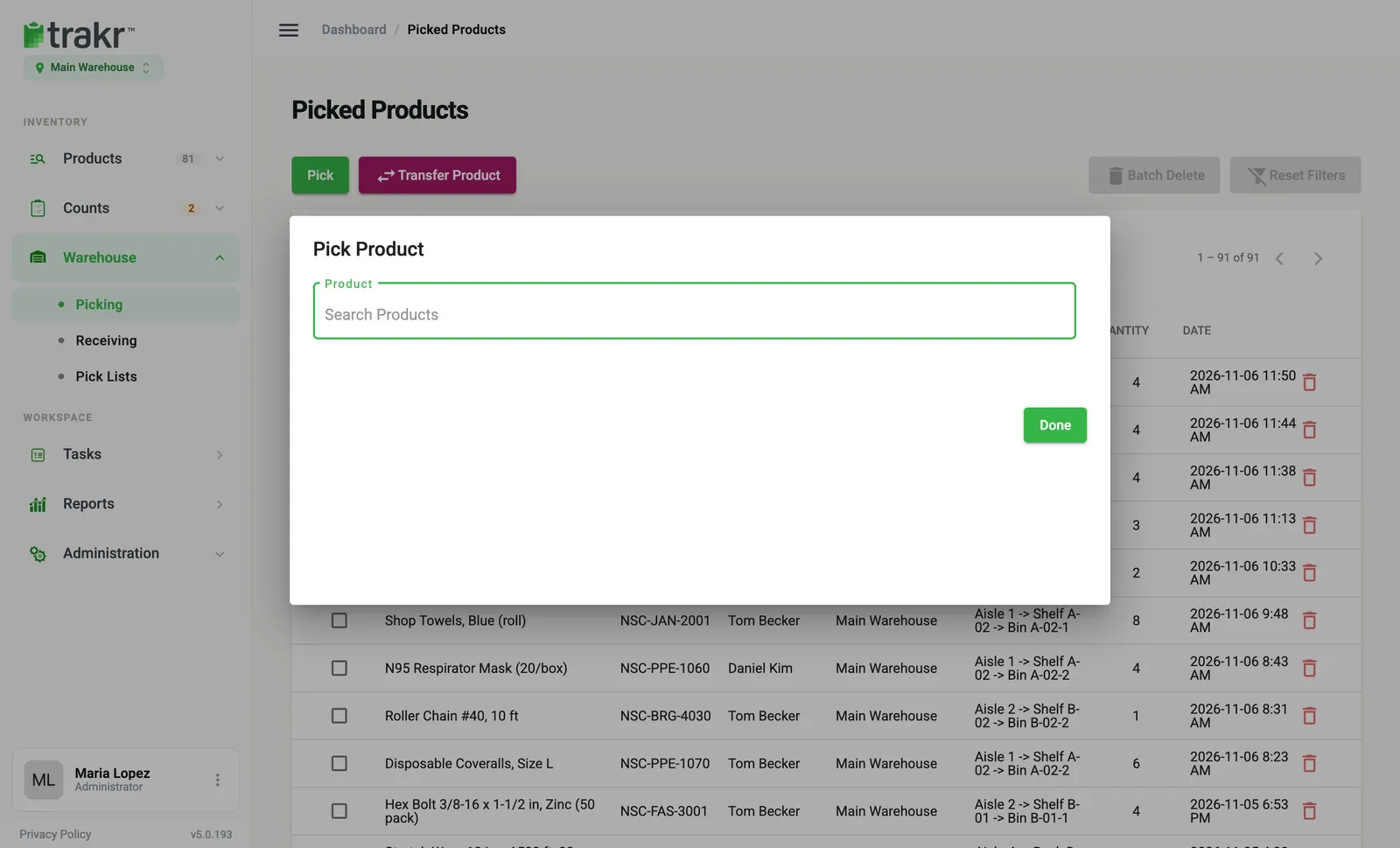
- Select the green Pick button. A dialog titled Pick Product opens.
- Select the Product field and type a name, for example “Hex Nut 3/8-16”. Choose the product from the list.
- Trakr lists every storage area that holds the product, with its Location, Storage and On Hand.
- On the row you are taking from, type the Quantity, for example 4. Add a note if you like.
- Select Pick on that row. The On Hand number on the row drops right away.
- Pick from other rows the same way, or select Done to close the dialog.
- 3Product
- 7Done
The new entry appears at the top of Picked Products with the product, user, location, storage area, quantity and date.
Good to know
- Quantity must be more than zero.
- If you pick more than On Hand, Trakr warns you that the balance will be negative and asks you to confirm.
- If a teammate changed the same stock a moment ago, Trakr stops and shows the current on-hand so you can try again.
- Adjust sits next to Pick on each row. It does not record usage. It sets that storage area to exactly the number you type, which is handy when you know the shelf quantity is wrong. For a full recount, see Change a quantity.
Moving stock between locations
The Transfer Product button next to Pick moves stock to another location. It takes the stock out here and puts it in there in one step.
Undo a pick
Tick the entry and select Batch Delete, or select the red bin icon on the row. The quantity goes back into on-hand.
Common questions
What is the difference between Pick and Adjust?
Pick subtracts the quantity you type from what is in that storage area. Adjust replaces the on-hand number for that storage area with the number you type. Use Adjust to correct a wrong quantity, not to record usage.
What if I pick more than what is on hand?
Trakr asks you to confirm because the balance will go negative. Confirm only if you know the stock is really there and was never received.
I picked the wrong item. Can I undo it?
Yes. Tick the entry in Picked Products and select Batch Delete, or use the red bin icon on the row. The quantity goes back to on-hand.
Can I pick an asset?
No. Assets are checked out and returned instead. Trakr tells you if you try to pick one.
Related articles
Was this article helpful?
Thanks, that helps us keep the guides honest. Need more help? Contact us