
How to create and assign a task
Create a count, pick or receive task in the Trakr web app, set a priority and due date, and assign it to a team member in about a minute.
On this page Before you start
Create a task to give a specific job to a specific person, with a priority and a due date. It takes about a minute.
Before you start
You need administrator-level access. Team members without it do not see the Create Task button.
Create the task
- Select Tasks in the side menu, then select Create Task at the top right. A dialog opens.
- Choose a Task Type: Count, Pick or Receive. The selected type gets a coloured outline.
- Type a Task Name, for example “Receive PO-10244 - Harborview Packaging”. This is the only required field.
- Optional: add a Reference (PO#, Order#, etc.). It shows under the name in the task list and you can search by it.
- Choose a Priority: Low, Medium or High. Medium is selected for you.
- Optional: set a Due Date with the calendar button.
- Open Assign To and choose a team member, or leave it as Unassigned.
- Optional: add Notes, such as “Check the pallet labels”.
- Select Create Task. The dialog closes and the task appears in the list.
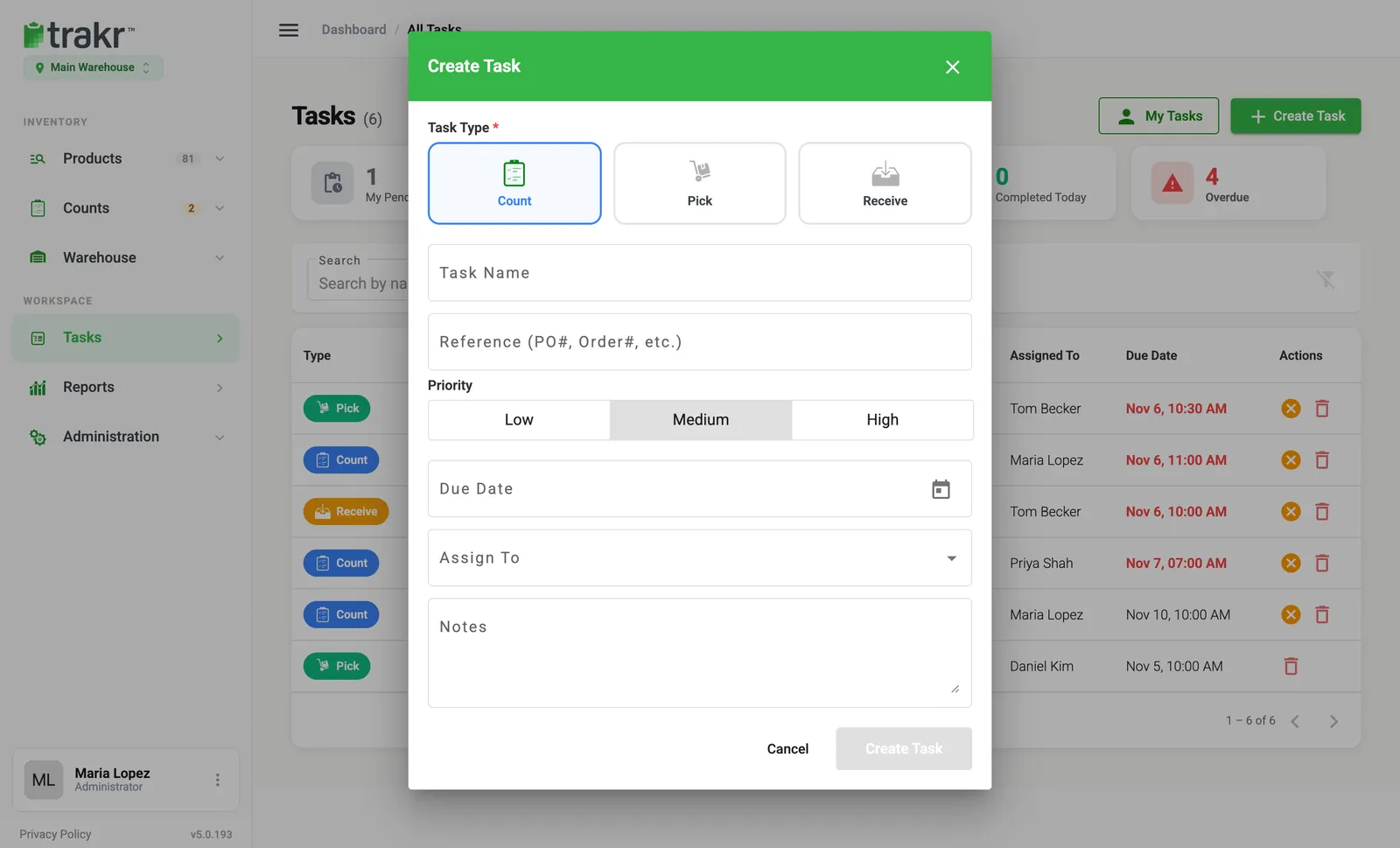
- 2Task Type
- 3Task Name
- 5Priority
- 7Assign To
- 9Create Task
Add the items
A new task starts with no items for a Pick or Receive. Open the task, select Add Item, then choose the product, its Storage Location and a Target Quantity. Do this for each line. For Count tasks, see How to assign a count to a team member.
Pick from a saved pick list
When you choose the Pick type, a Load from template (optional) field appears. Pick one of your saved pick lists to fill the items in for you. Templates are pick lists saved with Save as template turned on. See Create a pick list.
Good to know
- Assets cannot be added to tasks. Only regular products can.
- Adding the same product in the same storage location twice is not allowed.
- Nothing changes in your stock until the task is completed.
Next: Follow progress and close a task.
Common questions
Can I change a task after I create it?
Yes. Open the task, select the three-dot menu and choose Edit Task. You can change the name, reference, priority, due date, assignee and notes.
What does a blank Assign To do?
The task is saved as Unassigned. Anyone with access can claim it in the Trakr app.
Why is the Create Task button greyed out?
Task Name is required. Type a name and the button turns on.
Do I need to pick a location?
Only if you have more than one. In that case a Location field appears in the dialog.
Related articles
Was this article helpful?
Thanks, that helps us keep the guides honest. Need more help? Contact us