
How to assign a count to a team member
Give a count to someone on your team as a task, add the products to count, and review the result as a draft count once they finish.
On this page Before you start
Use a Count task when you want a specific person to count specific products, and you want to review the numbers before they touch your stock.
Before you start
You need administrator-level access. The person counting uses the Trakr Inventory app on their phone. If you want a count that nobody is assigned to, see How to start a count.
Set up the count task
- Select Tasks in the side menu, then Create Task.
- Keep Count selected as the Task Type.
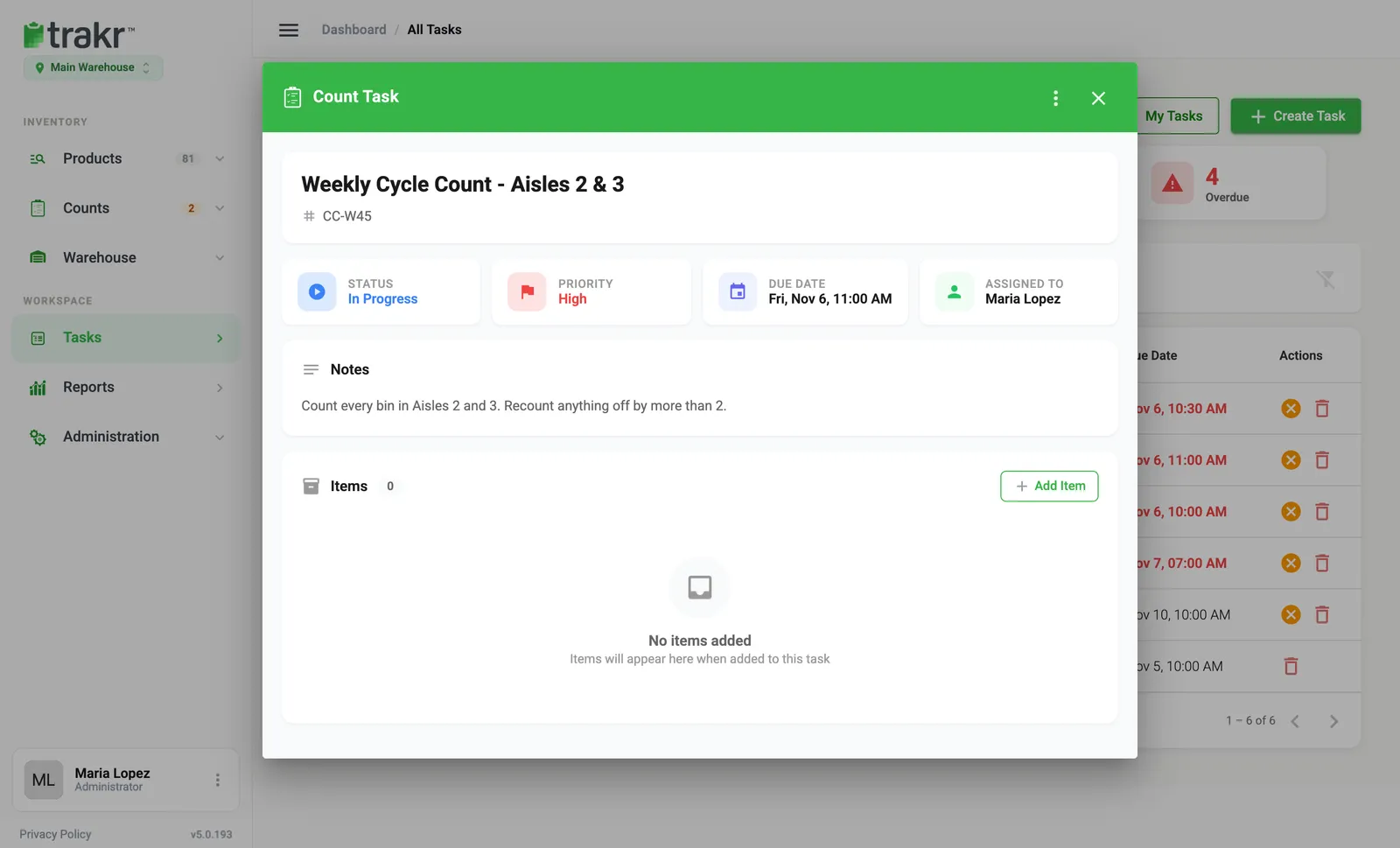
- Enter a Task Name that says what and where, for example “Weekly Cycle Count - Aisles 2 & 3”.
- Add a Reference if you use one, such as CC-W45.
- Choose a Priority, set a Due Date, and pick the counter under Assign To.
- In Notes, add instructions such as “Recount anything off by more than 2”.
- Select Create Task.
Add what to count
- Select the new task in the list to open it.
- Under Items, select Add Item.
- Choose the Product, its Storage Location, and an optional Target Quantity. The target is what the system expects, so the counter knows what to aim at.
- Repeat for each product or shelf you want counted.
- 2Add Item
What the counter does
The counter opens the task in the Trakr app, starts it, enters a quantity for each item and completes the task. See How staff see and complete tasks in the app.
Review the result
When the task is completed, Trakr creates a draft count from the quantities entered. Your on-hand numbers have not changed yet.
- Go to Counts > Draft Counts.
- Open the new count and check the numbers.
- Finalize it when you are happy. See Review a count.
Good to know
- Lines with no quantity entered are left out of the draft count.
- You can edit a Count task that is still Pending. Changing its scope replaces the items already on it.
- A task that is already done cannot be reopened. Create a new one if you need a recount.
Common questions
Does finishing a count task change my stock?
Not yet. Completing the task creates a draft count. Stock only changes when you finalize it under Counts > Draft Counts.
What if the counter skips a line?
Lines with no quantity entered are left out of the draft count.
Can I count assets with a task?
No. Assets cannot be added to tasks.
Related articles
Was this article helpful?
Thanks, that helps us keep the guides honest. Need more help? Contact us