
What are tasks and when to use them
Tasks let you hand out counts, picks and deliveries to your team, set a priority and due date, and see what is done. Learn when to use them.
On this page The three kinds of task
A task is a job you give to someone on your team, such as “count Aisles 2 and 3 by Friday”. Tasks keep work from slipping through the cracks: everyone knows what to do, and you can see what is finished.
- 1Create Task
The three kinds of task
When you create a task you pick one type. Each type matches a job you already do in Trakr.
| Type | Use it when | What happens when it is completed |
|---|---|---|
| Count | You want someone to count certain products or areas | The counted quantities arrive as a draft count, ready for you to review |
| Pick | You want someone to take products out of stock for an order or restock | The picked quantities are removed from stock |
| Receive | A delivery is coming and you want someone to book it in | The received quantities are added to stock |
Quantities only move when the task is completed. Lines with no quantity entered are skipped.
What a task holds
- A name and an optional reference, such as a PO or order number.
- A priority: Low, Medium or High.
- An optional due date and the person it is assigned to.
- Optional notes.
- A list of items (products and where they are stored) with a target quantity.
The life of a task
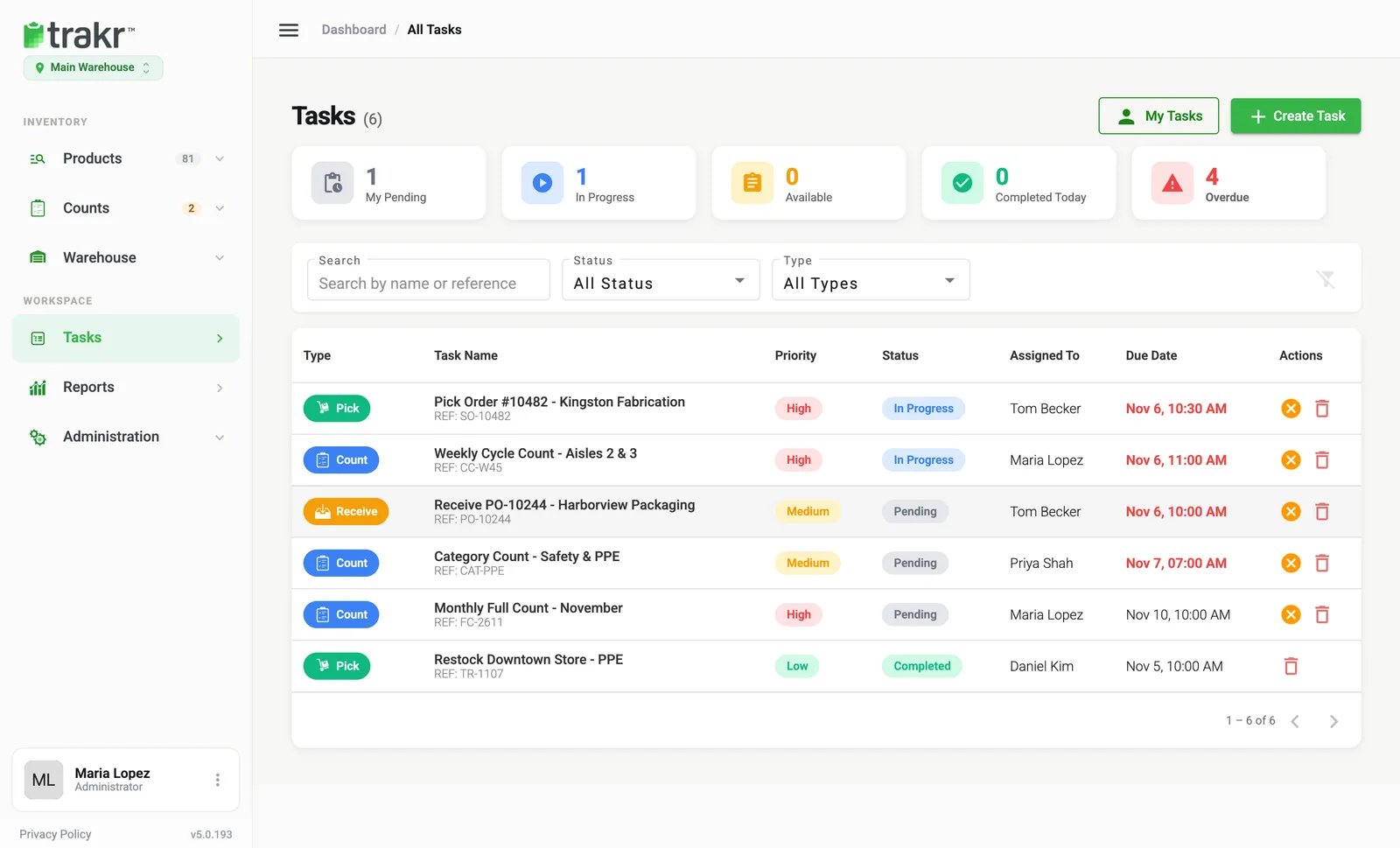
A task moves through these statuses: Pending (waiting to start), In Progress (someone has started it), then Completed. You can also cancel a task that has not been finished. Cancelled tasks stay in the list so you keep the history.
Who sees what
People with administrator-level access see every task at the current location, and can create, edit, cancel and delete them. Other team members only see the tasks assigned to them, and do their work in the Trakr Inventory app. See How staff see and complete tasks in the app.
Summary cards
The four cards at the top of the Tasks page give you a quick read: My Pending, In Progress, Available (unassigned tasks waiting for someone), and Completed Today. A red Overdue card appears when a task has passed its due date.
Ready to try one? Go to How to create and assign a task.
Common questions
Do I have to use tasks to count or receive stock?
No. Staff can still count, receive and pick on their own in the Trakr app. Tasks are for the times you want to give a specific job to a specific person and see when it is done.
Can a task be shared by the whole team?
Yes. Leave Assign To empty and the task shows as Unassigned. Anyone who can see it in the app can claim it.
Related articles
Was this article helpful?
Thanks, that helps us keep the guides honest. Need more help? Contact us