
How to follow progress and close a task
Find your tasks, check status and overdue work, open a task to see its items, then edit, cancel or delete it in the Trakr web app.
On this page Find a task
Check where every task stands, spot overdue work, and tidy up tasks you no longer need.
Find a task
- Select Tasks in the side menu.
- Use Search to look up a name or reference number.
- Narrow the list with Status (Pending, In Progress, Completed, Cancelled) and Type.
- Select My Tasks to see only the tasks assigned to you. Select Show All to go back.
- Select the filter icon at the right of the filters to reset them.
In the table, the Status badge tells you where each task is. A due date in red is overdue. The red Overdue card at the top counts them.
Open a task
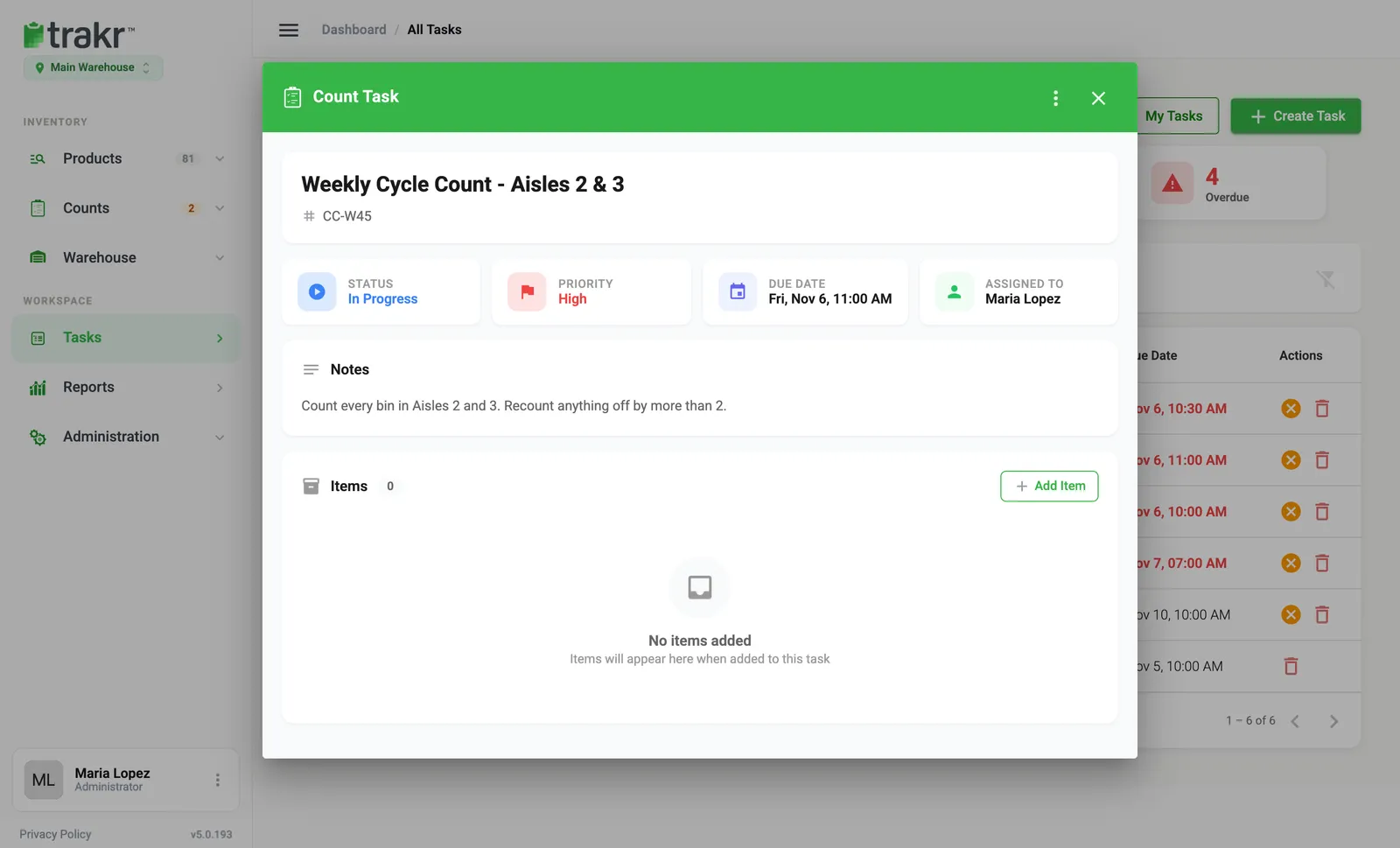
Select any row. The task opens in a dialog with its status, priority, due date, assignee and notes. Under Items you see each product, its SKU and storage path. As the counter or picker works, each line shows the quantity entered next to the target, for example 18 / 20. A tick marks a finished line.
Edit, print or delete
Select the three-dot menu at the top of the open task.
- Print Task gives you a printable sheet of the task.
- Edit Task lets you change the name, reference, priority, due date, assignee and notes.
- Delete Task asks you to confirm, then removes the task.
While a task is not finished, Add Item adds more lines and the x on a line removes it.
Cancel a task
In the list, select the orange cancel icon in the Actions column. Confirm, and the task becomes Cancelled. Use this when the job is no longer needed. The task stays in the list so you can still see it happened. Finished and cancelled tasks do not show the cancel icon.
Close a task
Tasks are completed by the person doing the work in the Trakr Inventory app. When they finish, the status changes to Completed, and the Completed Today card goes up.
- Pick and Receive: stock is updated right then.
- Count: a draft count is created. Review it under Counts > Draft Counts. See Review a count.
Common questions
What is the difference between cancel and delete?
Cancel marks the task as Cancelled and keeps it in your list for the record. Delete removes it from the list. Neither one changes your stock.
Why is a task date shown in red?
It is past its due date and the task is not finished yet.
Who completes a task?
The person it is assigned to, in the Trakr app. Completing it is what updates stock for Pick and Receive tasks.
Related articles
Was this article helpful?
Thanks, that helps us keep the guides honest. Need more help? Contact us